Add a synchronized translation line
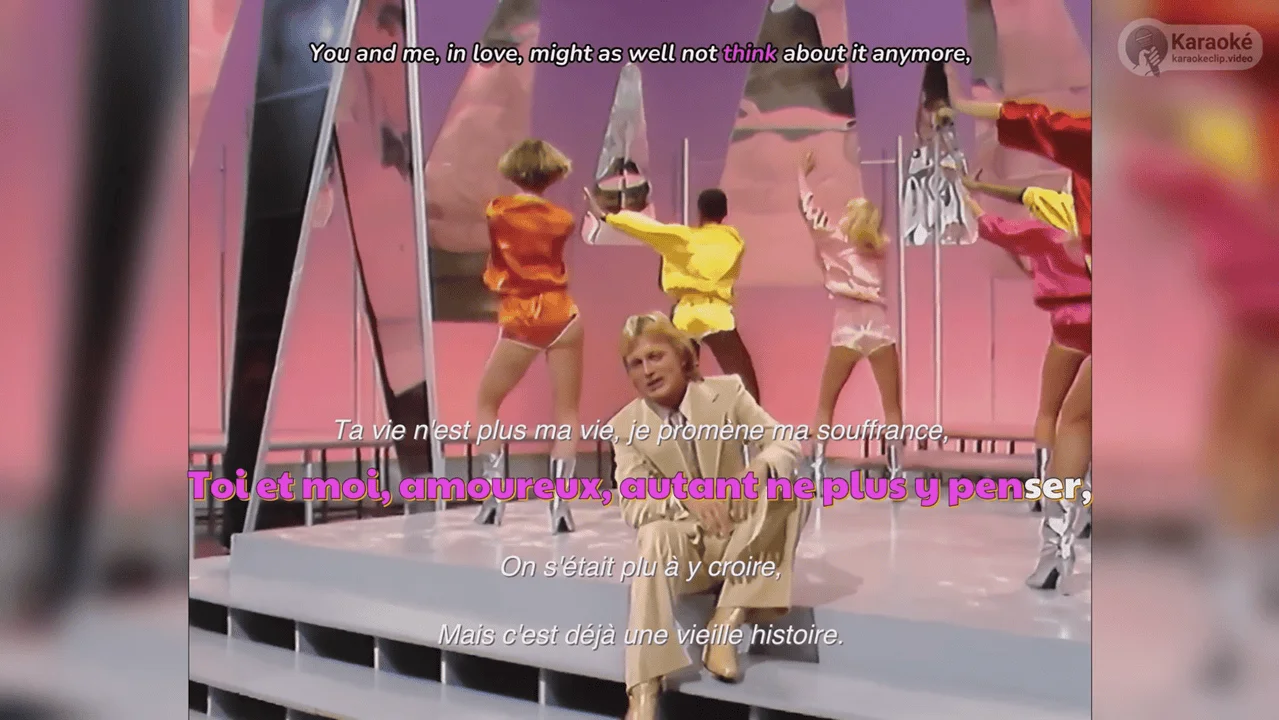
On top of the original karaoke subtitles, you can display a second subtitle line — a translation — in the language of your choice, also synchronized with the music. The viewer then reads two lines at once: the lyrics in the song's original language, and their translation, each perfectly in time with the voice.
The translation is available in more than 80 languages, from Albanian to Zulu (the full list is at the bottom of this page). Everything about the translated line is set in the Add a synchronized translation line section of the editor.
Watch a real example
In this clip of Claude François, the original French lyrics run along the bottom with the letter-by-letter karaoke effect (one active line plus three context lines, in classic rotation), while the English translation runs along the top with the word-by-word effect. A single video shows both effects at once:
Turning it on
The section starts collapsed, with a single switch:

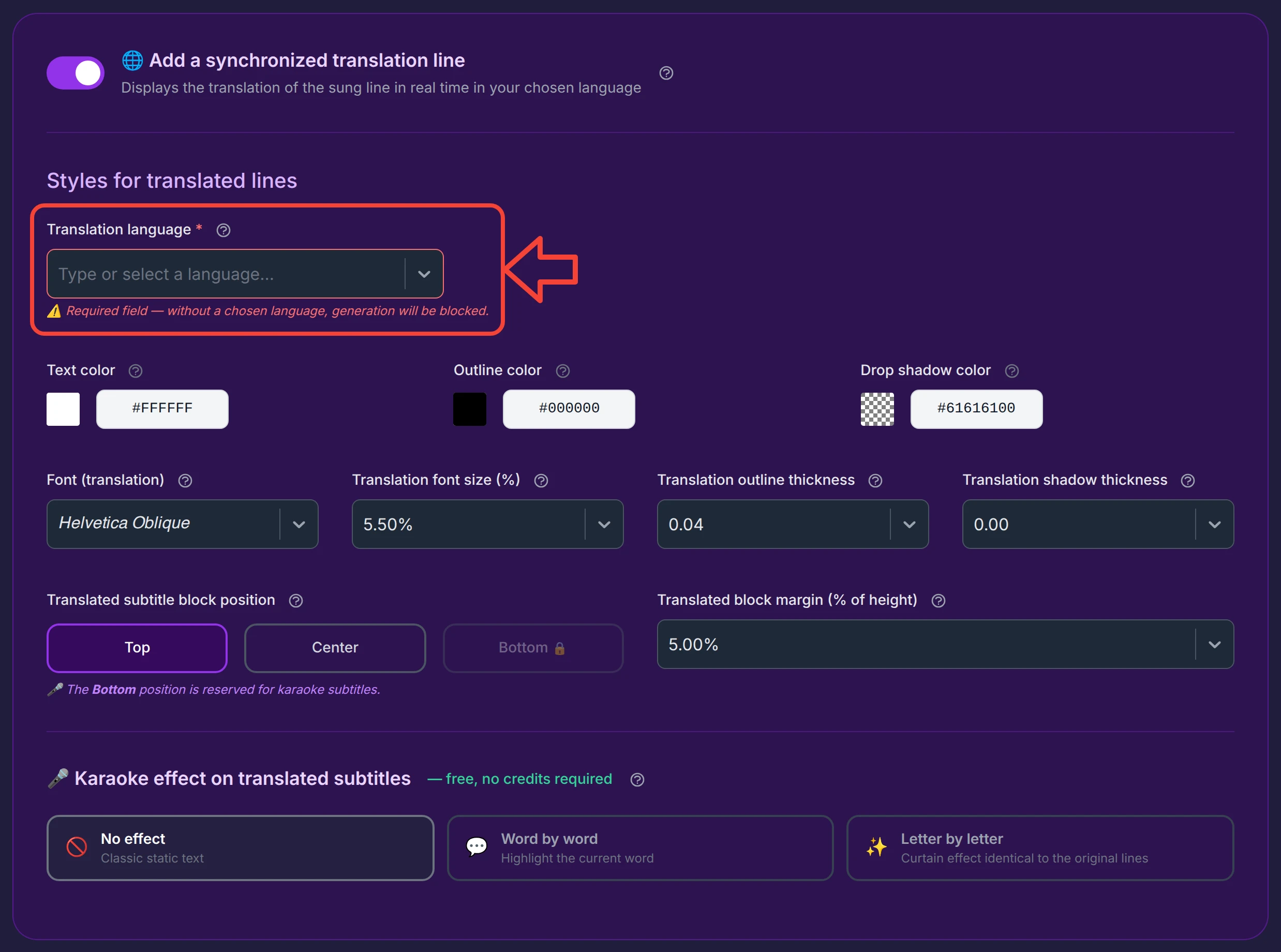
Flip the switch on and the whole section unfolds, revealing the language selector, the styling controls, and the karaoke effect for the translated line.
Producing a translation is an AI service billed 1 credit — but nothing is charged just by flipping the switch. The credit is taken only when you generate your first video with the translation, and only once per language. See When a credit is charged below.
Choosing the translation language
The Translation language field is required: as long as it's empty, generation is blocked and the field is outlined in red.
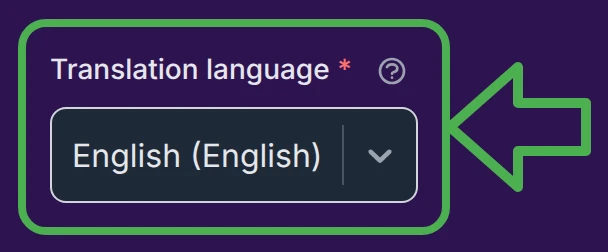
It's a type-or-select box: start typing (in Latin script or in the language's own script) to filter the list, or open the dropdown and browse. Languages are grouped by region and each name is shown as its localized name followed by its native spelling — so you always recognize your language whichever page language you're on.
See the full in-app language picker

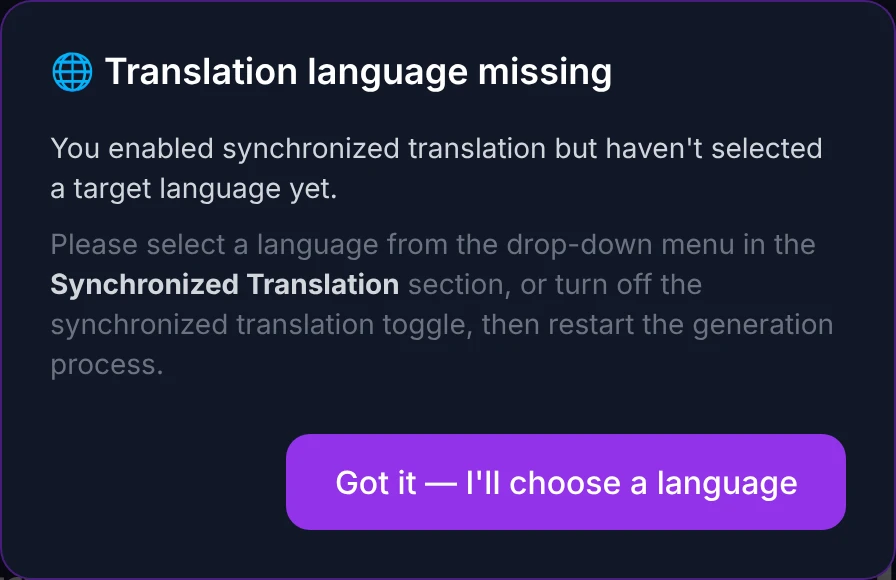
If you try to generate with the translation on but no language chosen, a reminder appears — pick a language, or turn the translation off, then start the generation again:
Editing the translation line by line
Once a first translation exists for the chosen language, a two-column editor appears — your translated lines on the left, the original lyrics on the right for reference — with two tabs at the top:
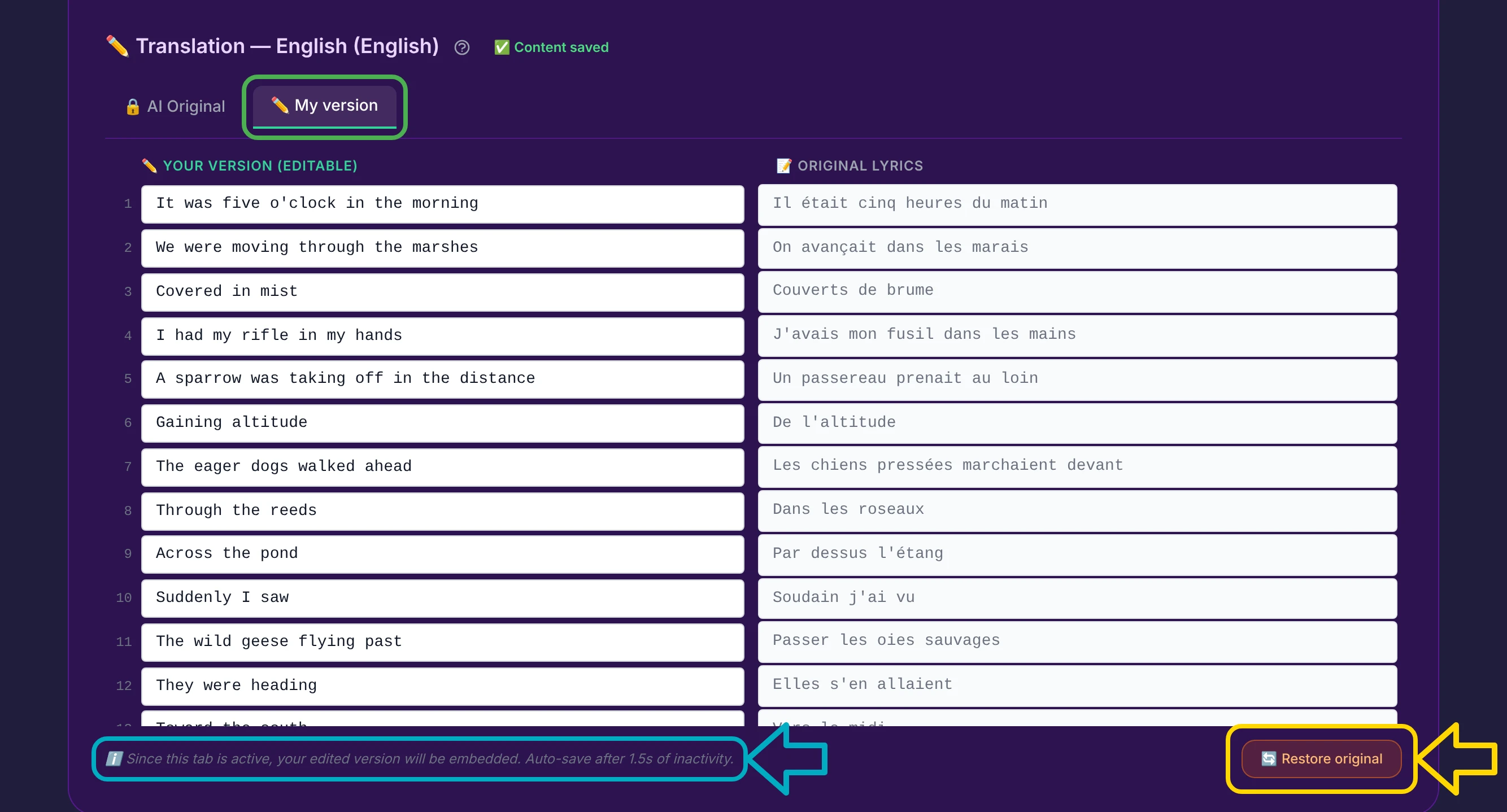
- ✏️ My version — your editable copy. Change any line to fine-tune the wording; there is no Save button — edits are stored automatically 1.5 seconds after you stop typing.
- 🔒 AI Original — the AI's original translation, shown locked (read-only) for comparison.
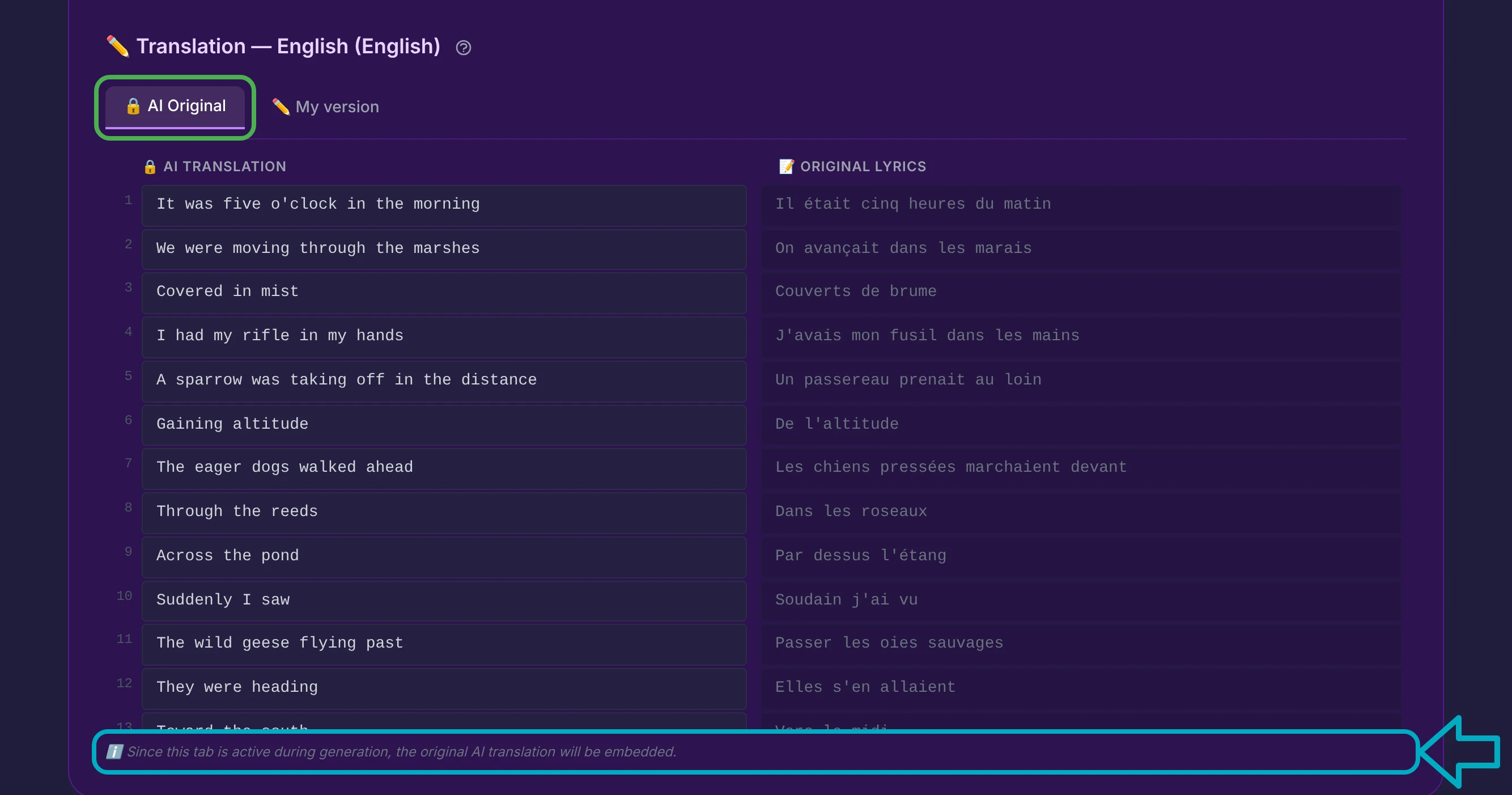
Whichever tab is active when you generate decides what ends up in the video: My version embeds your edits, AI Original embeds the untouched AI translation. Pick the tab you want before generating.
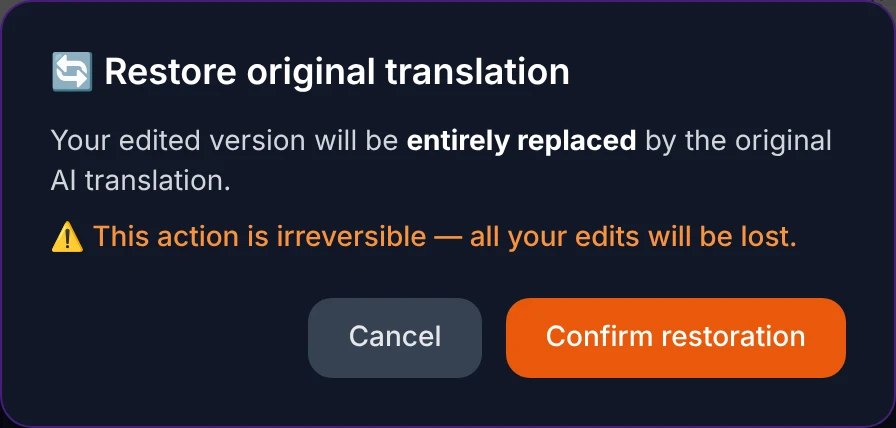
Need to undo all your edits? Restore original replaces your edited version with the AI's original translation. It's irreversible, so a confirmation is asked first:
Working with several translations
You're not limited to one language. Each successful translation adds a badge under the selector, and you can keep several in the same session:
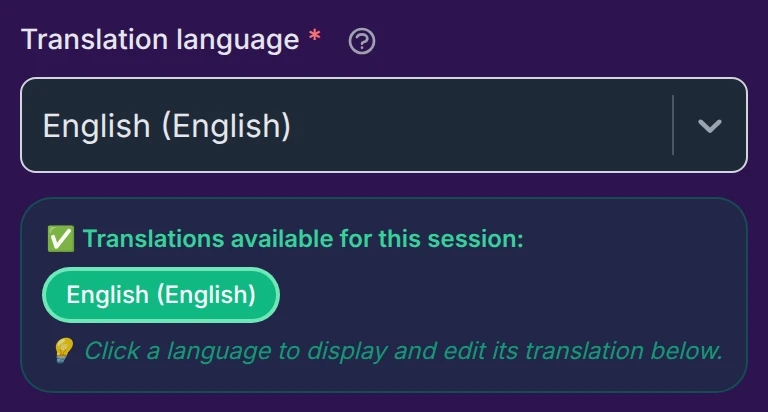
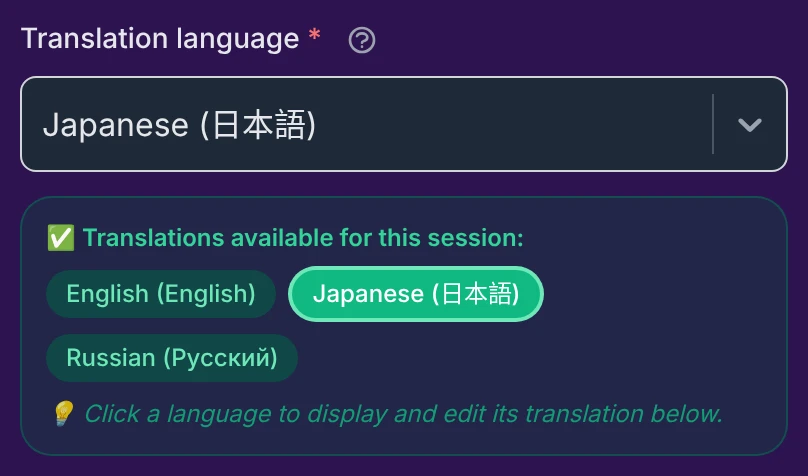
Click a badge to display and edit that translation, then generate. Because each translation is kept, you can produce several finished videos, each with a different translation — handy if you want the same video in English, Japanese and Russian. (Each successful translation costs 1 credit. And if you need more than the two full videos included, optional bundles of two full videos can be purchased — see Generating a video.)
Changing the language
Switching to a language you haven't translated yet requires a fresh AI call, so it costs 1 additional credit. A warning lets you decide before anything is charged:
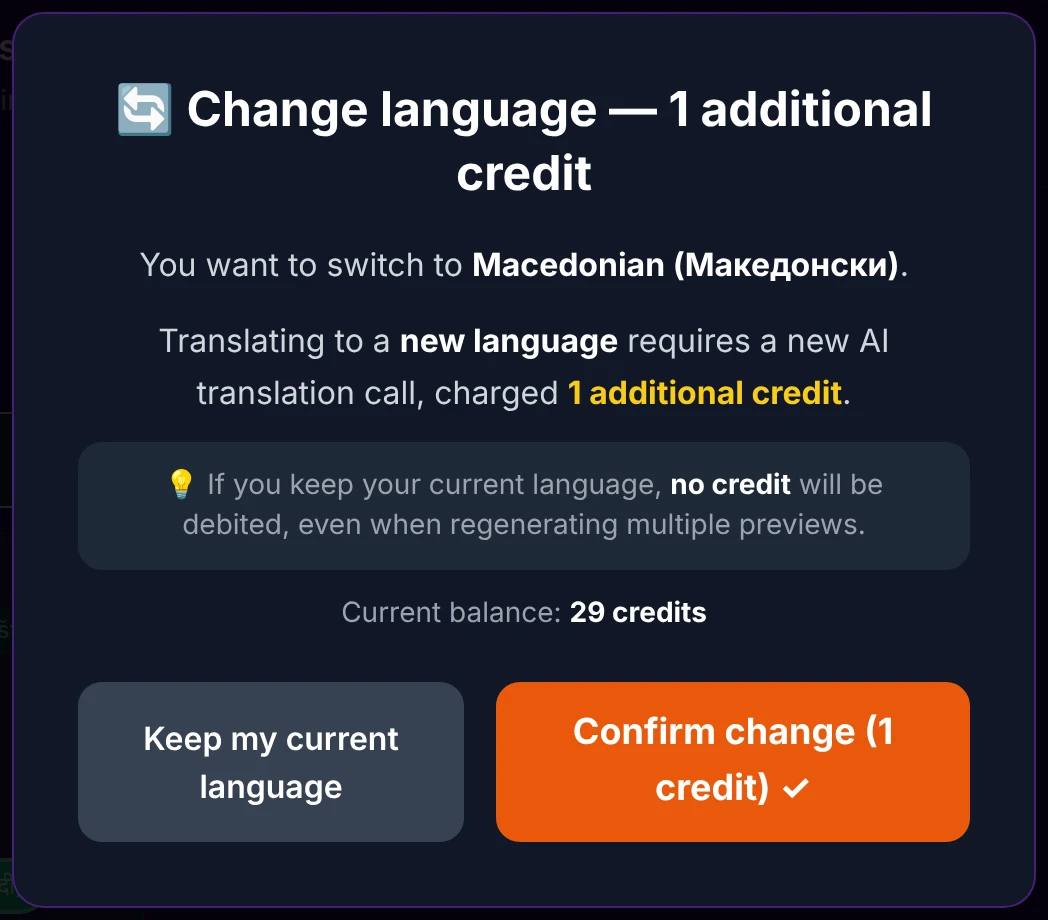
Your previous translation isn't lost: it stays cached for the session, so if you switch back to a language you already translated, you get your edited version straight back at no extra cost.
Styling the translated line
The translated line has its own independent styling — colors, font, sizes, position and margin — so it can look distinct from the karaoke line.
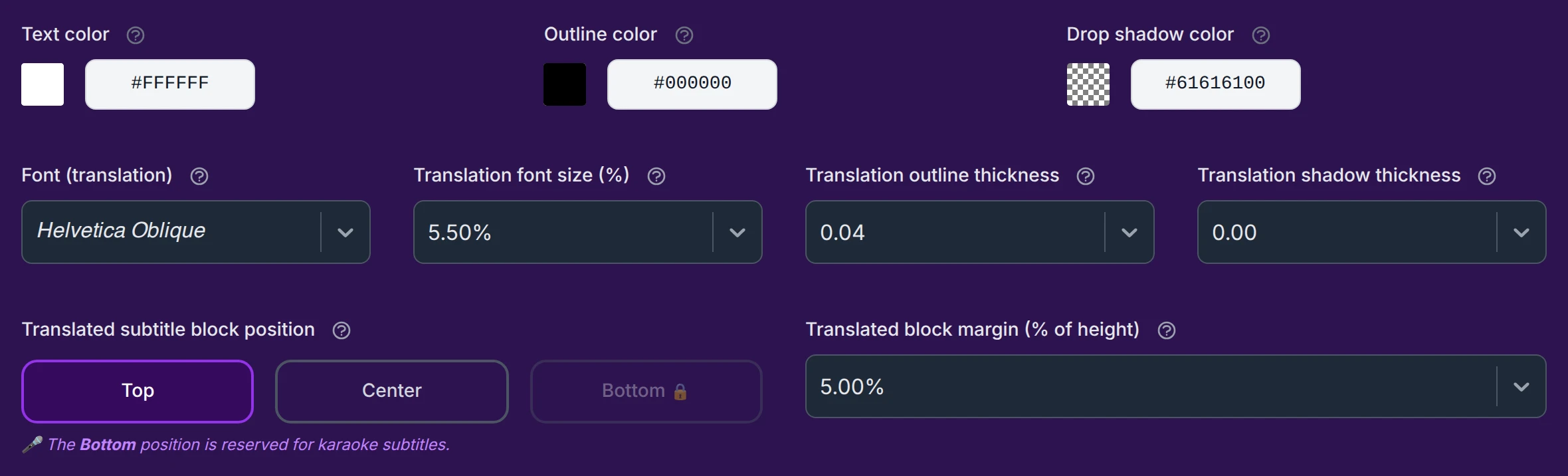
These controls work exactly like the ones for the static lines on the Subtitles page — same meaning, separate values — so rather than repeat them here, follow the links:
- Text, Outline and Drop-shadow colors (defaults: white
#FFFFFF, black#000000, transparent grey#61616100) — see Colors of the static lines. Like the static lines, the translated line carries no effect by default, so it has three colors, no "sung" color. - Font, Translation font size, Outline thickness, Shadow thickness (defaults: Helvetica Oblique, 4.50%, 0.06, 0.04) — see Font and size. Every value is proportional, so it holds up at any resolution.
Where the translated block sits
Translated subtitle block position places the translation at the Top, Center or Bottom of the frame (default Top), with a block margin (default 5%) measured from the nearest edge.
Because the karaoke subtitles and the translation are two separate blocks, an anti-collision lock stops them from landing on the same spot: the position already taken by the other block shows a lock (🔒) — here, "The Bottom position is reserved for karaoke subtitles." To swap them, move one block to a free position first, then the other. This is the same mechanism described from the other side in the Subtitles page.
The karaoke effect on the translated line
The translated line can carry the same karaoke effects as the original — and this part is free, no credits required. Three choices:

- No effect — plain static translated text, no color sweep.
- Word by word — the current translated word is highlighted as it's sung (social-media style).
- Letter by letter — the curtain effect, identical to the original karaoke lines.
Each effect has the same sub-settings as on the original lines (current-word color, zoom, current-word font for Word by word) — see The karaoke effect for the full explanation.
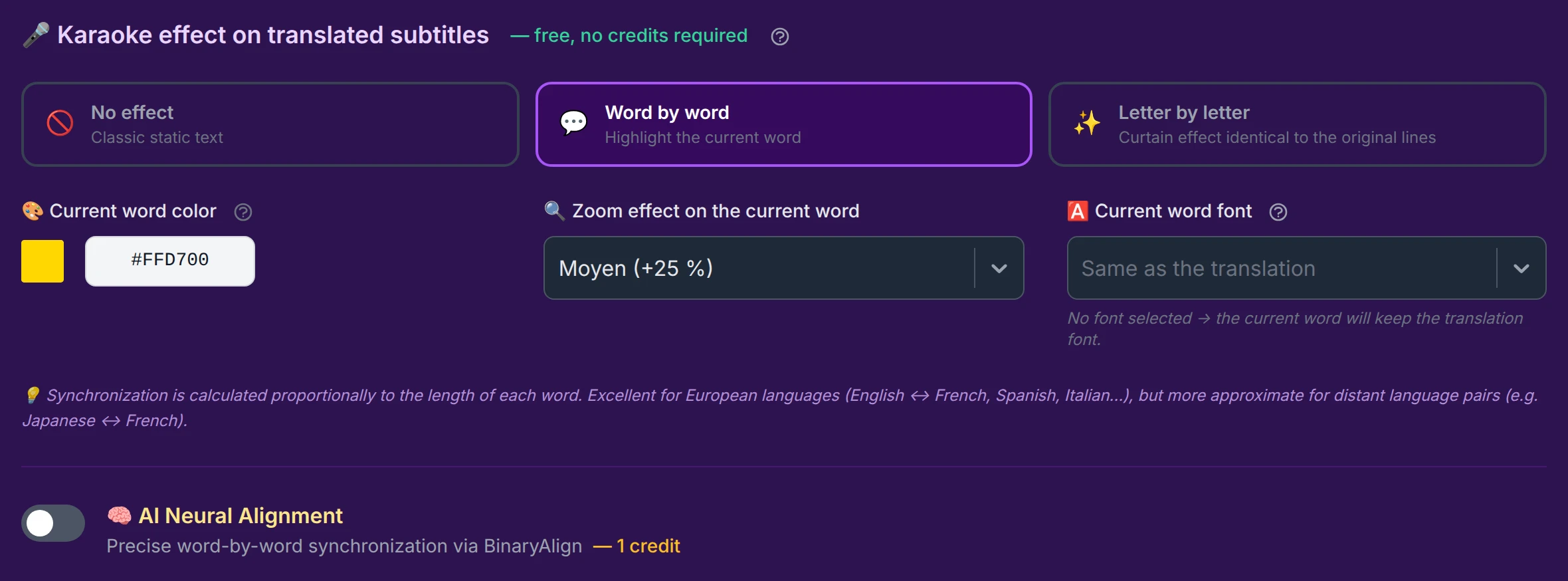
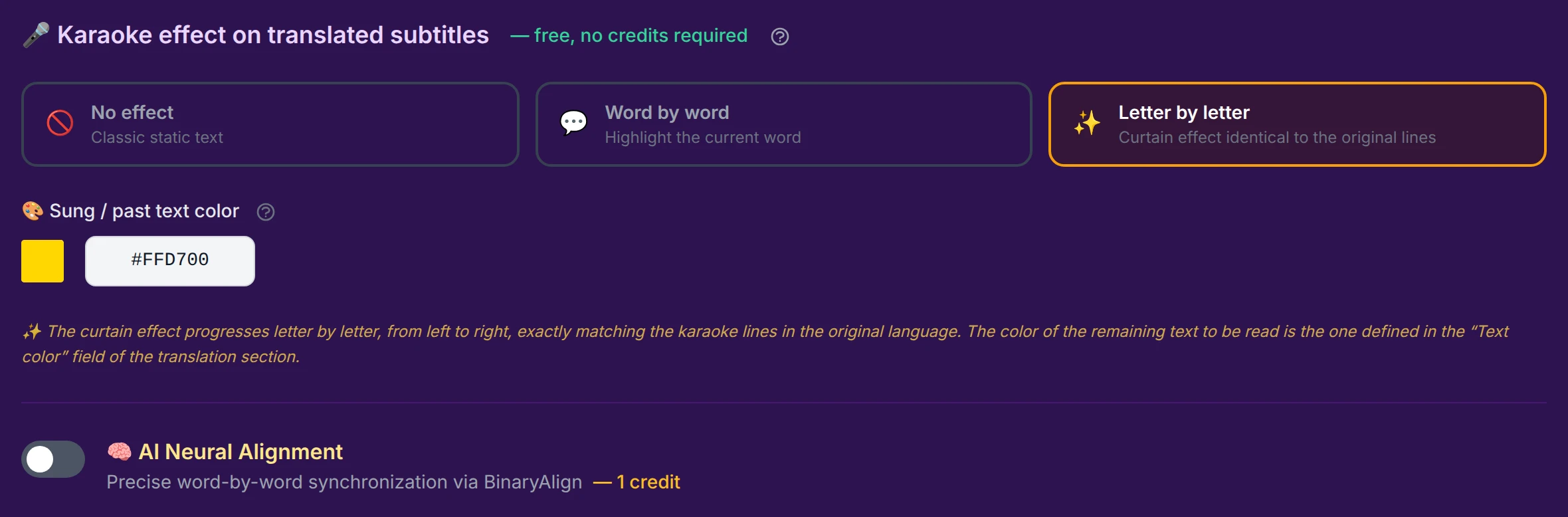
With a karaoke effect on, each translated word needs its own moment in the music. By default this is worked out proportionally to the length of each word — instant, free, and excellent for close language pairs (English ↔ French, Spanish, Italian…), but more approximate when the two languages are structurally distant (say, Japanese ↔ French), where word order and word count differ.
When you want each translated word placed with maximum precision, turn on 🧠 AI Neural Alignment — the option that appears just below the effect (visible only with Word by word or Letter by letter). It's a paid, one-credit upgrade covered on its own page: AI Neural Alignment.
When a credit is charged
The very first time you enable the translation in a session, a modal spells out the deal — no hidden debit:
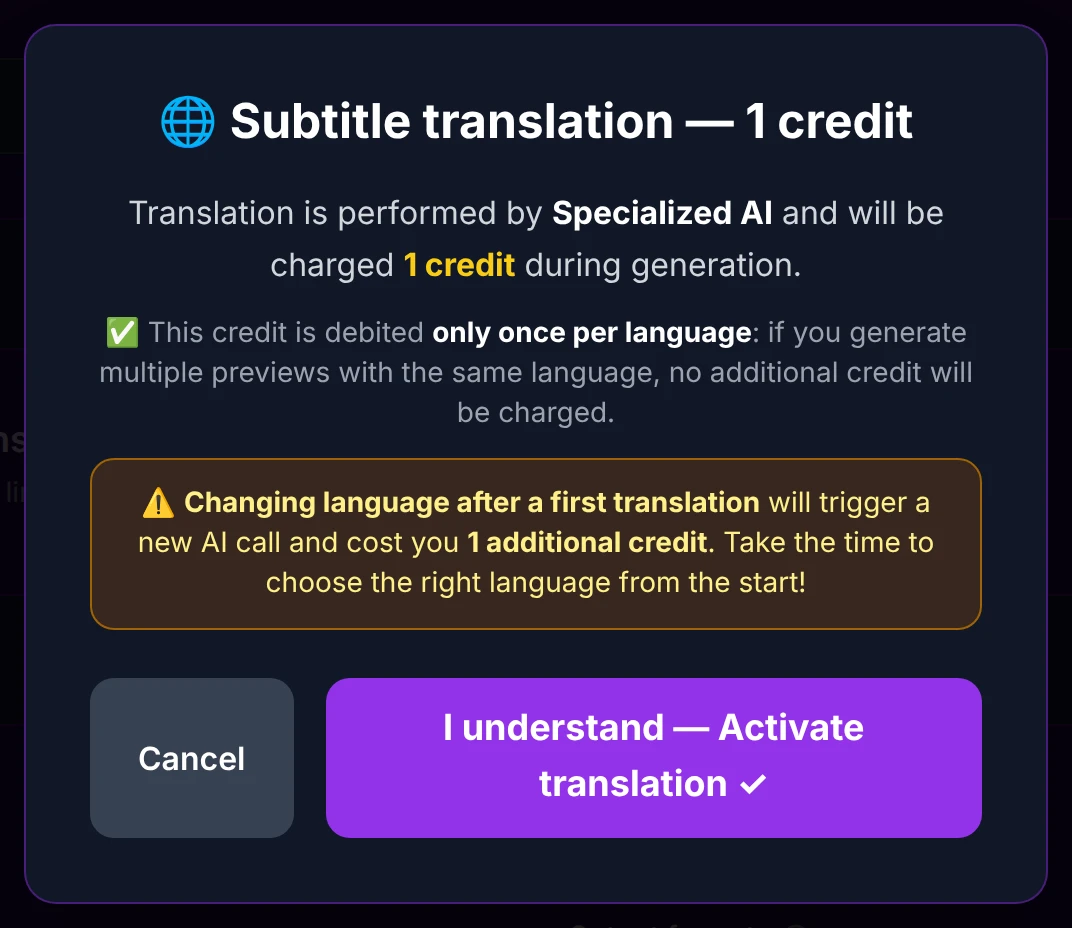
- The translation is billed 1 credit, taken only on the first successful generation with that translation.
- It's charged once per language — regenerating as many videos as you like (previews and/or full videos) in the same language costs nothing more.
- Just before that first generation, a short confirmation recalls the debit and your balance:
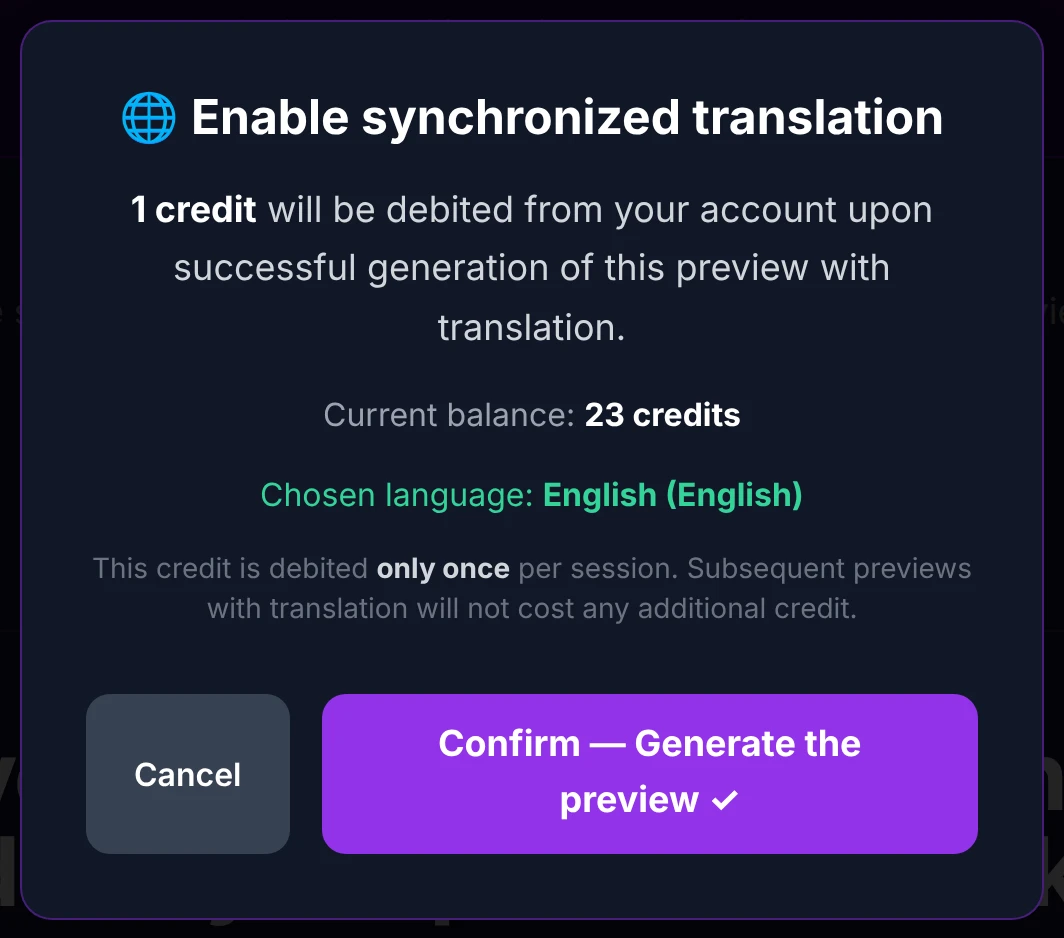
There is no button to launch the translation — you enable it, choose a language, and it's produced automatically at the start of your next generation (preview or full video). If the translation can't be produced, no credit is taken.
Impact on the preview
When the translation is on, the preview duration is fixed to 45 seconds (the slider is locked), so you always see a long enough stretch to judge how the synchronized translation actually reads on screen:
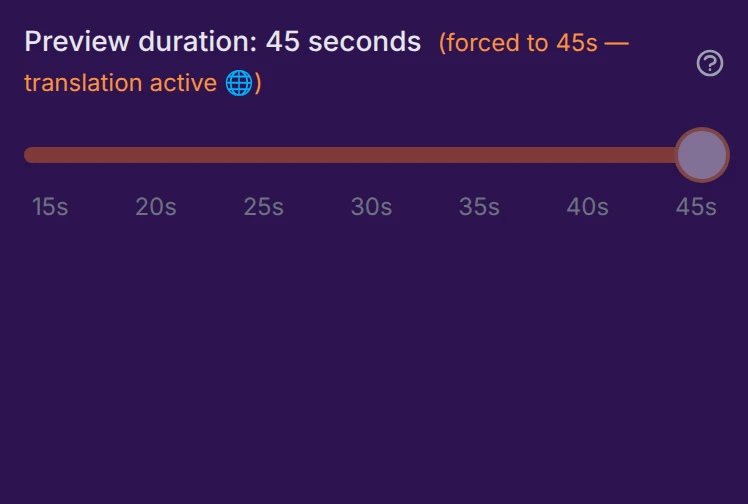
More on preview length and options on the Preview settings page.
Getting the best synchronization
The translated line reuses the word-by-word timings of your original-language subtitles, so its synchronization is a faithful mirror of the original's. Perfectly timed original → perfectly timed translation. The best investment for a flawless translated karaoke is therefore to nail the timing of the original line first, in the waveform editor.
For maximum precision on the translated words themselves — especially across distant language pairs — see AI Neural Alignment.
Available translation languages
The translation is offered in more than 80 languages, grouped by region. On this page they appear in your own language, with each language's native spelling in parentheses.
🌍 Europe
- Albanian (Shqip)
- Basque (Euskara)
- Belarusian (Беларуская)
- Bosnian (Bosanski)
- Bulgarian (Български)
- Catalan (Català)
- Croatian (Hrvatski)
- Czech (Čeština)
- Danish (Dansk)
- Dutch (Nederlands)
- English (English)
- Estonian (Eesti)
- European Portuguese (Português (Portugal))
- Finnish (Suomi)
- French (Français)
- Galician (Galego)
- German (Deutsch)
- Greek (Ελληνικά)
- Hungarian (Magyar)
- Icelandic (Íslenska)
- Irish (Gaeilge)
- Italian (Italiano)
- Latvian (Latviešu)
- Lithuanian (Lietuvių)
- Luxembourgish (Lëtzebuergesch)
- Macedonian (Македонски)
- Maltese (Malti)
- Norwegian Bokmål (Norsk Bokmål)
- Polish (Polski)
- Portuguese (Português (Brasil))
- Romanian (Română)
- Russian (Русский)
- Serbian (Srpski)
- Slovak (Slovenčina)
- Slovenian (Slovenščina)
- Spanish (Español)
- Swedish (Svenska)
- Turkish (Türkçe)
- Ukrainian (Українська)
- Welsh (Cymraeg)
- Yiddish (יידיש)
🌏 East Asia & Pacific
- Burmese (မြန်မာဘာသာ)
- Chinese (Taiwan) (中文(繁體))
- Chinese (中文(简体))
- Filipino (Filipino)
- Indonesian (Bahasa Indonesia)
- Japanese (日本語)
- Khmer (ភាសាខ្មែរ)
- Korean (한국어)
- Lao (ລາວ)
- Malay (Bahasa Melayu)
- Mongolian (Монгол)
- Thai (ภาษาไทย)
- Vietnamese (Tiếng Việt)
🌏 South Asia
- Bangla (বাংলা)
- Gujarati (ગુજરાતી)
- Hindi (हिन्दी)
- Kannada (ಕನ್ನಡ)
- Malayalam (മലയാളം)
- Marathi (मराठी)
- Nepali (नेपाली)
- Odia (ଓଡ଼ିଆ)
- Punjabi (ਪੰਜਾਬੀ)
- Sinhala (සිංහල)
- Tamil (தமிழ்)
- Telugu (తెలుగు)
- Urdu (اردو)
🕌 Middle East & Central Asia
- Arabic (العربية)
- Armenian (Հայերեն)
- Azerbaijani (Azərbaycan)
- Hebrew (עברית)
- Kazakh (Қазақша)
- Pashto (پښتو)
- Persian (فارسی)
- Turkmen (Türkmençe)
🌍 Africa
- Afrikaans (Afrikaans)
- Amharic (አማርኛ)
- Somali (Soomaali)
- Swahili (Kiswahili)
- Yoruba (Yorùbá)
- Zulu (isiZulu)