Logo / Watermark
This section lets you add your own logo or watermark on top of the finished karaoke video. You choose the image, where it sits, how big and how transparent it is — and, if you like, you can make it move around the frame rather than stay in one corner.

See it in action
In this clip, the logo isn't fixed in a corner — it glides down the left edge, between the top-left, middle-left and bottom-left positions. A moving mark like this is far harder to crop out, and it catches the eye without covering the same spot forever:
Uploading your image
Drop an image onto the upload area, or click it to browse. Accepted formats: PNG, JPG and GIF — animated GIFs are supported, so your watermark can itself be animated.
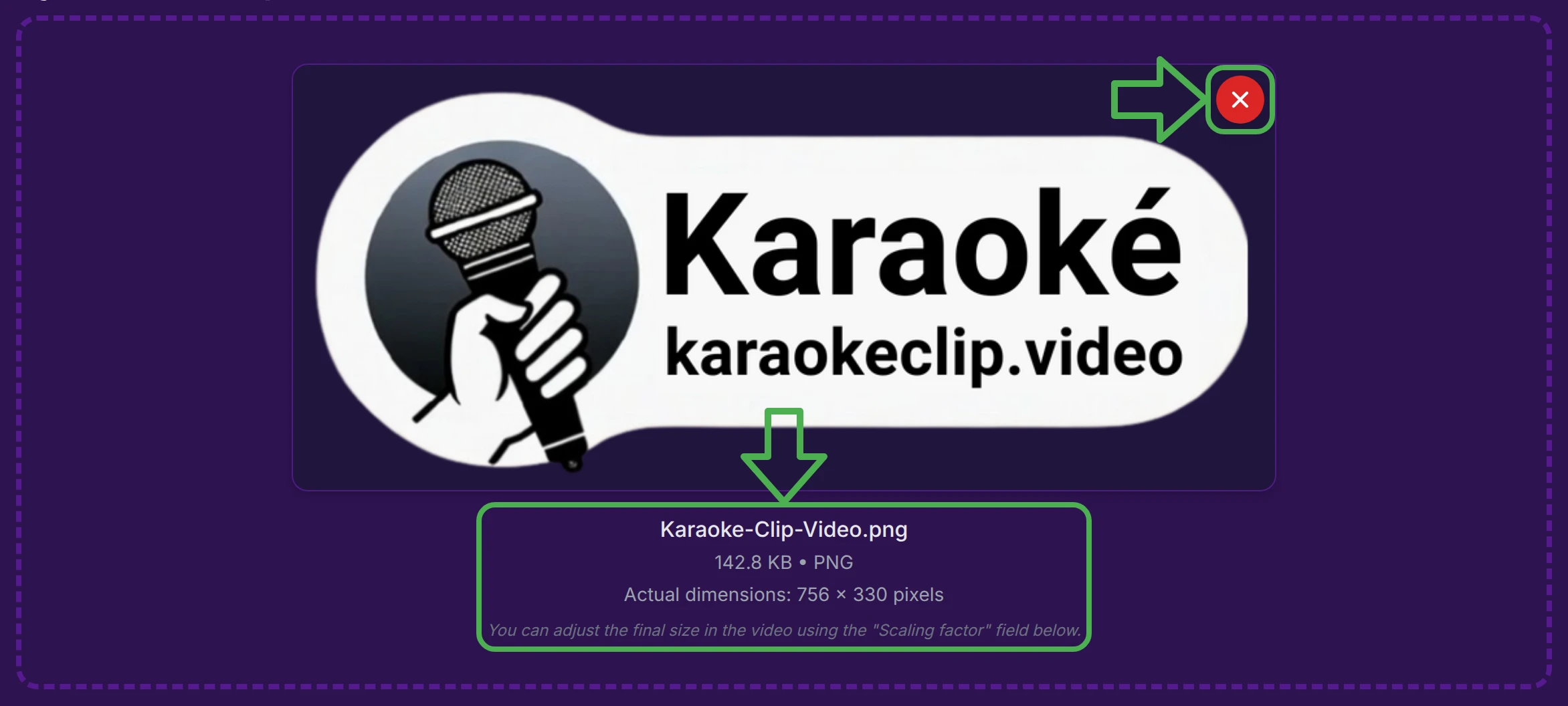
Once uploaded, a preview appears with the file's details — name, size, type and pixel dimensions — and a red ✕ button to remove it. A hint reminds you that the on-screen size is set later by the Scaling factor.
If you leave and come back to the editor within your session, your logo and all its settings are restored automatically — no need to upload it again.
Uploading a logo reveals all the settings below, grouped into General settings, Fixed logo — custom position, and Mobile logo — movement.
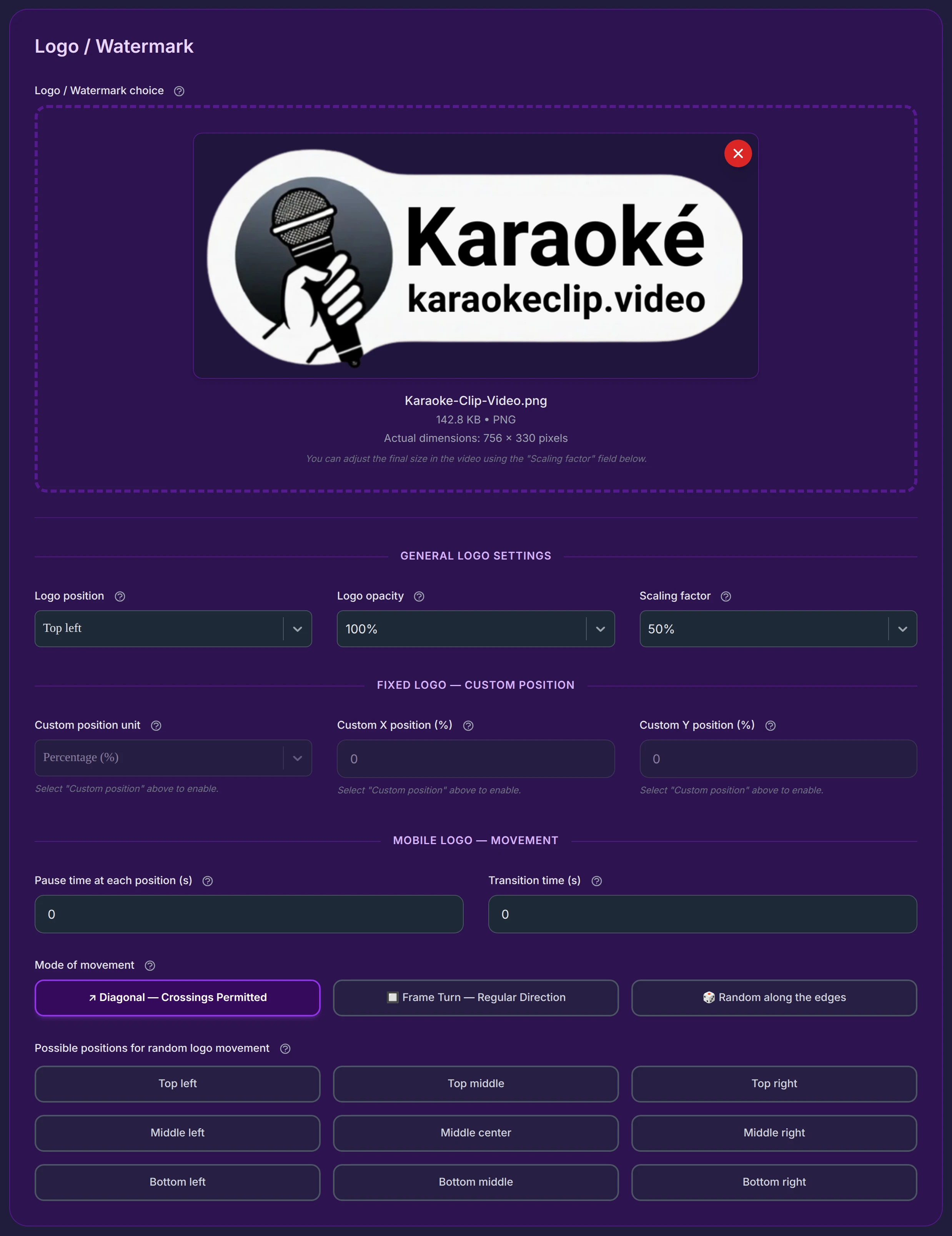
General settings
These three settings apply whatever the logo does — fixed or moving.
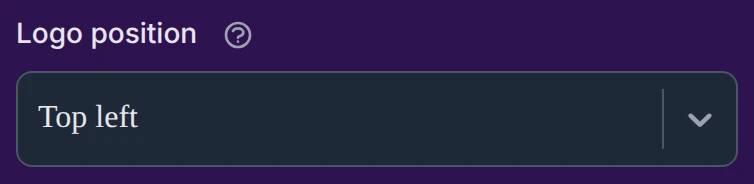
Logo position places the logo at one of nine anchor spots (Top / Middle / Bottom × Left / Center / Right), a short fixed margin from the edges. It also holds a tenth entry, Custom position, covered below.
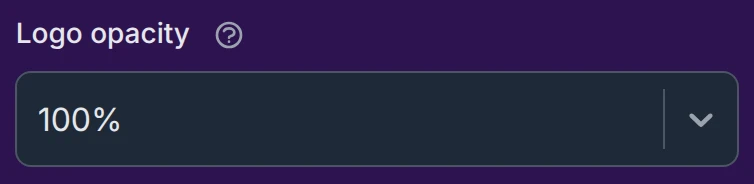
Logo opacity (0–100%, default 100%) sets how transparent the logo is. Lower it for a discreet, semi-transparent watermark.
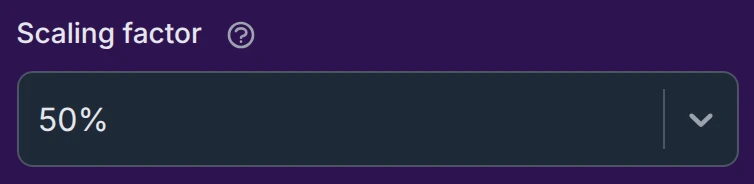
Scaling factor (10–200%, default 50%) sets the logo's size on the video, as a percentage of its original width — so you can shrink a large image or enlarge a small one.
Fixed logo — custom position
Want to place the logo somewhere the nine anchors don't cover? Pick Custom position — the last entry in the Logo position dropdown — to place it at exact coordinates instead.
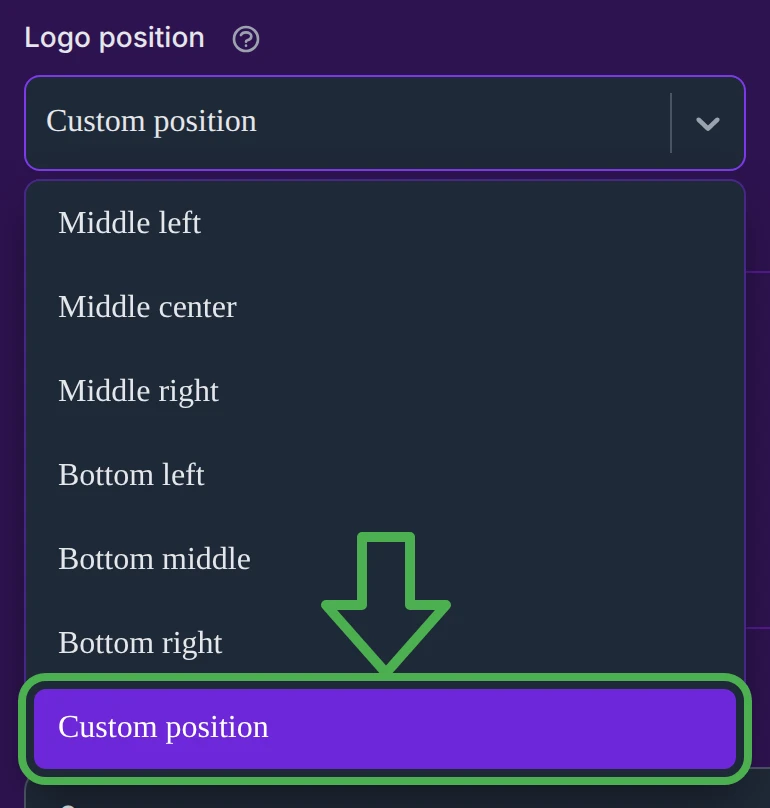
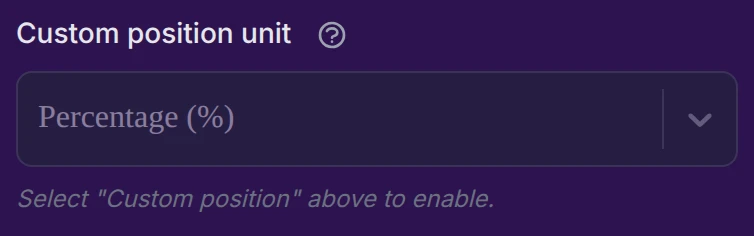
Until you choose Custom position, the unit and X/Y fields stay greyed out, with the hint "Select 'Custom position' above to enable."

Choose Custom position and they become editable:
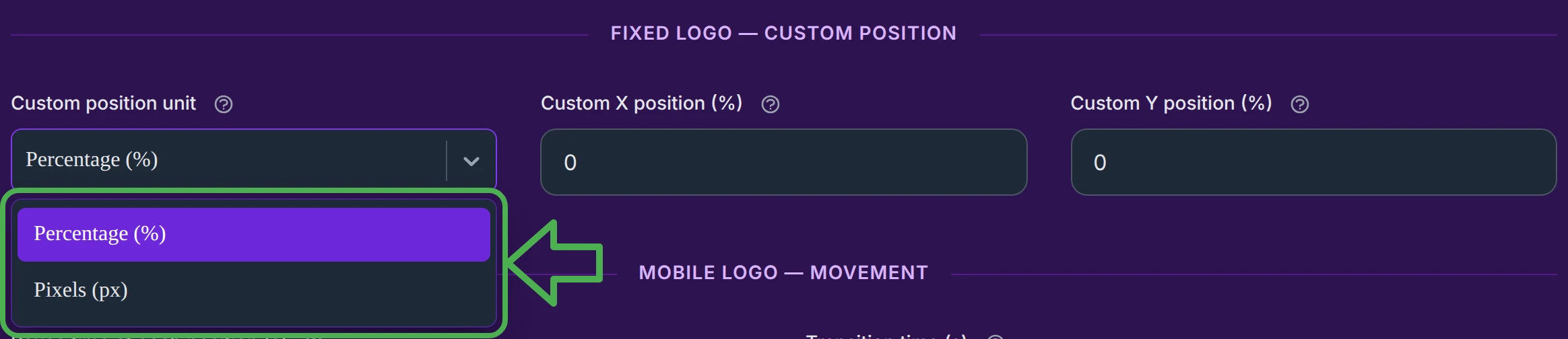
- Custom position unit — pick Percentage (%) (default) or Pixels (px). The X/Y labels update to show the active unit.
- Custom X / Custom Y — the horizontal and vertical position.
- In percent, it's a share of the available room (so the whole logo stays visible): 0% = flush to the top/left edge, 100% = flush to the bottom/right edge, 50% = centered. Values are capped at 0–100.
- In pixels, it's the absolute distance from the top-left corner.
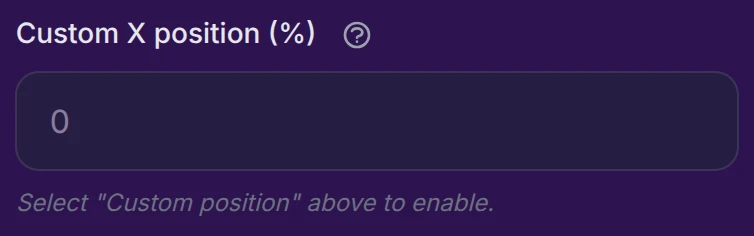
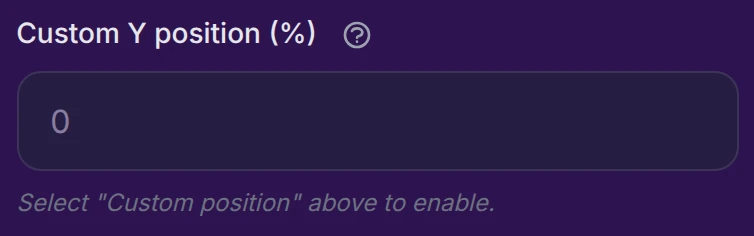
In Custom position, the coordinates place the logo absolutely — this replaces the named anchor entirely (it is not an offset, and the anchor margin is ignored). Setting X and Y to 0 therefore puts the logo right in the top-left corner.
Mobile logo — movement
Your watermark doesn't have to stay put — it can travel around the frame. What turns movement on is simple: any non-zero time.
- Pause time at each position (s) — how long the logo stops at a position.
- Transition time (s) — how long it takes to travel from one position to the next.
As long as both are 0, the logo is static (at its fixed position). Set either one above 0 and it starts moving.


- Pause 5 s, Transition 0 s → the logo jumps instantly to a new position every 5 seconds (no visible travel).
- Pause 0 s, Transition 5 s → the logo glides continuously, taking 5 seconds per leg and never stopping — as soon as it arrives, it sets off again.
- Give both a value for a natural "pause, then glide, then pause" rhythm.
Which positions it visits
The Possible positions grid decides which of the nine spots the logo cycles through. Tick the ones you want; leave them all unticked to use all nine.

Movement mode
Mode of movement decides how the logo gets from one position to the next — a straight line across the frame, or a tidy path around its edges. There are three modes:

They're explained, with when to use each, in The three movement modes below.
Affiliate accounts
KaraokeClip runs a partner-creator program: content creators (from 500 subscribers) get free credits in exchange for displaying a discreet, semi-transparent moving KaraokeClip watermark on their published videos.
For these accounts, the logo slot is reserved for that partner watermark — an uploaded logo isn't embedded — and an amber banner explains it:

The fields stay visible so you can still explore the feature:
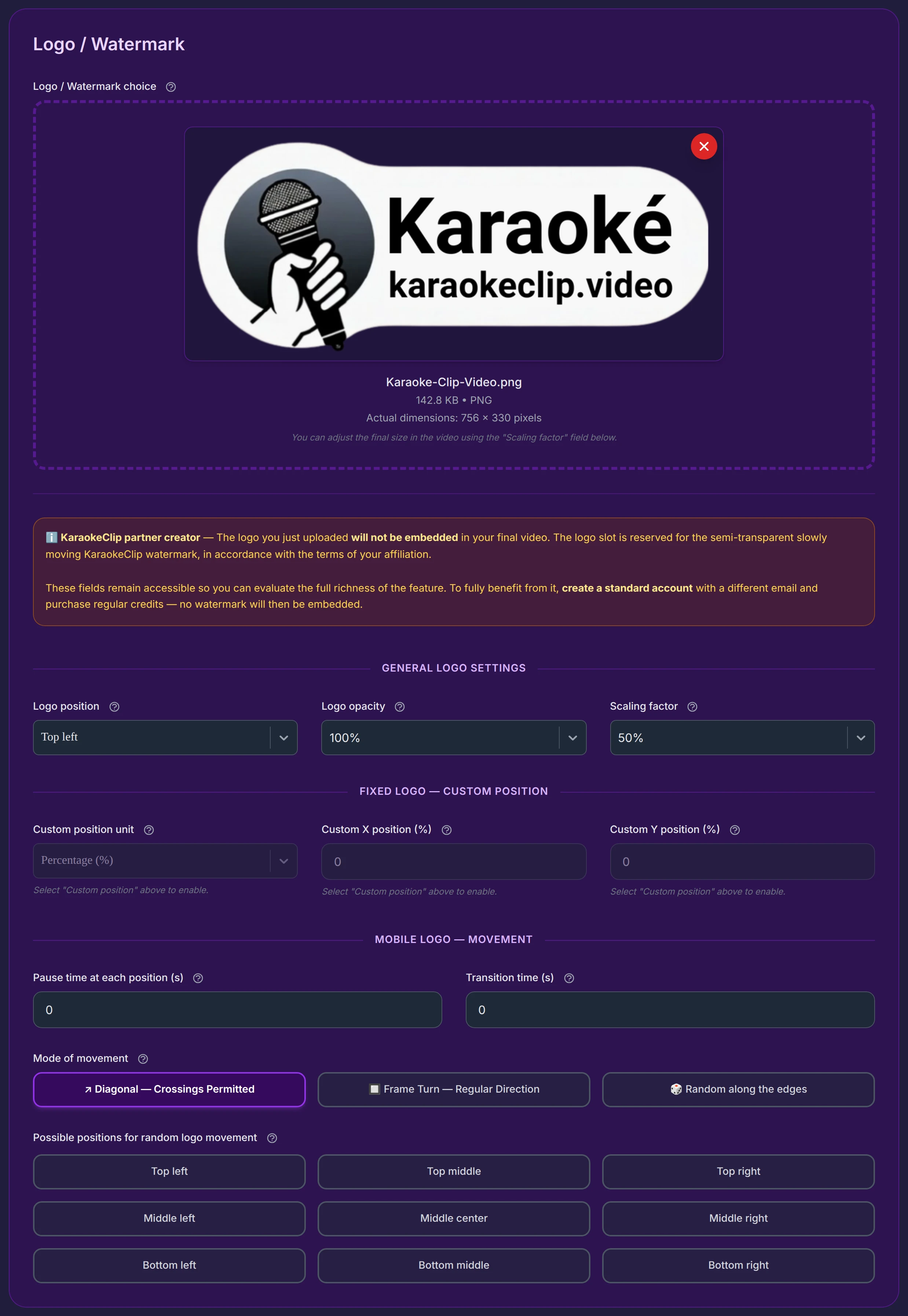
If you publish karaoke videos and have an audience, the partner program can cover your credits. See the affiliation program for the conditions.
Why move the logo?
A moving watermark isn't just a gimmick — it serves several purposes:
- Harder to remove — a logo that keeps moving is far more difficult to crop out or mask than a fixed corner mark.
- Promote a venue — a bar, karaoke box or event hall can brand every video played during a session; a moving logo draws the eye.
- Brand awareness — movement beats "banner blindness": viewers tune out a static corner logo, but notice one that shifts.
- Sponsor visibility — keep a sponsor's mark clearly seen throughout.
- Event branding — a moving monogram personalises a wedding, birthday or party video.
- Never block the same spot — because it moves, it won't permanently cover an important part of the picture.
Going deeper
The three movement modes
↗ Diagonal — Crossings Permitted (default) — the logo travels in a straight line from one position to the next, and it's allowed to cross the frame (diagonally, or straight across between opposite sides). The freest, most dynamic option; the logo can pass through the middle of the picture.
🔲 Frame Turn — Regular Direction — the logo tours the edge of the frame in a steady, predictable direction, never doubling back. It stays strictly on the border and only pauses at the positions you ticked — any ticked position on the way is simply passed through.
🎲 Random along the edges — the logo jumps to a random ticked position, but always travels along the edges (by the shortest way round) rather than across the middle. Same border-hugging path as Frame Turn, but the next stop is a surprise.
Both edge modes (Frame Turn and Random along the edges) keep the logo on the border of the frame, so the Middle center position — which sits in the middle of the picture — can't be part of the route. It's shown locked (🔒) and greyed out while an edge mode is active. In Diagonal mode, where crossings are allowed, Middle center stays available.


Which one should you pick?
- Diagonal — the liveliest look, and the only mode that can use the center. Great for a playful, roaming watermark.
- Frame Turn — calm and orderly; the logo circles the frame at a steady pace. Best when you want the movement to feel deliberate, not distracting.
- Random along the edges — keeps the mark on the border (out of the way of faces and subtitles) while staying unpredictable — a good all-round choice for an anti-crop watermark.