Preview video settings
Before spending a full generation, you check your work with a preview — a short clip made from your current settings. This section shapes that preview. None of these settings is billed, and none of them changes your final video — they only decide what the preview shows.
Fifteen previews is deliberately generous: it's far more than enough to try several looks. The limit isn't there to sell you preview packs — it simply keeps the shared encoding queue fast for everyone by discouraging endless one-tiny-change-at-a-time regenerations. The efficient habit: on each preview, jot down every point you'd like to change, apply them all at once, then generate again. You'll rarely need more than a handful.
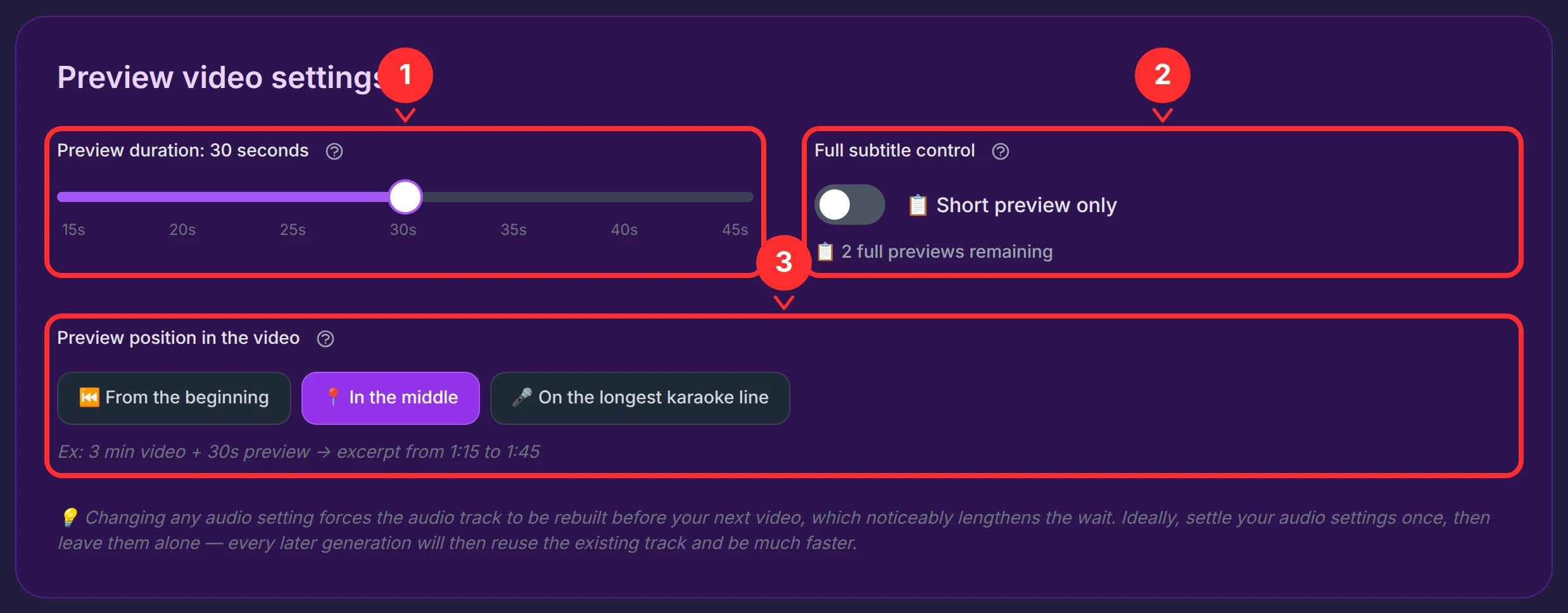
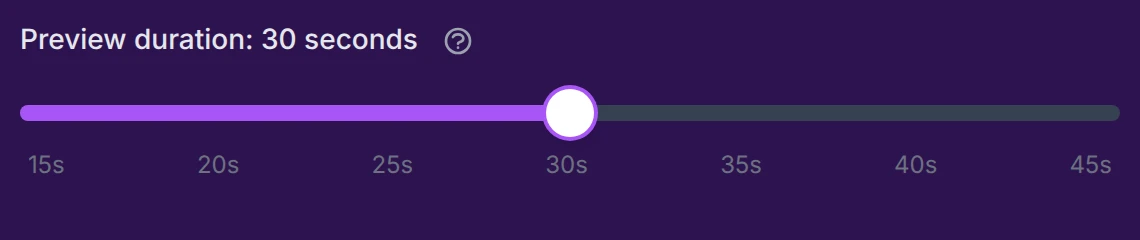
Preview duration
A slider from 15 to 45 seconds (in steps of 5). A shorter preview generates faster, so you can check a change quickly; a longer one shows more of the video.
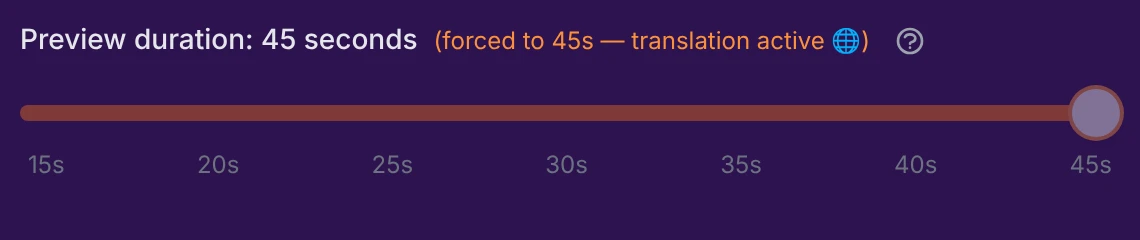
Locked to 45 seconds with a translation
When a synchronized translation is on, the duration is forced to 45 s and the slider locks (it turns orange). With two subtitle lines at once (karaoke + translation), a longer window is needed to judge the readability and timing of both.
Preview position
Preview position in the video decides where in the video the preview is taken. There are four options — the last one only appears when a translation is active:
- ⏮️ From the beginning — starts at the very first second. The only mode with no offset, so the subtitles are perfectly in sync from the first line.

- 📍 In the middle (default) — centres the preview on the middle of the video (for example: a 3-minute video with a 30 s preview → the excerpt runs from 1:15 to 1:45).

- 🎤 On the longest karaoke line — centres on the longest line of your lyrics.

- 🌐 On the longest translated line — the same, for the longest translated line (only available when a translation is active).

These modes are for when you want your longest line to fit on a single line: in one preview, you can confirm it does at your chosen font size. If it spills over, you can shrink the font (or shorten the line) until it fits — every other, shorter line will then fit too. And if you'd rather have larger subtitles that run over two lines, that's a perfectly valid choice — these modes are simply there for those who prefer single-line subtitles. The line's exact text and length are also shown in the list of generated videos.
In the offset modes (middle or longest line), the very first subtitle line may look slightly out of sync in the short preview. This is normal, and it never happens in the full video.
Full subtitle control
By default, a preview is just a short clip. Turn on Full subtitle control and the generation also produces a full-length copy of your video — the whole thing, from the first second to the last — at reduced resolution (480p) with a watermark, alongside your short preview.
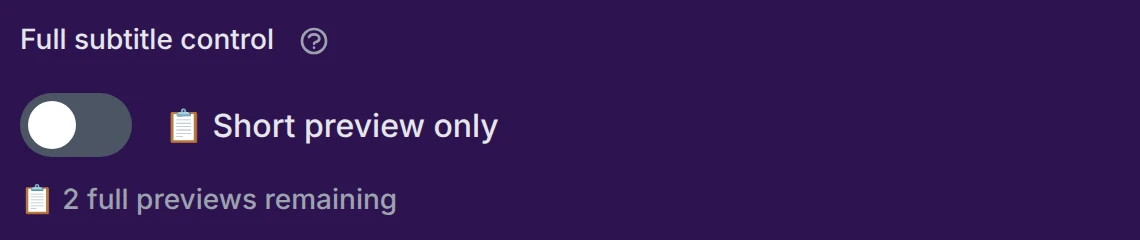
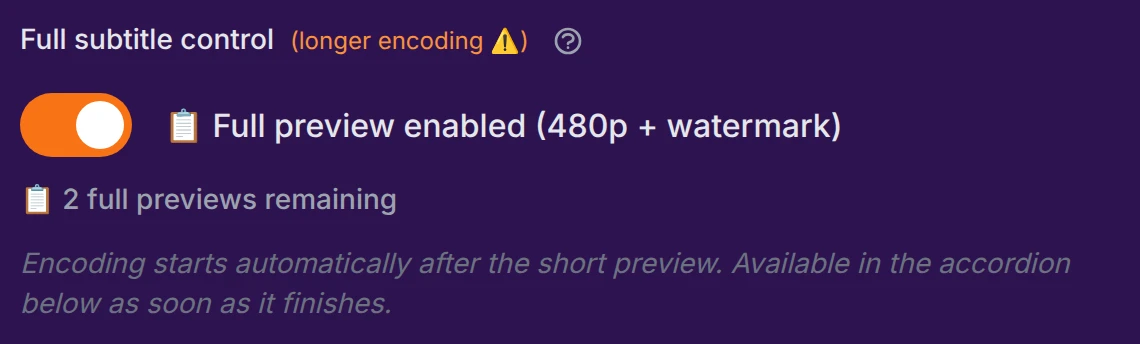
Your short preview only shows you 15–45 seconds. This one is the only way to confirm that every subtitle line stays perfectly in sync with the voice, from the first second to the last — across your whole video — before you commit to the full version. It's a control copy to watch once — not your final video, which is why it's low-resolution and watermarked.
It costs no extra credit (it's produced within the same generation). But because it re-encodes your whole video, it ties up the encoder much longer than a short preview — so it comes with a small allowance: 2 full previews per block of 15 previews, and your allowance grows with each new block. A counter under the switch shows how many you have left; when they're used up, the switch greys out.
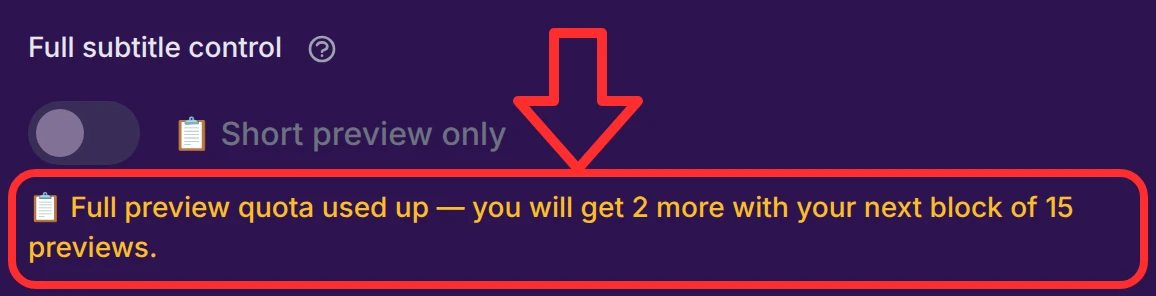
Generate most of your previews without this option — they come back much faster. Turn it on when you specifically want to verify end-to-end synchronization across the whole video.
Audio settings and the wait
💡 Changing any audio setting forces the audio track to be rebuilt before your next video, which noticeably lengthens the wait. Ideally, settle your audio settings once, then leave them alone — every later generation reuses the existing track and is much faster. (Your audio settings are on the Advanced audio processing page.)

Once your preview settings are the way you want them, head to Generating your video to produce the preview and, when you're happy, the full video.