Troubleshooting
Most bumps you'll hit are quick to fix — and none of them costs you anything. Two things are worth keeping in mind before you worry about any message on screen:
- A failed action is never charged. If a step fails on our side — separation, alignment, encoding, translation — no credit is taken. See When a credit is not charged.
- Your work isn't lost. While your session is alive you can close the tab and come back through the email link. See Session & access.
Quick diagnosis
Find your symptom, jump to the fix:
| What you're seeing | Most likely cause | Where to fix it |
|---|---|---|
| The upload is refused | Wrong file type, or video over 3 GB / 45 min | At upload |
| The lyrics tabs are empty or wrong | Artist/title off, or "known song" used for a non-song | Lyrics & transcript |
| Subtitles show the wrong words | A transcript validated with mistakes | Lyrics & transcript |
| A word lights up too early or too late | Word timing needs a small nudge | In the editor |
| Your longest line runs onto two lines | Font a touch large for that line | In the editor |
| "Translation language required" | No target language chosen yet | In the editor |
| "Insufficient balance" / can't open the generator | Not enough credits | Credits & session |
| "Session expired" | Your 24-hour workspace has elapsed | Credits & session |
| The video won't play on my TV/phone | Format or compatibility | Output & compatibility |
At upload
"Unsupported file format." The generator accepts an MP4 video and, optionally, a .txt lyrics file — nothing else. If your video is in another format (MOV from an iPhone, MKV, AVI, WebM…), convert it to MP4 first with a free tool such as HandBrake, then upload again.
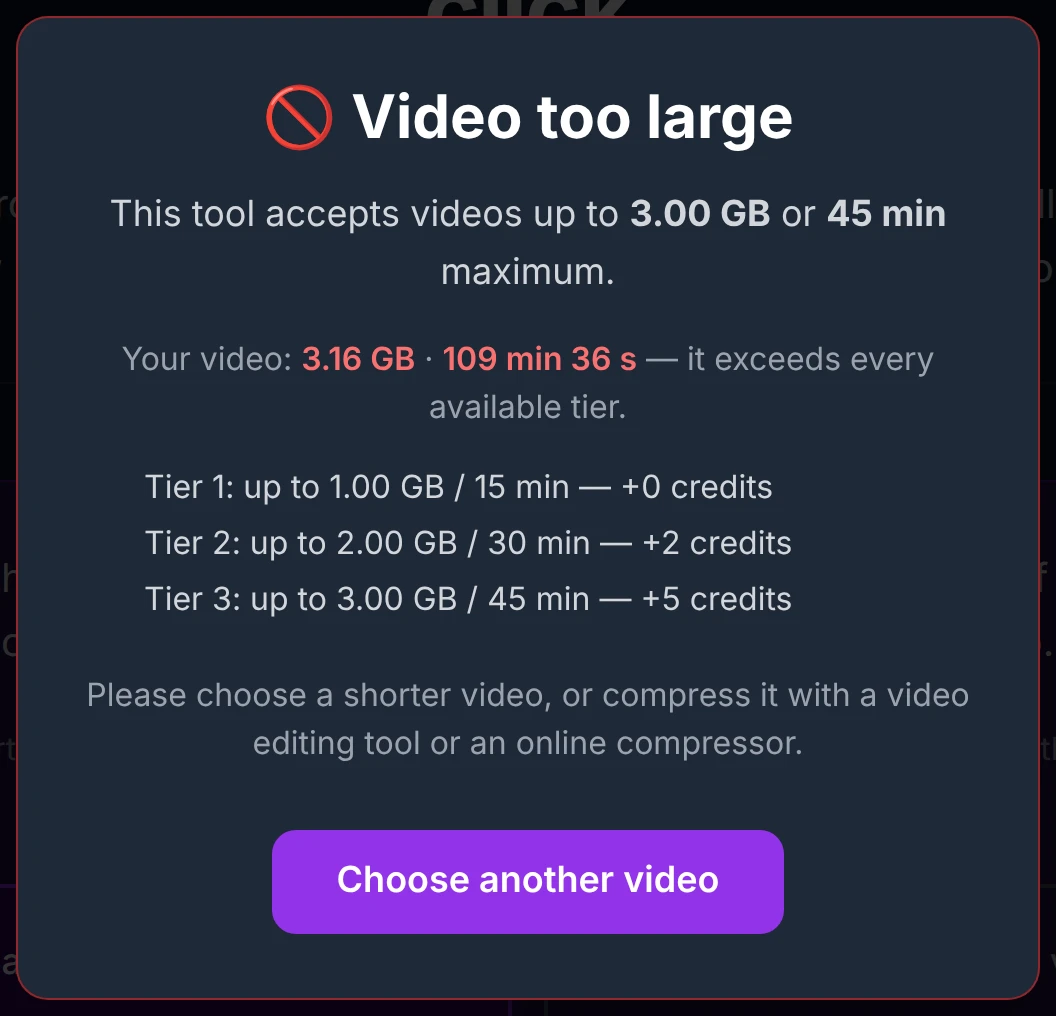
"This video is too large." The maximum is 3 GB or 45 minutes (whichever comes first). Above that, the upload is blocked with no way to continue — you'll need to shorten the video or compress it (lower the resolution or bitrate) before uploading.
"Invalid logo format." A logo/watermark must be a PNG, JPG or GIF (animated GIFs are fine). Any other file is refused — pick a valid image. See Logo / Watermark.
Lyrics & transcript
The lyrics tabs are empty or show the wrong song. Those tabs only appear when you chose "It's a known song" and typed the artist and title correctly — and even then, a source can occasionally return the wrong version. They're a help, never a requirement: you can always work from the automatic transcription. If you picked "known song" for a home video or a talk, that's why the tabs are empty — it's harmless, and no credit is wasted. See Upload and Transcript correction.
The transcription has mistakes. That's expected on tricky audio — voices buried in the mix, very fast delivery, or languages with ambiguous sounds. The AI does about 95% of the work; the transcript screen is exactly where you polish the last 5%. Correcting it there is quick, and it's the single most important step for clean subtitles.
The subtitles came out with the wrong words or badly cut. This almost always traces back to a transcript validated with errors. The alignment faithfully places whatever text you validated — so the fix is upstream: take a minute to review and correct the transcript before validating it.
In the editor
A word lights up slightly too early or too late. Fine-tune it directly on the waveform: drag the word's handles to adjust where it starts and ends. See The waveform editor.
Long a-cappella passages or held notes drift. Automatic alignment is very precise, but a stretch with no clear rhythm can wander a little — just nudge those few words by hand on the waveform.
Your longest line spills onto two lines. Preview it with the "longest line" mode to see it at your chosen font size, then reduce the font until it fits — or keep two lines if you prefer larger subtitles; both are valid. See Preview settings.
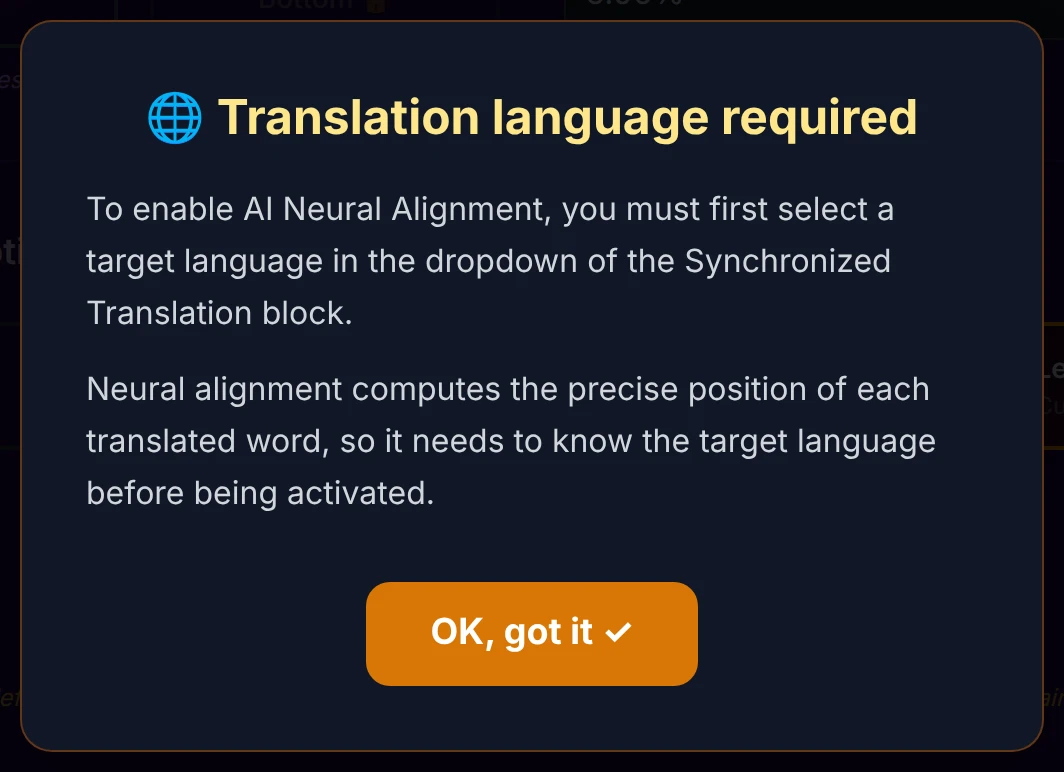
"Translation language required." Turn on a translation after choosing its target language — the switch stays off until a language is set.
If you change your word timing after enabling neural alignment, a fresh alignment is recomputed on your next generation (+1 credit) — the app tells you beforehand, and it stays free if you didn't touch the annotations.
Credits & session
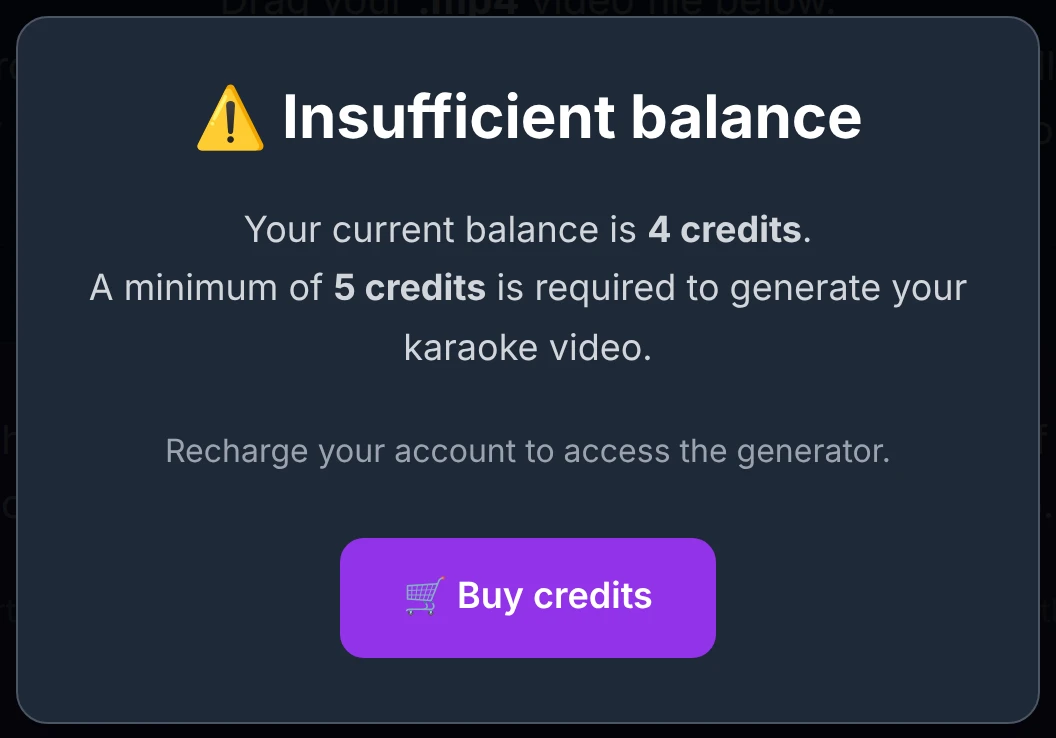
"Insufficient balance." You don't have enough credits for what you asked — top up on the main site and try again. You also need at least 5 credits just to open the generator. See Credits & pricing.
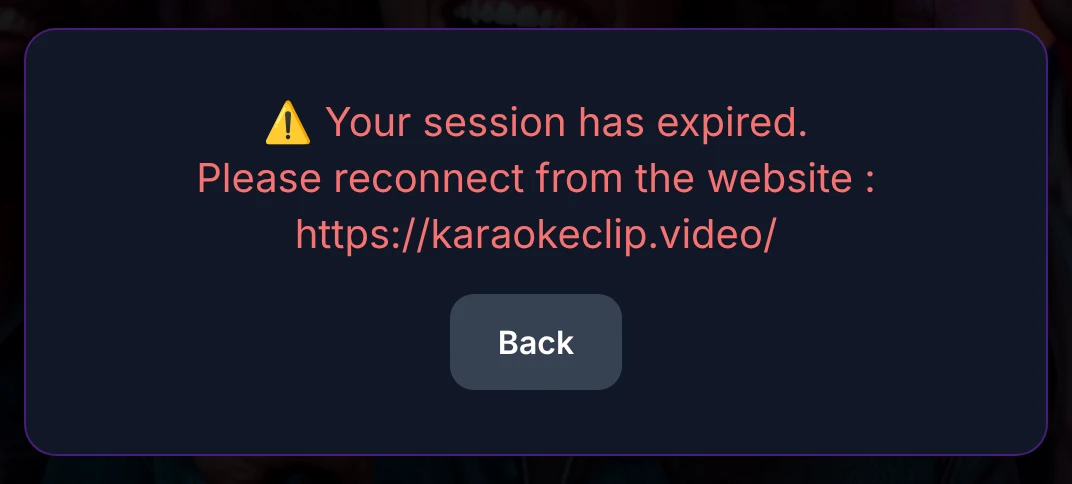
"Session expired." Your 24-hour workspace has ended. Reopen your project from the email link we sent, or sign in again on the main site. (You can extend a session before it lapses — see Extending your session.)
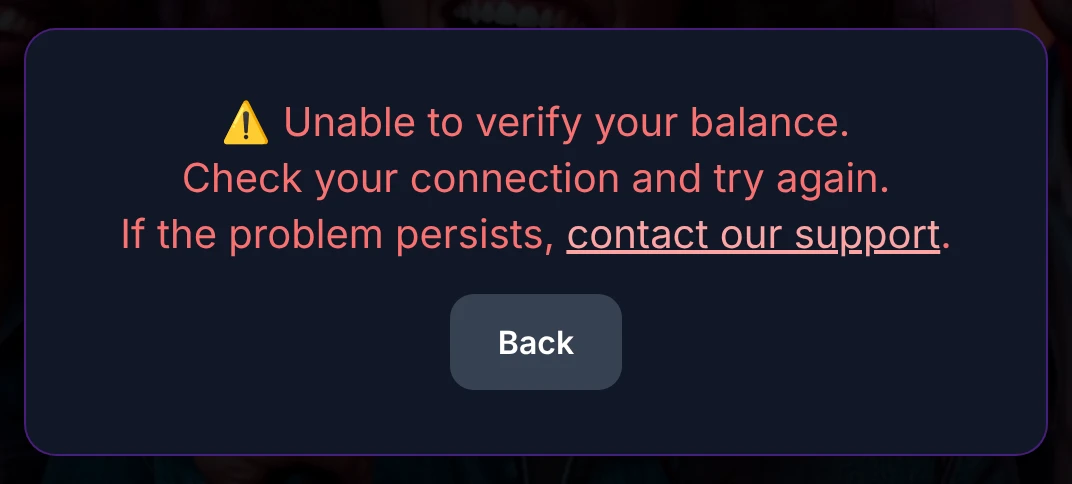
"A network or technical problem." Check your connection and retry — nothing is charged for an action that didn't go through. If it keeps happening, use the support link in the message.
Output & compatibility
The video won't play somewhere. KaraokeClip exports MP4 (the universal default — pick it if in doubt), MKV (a flexible archive format; some older TVs need a player like VLC), or MOV (Apple ecosystem). It does not export WebM, AVI, FLV, or iPhone HEIC. You can regenerate in another format to compare. See Video output settings.
Only one audio track? Yes — the final file carries a single soundtrack (your chosen mix of the full, vocal and instrumental levels), on purpose, for clean compatibility with TVs and platforms like YouTube.
Maximum length and size: 45 minutes / 3 GB. For longer projects, split the video into parts.
Avoid these easy slips
None of these costs credits — they just save you time:
- Generate one preview before you leave. Your settings are saved automatically the first time you generate; close the tab before that and you'll come back to an empty form. See If you close the tab.
- Review the transcript before validating. A careful pass here is what separates flawless subtitles from a redo.
- Match the video type to your content. Use "known song" only for actual songs; for anything else, "another type of video" keeps things simple.
The tool's limits, honestly
We'd rather be transparent than oversell:
- Length & size — up to 45 minutes or 3 GB per video.
- Transcription — the AI handles the vast majority, but expect to correct a few words on difficult audio (dense mixes, very fast or tonal languages).
- Sync — near-perfect on sung and spoken material; long unaccompanied passages may need a manual nudge.
- Output — MP4, MKV or MOV, with a single audio track.
Still stuck?
If a problem persists, reach out — the error messages include a support link, and you can also contact us from the main site: karaokeclip.video. To help us help you quickly, mention your project (the artist and title, or the file name shown in your emails) and what you were doing when it happened.
See also Credits & pricing and Session & access, or start fresh from Getting started.