Session & access
Everything you do in the generator happens inside a session — a private, time-limited workspace on our servers where your project lives while you work on it. This page explains how long it lasts, how to extend it, how to leave and come back safely through the emails we send, how to share your finished video, and where to see your credit history.
Your workspace lasts 24 hours, it holds everything (your word timing, your settings, your generated videos), and if you ever need more time you extend it in 24-hour steps for 1 credit. You almost certainly won't need to.
Your 24-hour workspace
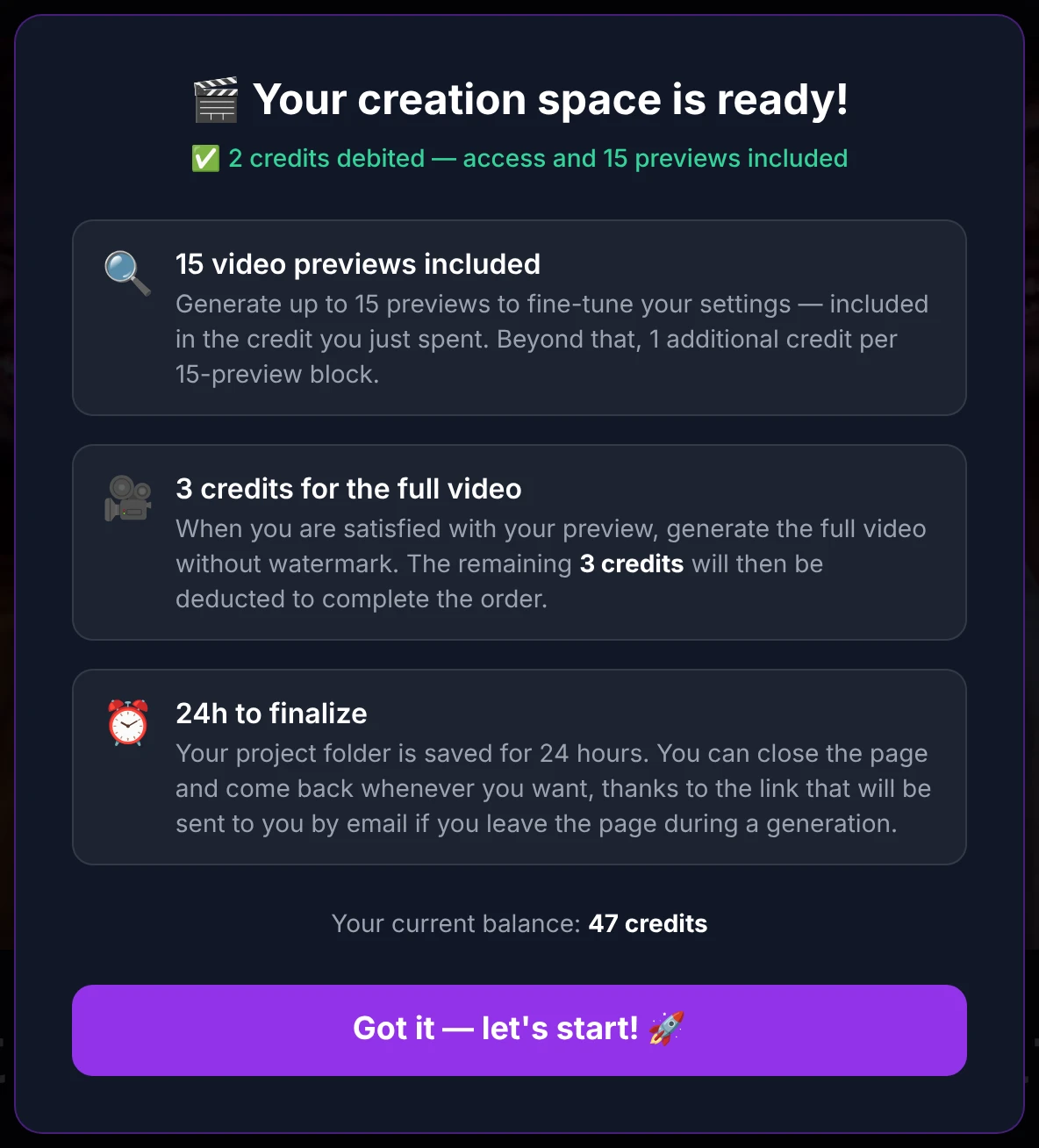
Your session starts the moment you arrive in the editor, and it lasts 24 hours. For that whole time, your project stays exactly where you left it — your annotations on the waveform, every setting in the form, and any preview or full video you've generated. You can close the page and come back; nothing is lost while the session is alive.
The status bar at the top of the editor always shows how much time you have left, next to the ⏳ Extend session button.

Two different 24-hour timers — don't mix them up
There are two separate 24-hour clocks in KaraokeClip. They're easy to confuse, so here's the difference:
| Timer | What it is | How to renew it |
|---|---|---|
| Access link | The link in the main-site menu that opens the generator. Valid 24 hours. | Just refresh the main-site page — a fresh link is issued. |
| Workspace session | The 24 hours you have to finish a project, once you're in the editor. | Extend it in 24-hour steps from inside the editor (see below). |
To resume a project you've already started, always use the email link (see the follow-up emails) — not the launch link in the main-site menu. The menu link opens a brand-new session; it won't restore your work in progress. (This does mean you can deliberately work on two different videos in parallel, each in its own session.)
Extending your session
Need more time? From the editor you can add +24 hours as many times as you like. The price follows your video's tier: 1, 2 or 3 credits.
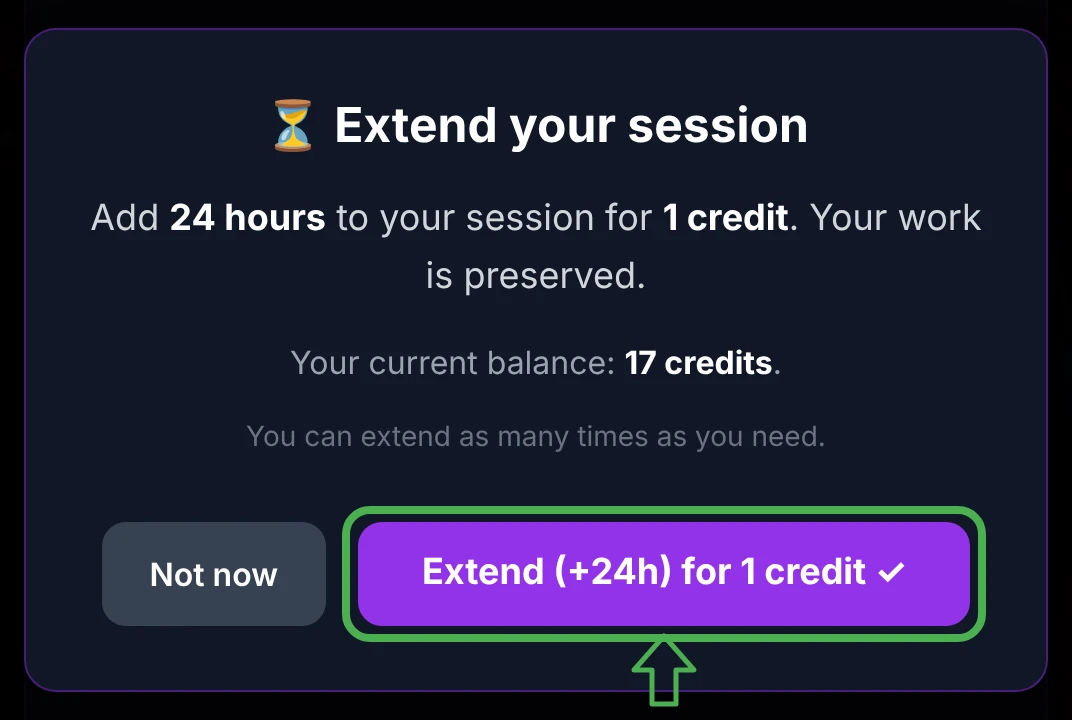
Extending is completely safe for your work: it never touches your counters, your settings, or the videos already sitting in the accordion panel. Everything stays exactly as it is — extending simply keeps your working folder from being deleted.
Almost certainly not. Your 24 hours are included, and the AI does the heavy lifting — separating the audio, transcribing and aligning the lyrics — so an hour is usually more than enough to finish. Extending is a safety net, not something to buy for its own sake: it's there the day life pulls you away and you'd like to come back tomorrow. As long as you extend before it lapses, your work is never lost.
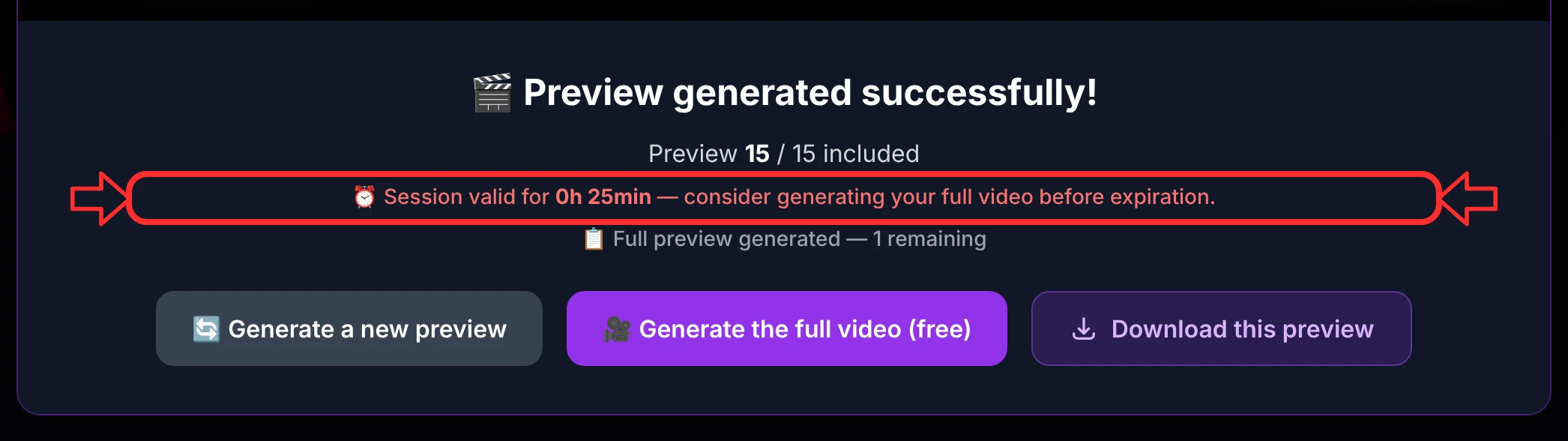
You're kept aware of the remaining time in two places. Inside the app, a reminder appears on the video-ready screen when the session is close to expiring:
And every email we send you carries the time left, too — measured at the moment the email was sent:
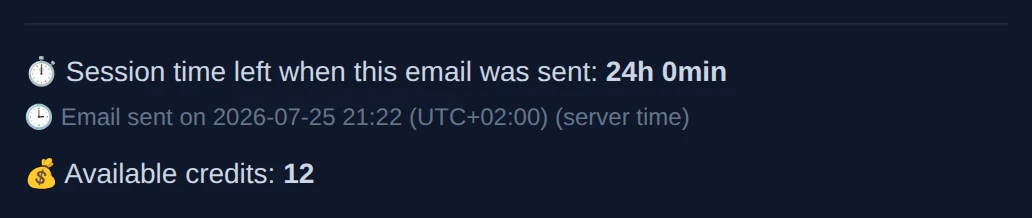
The remaining time printed in an email is the value at the moment it was sent (that's why it says "when this email was sent"). The live figure is always the one in the editor's status bar.
Leaving and coming back — the follow-up emails
You never have to sit and watch a progress bar. At every key step, KaraokeClip sends you an email with a personalized link that brings you back to the exact step you were on. Emails let you step away during the automatic processing, pick your work back up if you closed the window, and know the moment a video is ready.
What every email contains
All the emails share the same layout. Beyond the message and its action button, each one now includes a project block — a real help when you're juggling several videos at once:
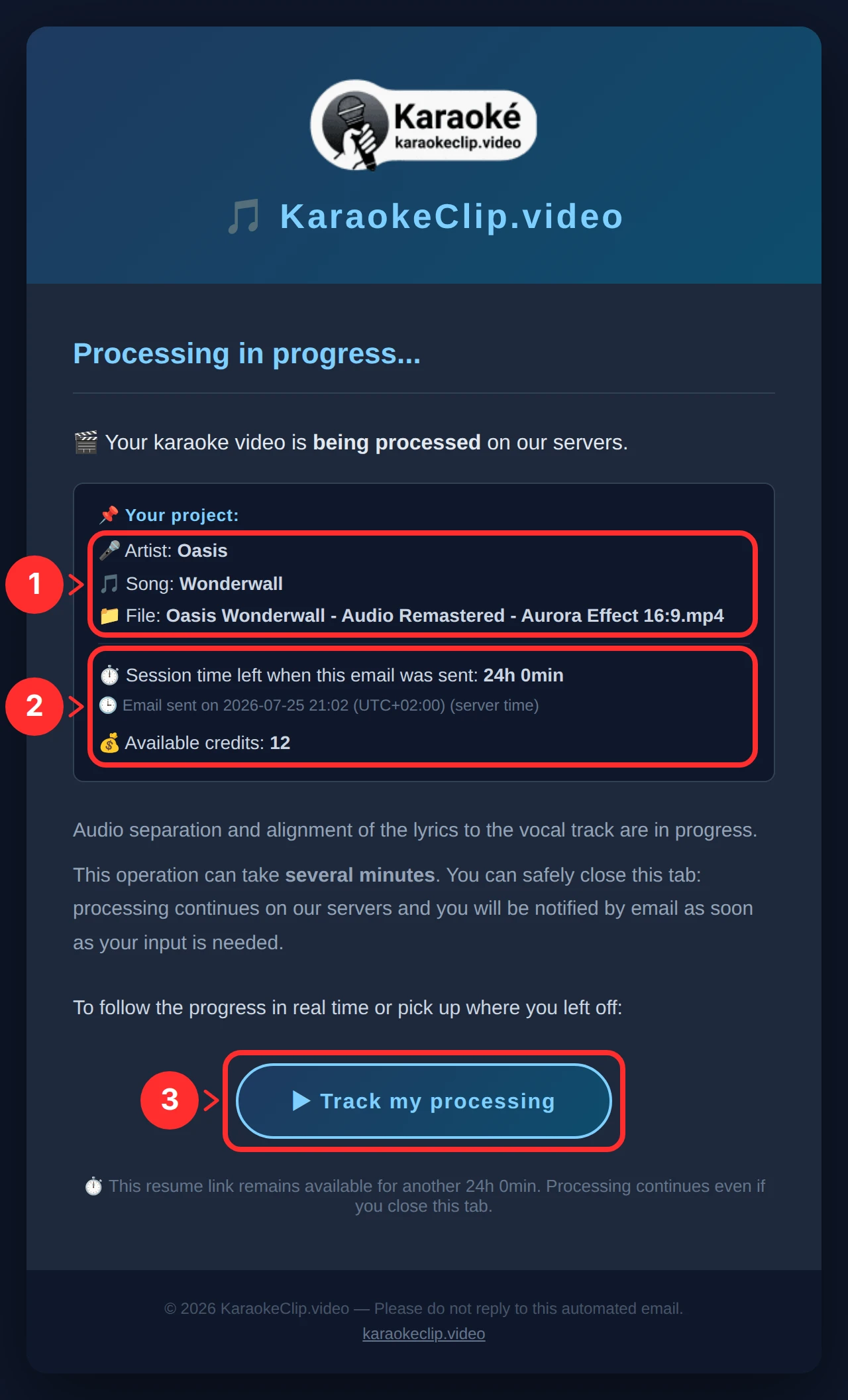
- Which video it's about — the artist, title and file name (or just the file name, for a non-song video), so you always know which project the email concerns.
- Your session at that moment — the time left when the email was sent, the server time (with its UTC offset), and your credit balance.
- A button that reopens KaraokeClip at the exact step, plus a line at the bottom showing how long the link stays valid — the real remaining time, not a fixed "24 hours".
The emails you'll receive
Which emails you get depends on your lyrics path. The transcript and editor emails follow the exact same layout as the one above — only the message and the button change.
If you provide the lyrics (.txt)
| # | When | The button |
|---|---|---|
| 1 | Right after upload — your video is being processed | ▶ Track my processing |
| 2 | Editor ready — the alignment is complete | 🎬 Finalize my karaoke video |
| 3+ | Each video generated — your video is ready | ▶️ Watch · ⬇️ Download · ↩️ Return (see below) |
If KaraokeClip transcribes for you
| # | When | The button |
|---|---|---|
| 1 | Right after upload — your video is being processed | ▶ Track my processing |
| 2 | Transcript ready — review it before alignment | ✏️ Correct and validate my transcript |
| 3 | Editor ready — the alignment is complete | 🎬 Finalize my karaoke video |
| 4+ | Each video generated — your video is ready | ▶️ Watch · ⬇️ Download · ↩️ Return (see below) |
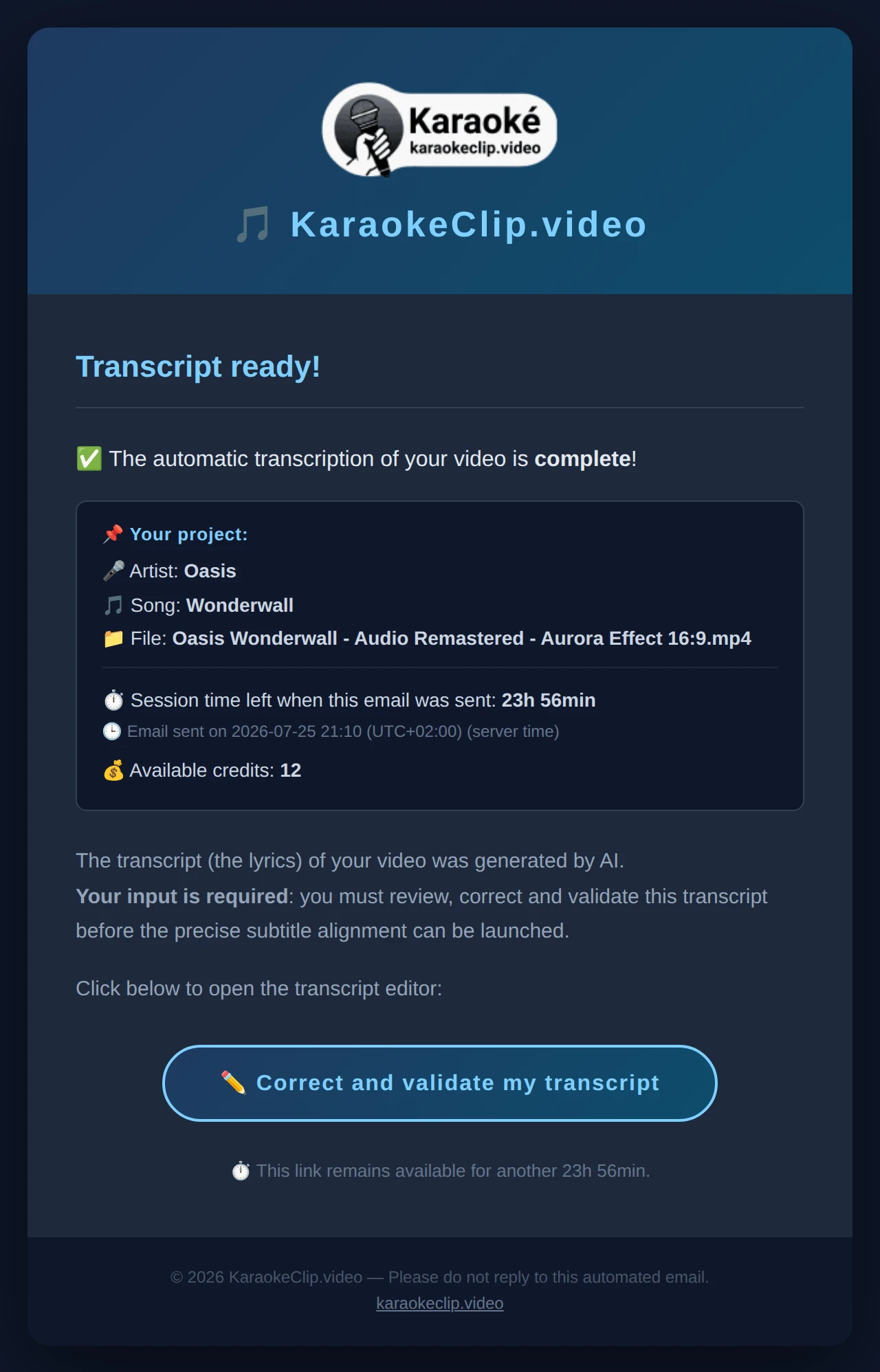
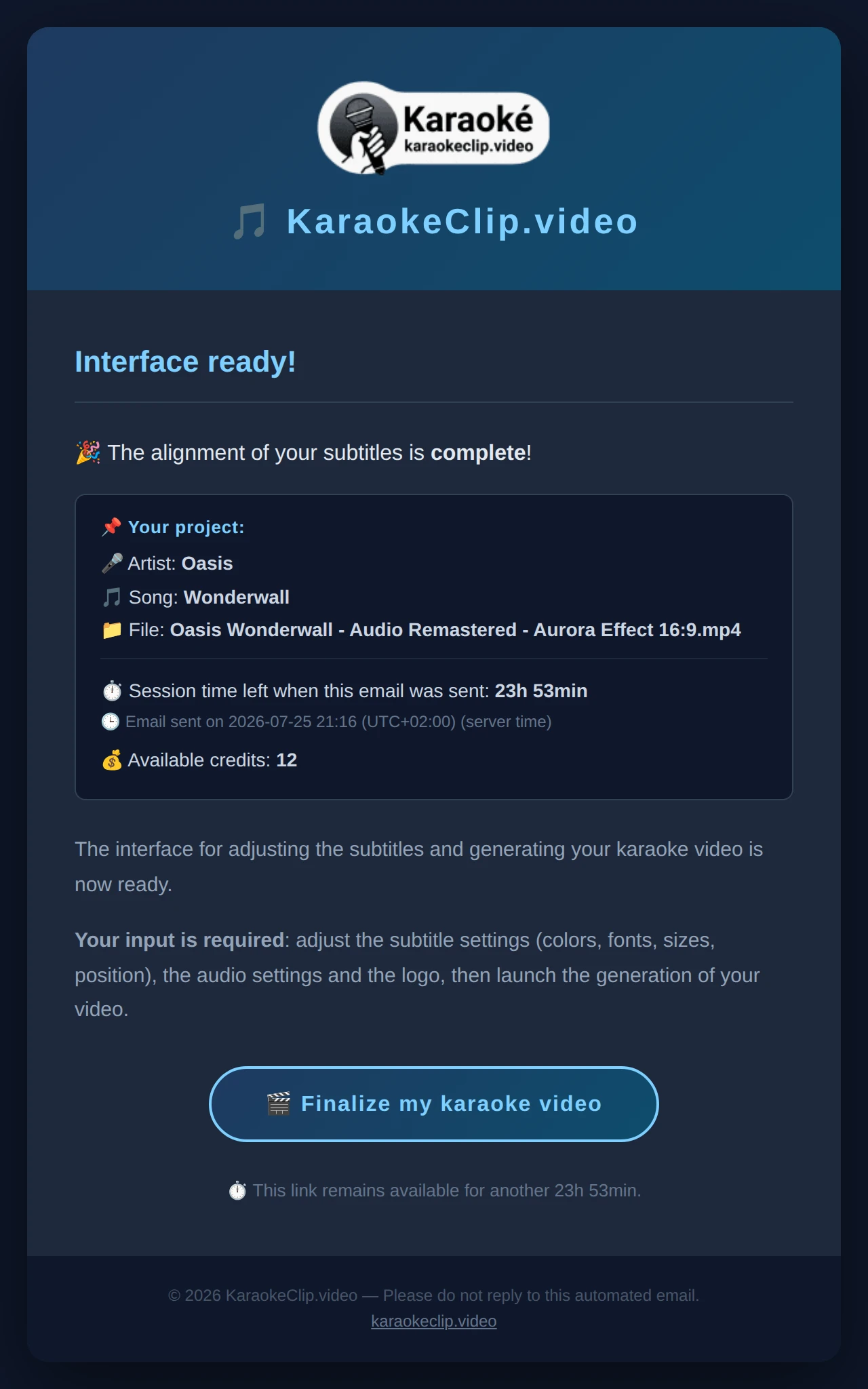
The transcript-ready email (auto-transcription path only) and the editor-ready email (both paths) carry the same project block and layout — only the message and the button differ:
An email link works as long as your session is alive. If you open it more than 24 hours after it was sent and you didn't extend your session, the link may have expired — just sign in on the main site and start again.
Watching, downloading and sharing your video
When a video is ready — a preview or a full video — the email gives you three buttons:
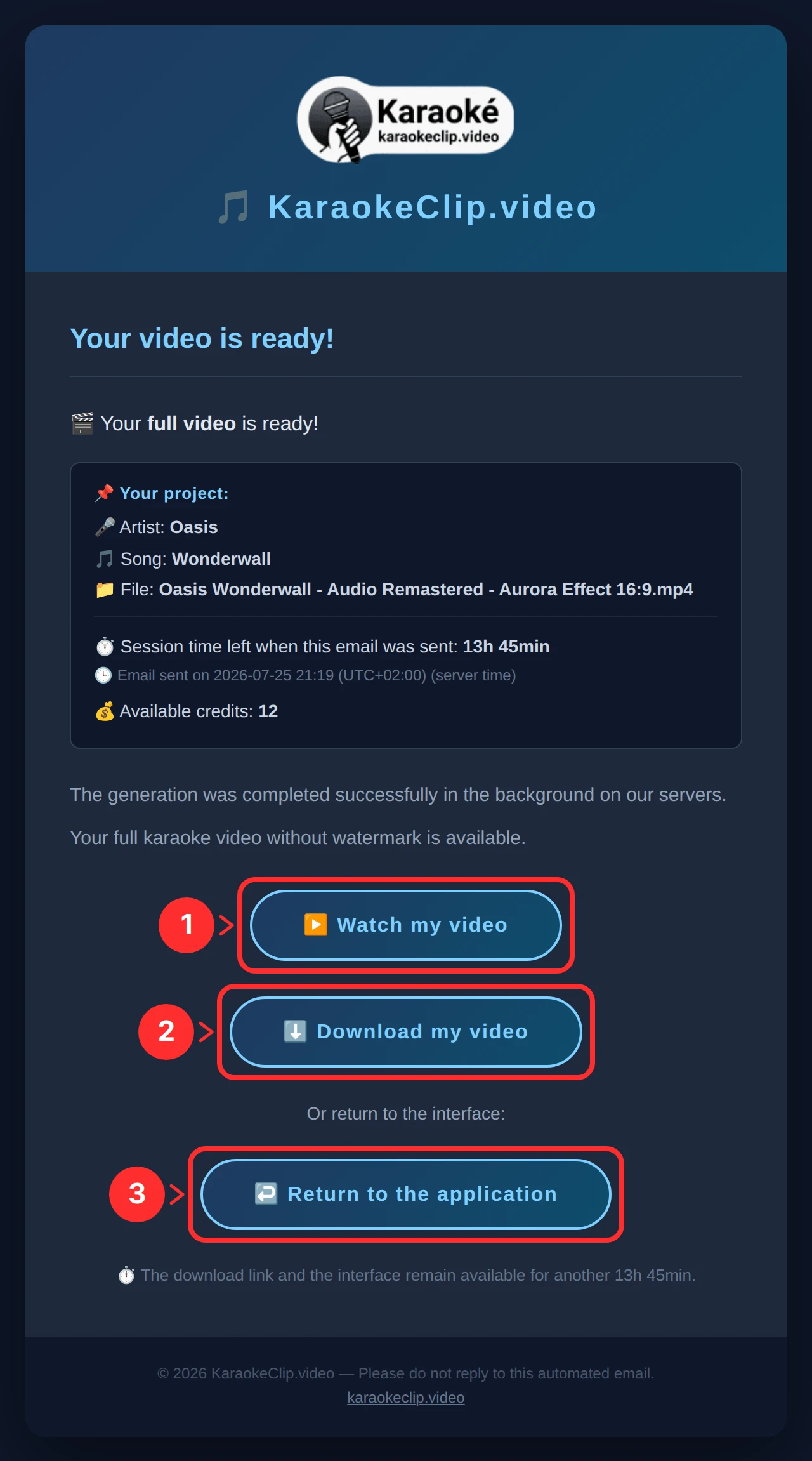
- ▶️ Watch my video — opens a clean viewing page (below).
- ⬇️ Download my video — downloads the file directly, with a friendly name.
- ↩️ Return to the application — reopens your working session.
The viewing page — made to be shared
The Watch button opens a simple presentation page: a badge (Preview or Full video), the project name, a short message, the player, and a Download button.
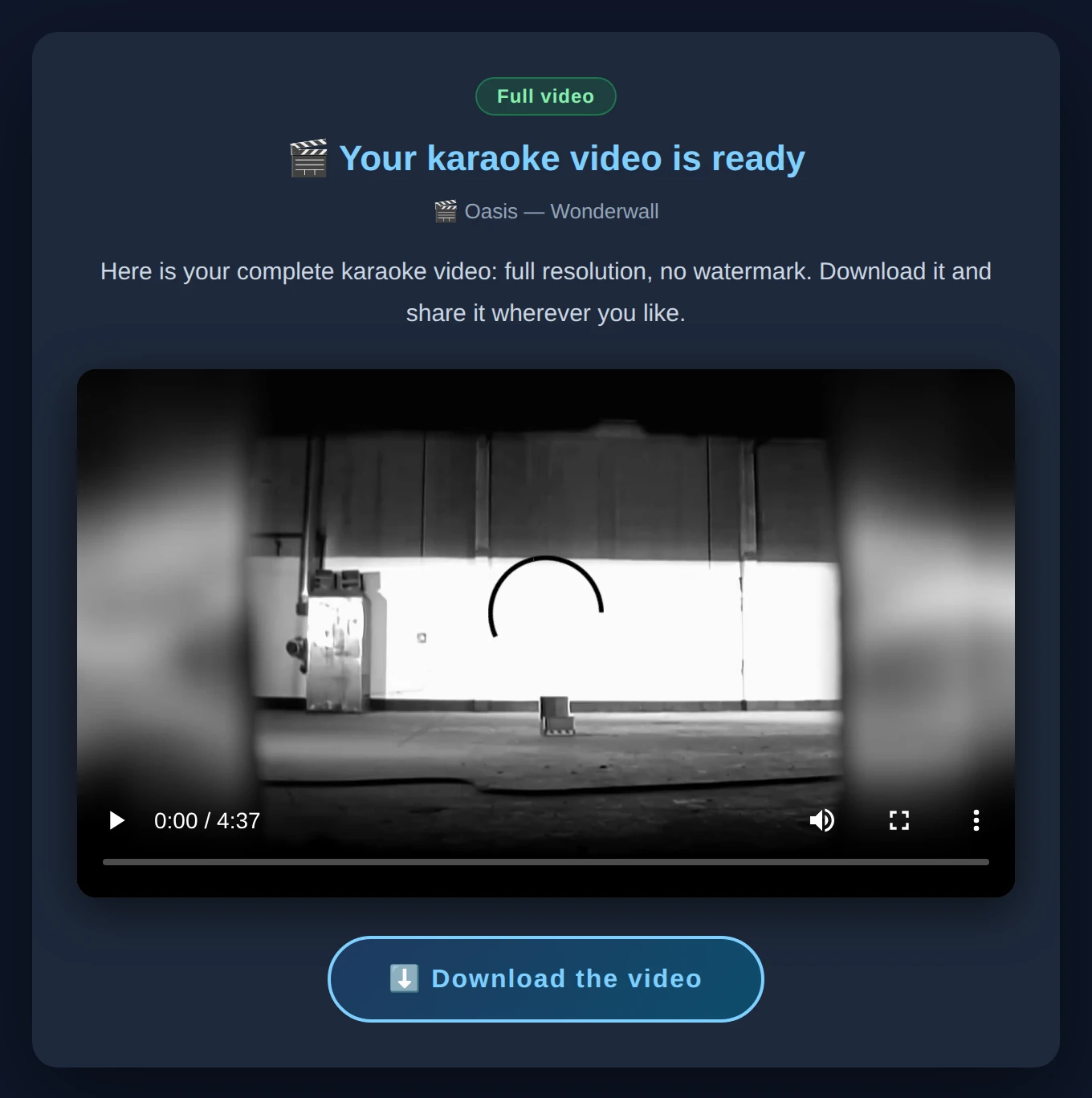
This page is deliberately safe to share. Notice what it does not have: a "Return to the application" button. That's on purpose — the only link that reopens your session (full access to your project) lives exclusively in your email. So you can send the viewing-page link to anyone, post it anywhere, and it only ever lets people watch and download that one video — never touch your session.
- For a full video, the page invites you to download and share it wherever you like — it's full-resolution and watermark-free.
- For a preview, the badge is orange and the message reminds you it's a short, watermarked excerpt, and that the full version is generated back in the app.
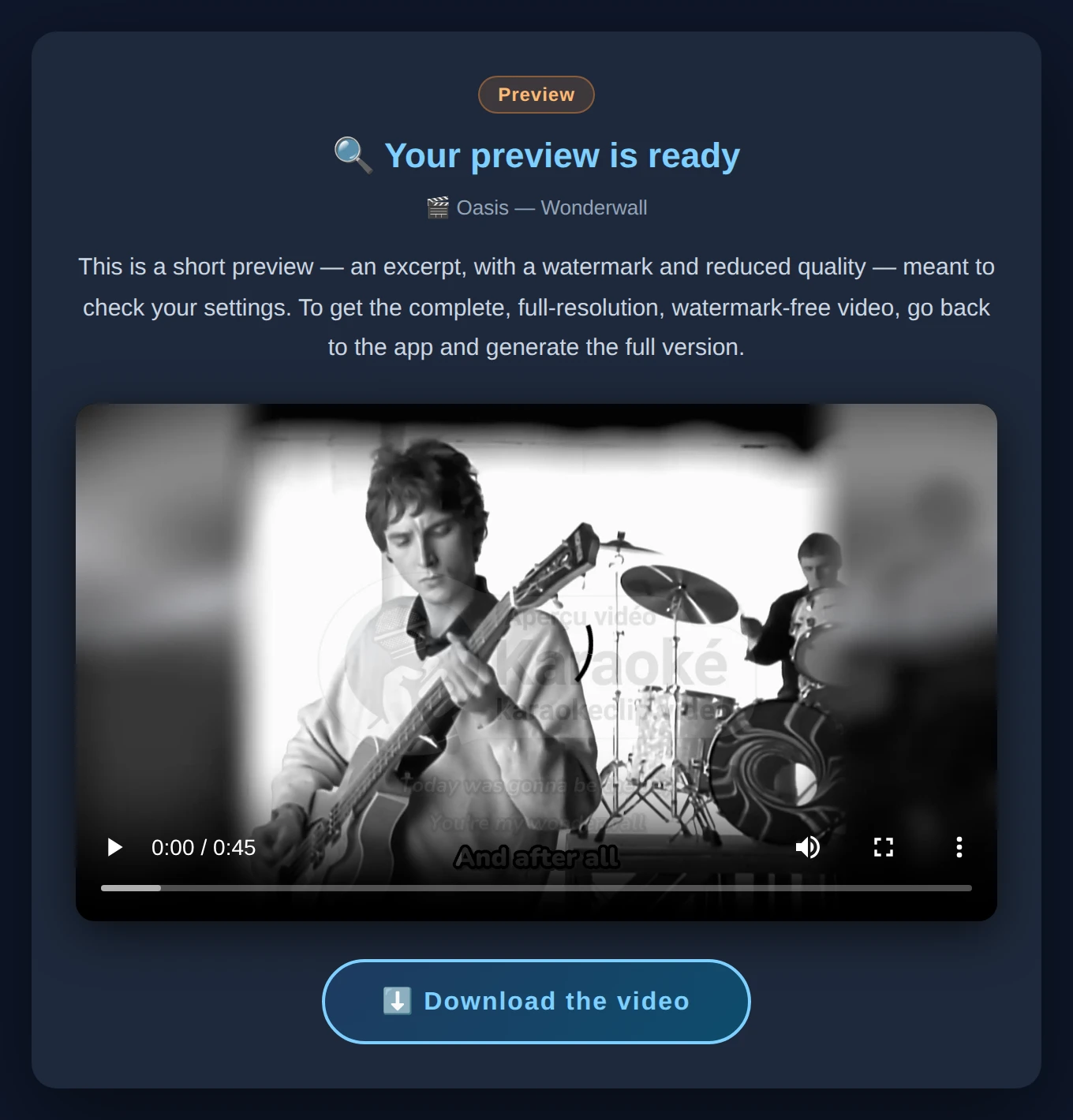
The Watch and Download links don't expose your file name, and they always point to your session's current video — so a link you shared keeps working even after you regenerate, and stops working cleanly once the session is gone.
If you close the tab
What happens depends on where you were:
| Where you were | What happens |
|---|---|
| During the upload | Upload is cancelled — start it again. |
| During the automatic processing (separation / transcription) | It keeps running on the server; you get an email when it's done. |
| On the transcript screen, not yet validated | The un-validated transcript is lost; resume from the email and redo it. |
| In the editor, before any preview | Your settings aren't saved yet, so you come back to an empty form — see the tip below. |
| In the editor, after at least one preview | Your settings were saved automatically; the email link brings you back to your full setup. |
| While a preview is encoding | It finishes: the preview appears on the page and a "ready" email is sent. |
| While a full video is encoding | It finishes on the server; you get the "video ready" email. |
Your settings are saved automatically the first time you generate (preview or full video). So if you've spent time styling your subtitles, generate a quick preview early — it locks your configuration in. You can also export it by hand from Configuration & Presets.
Keeping your creations
A few things worth knowing so nothing slips away:
- Only one video is kept at a time. The server holds a single video for you; generating a new preview or full video replaces it. So download your finished video before generating anything else — see Replacing your video.
- Your subtitles are always retrievable from any generated preview as
.srtfiles — see Download your subtitles. - When the session finally expires, the working folder is removed from the server. Anything you want to keep — your final video, your subtitles, your configuration — should be downloaded before then.
Your transaction history
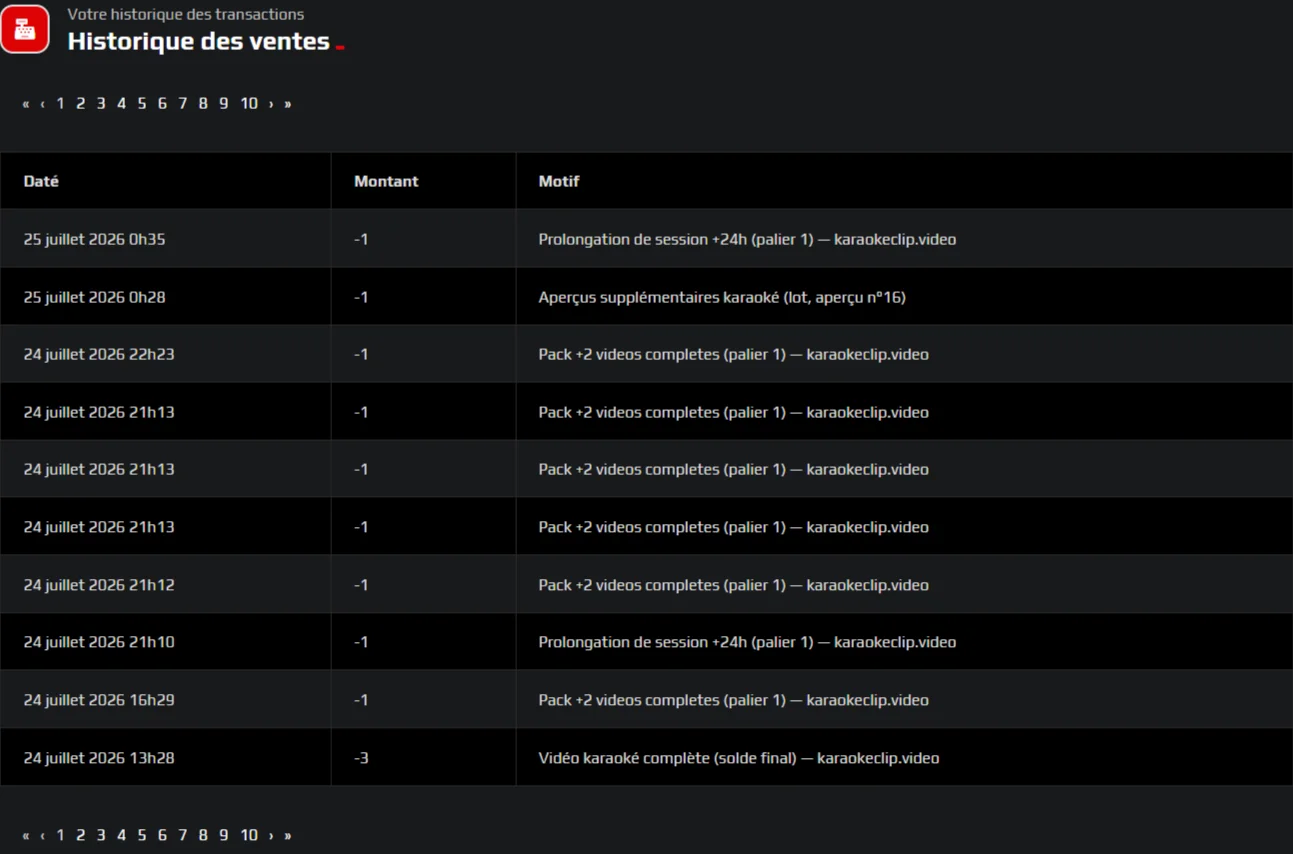
Every credit you spend is traceable. Your account on the main site keeps a full history of your credit movements — each debit, with a date, an amount and a short reason (a full video, a video pack, a session extension, extra previews…) — so you can always see exactly where a credit went. (Remember: a failed action is never charged.)
Next, see the full breakdown of what each credit pays for on the Credits & pricing page, or head back to Generating your video.