Generating your video
This is where your karaoke video is actually produced. The flow is always the same: you generate a preview to check your work, and when you're happy you generate the full video. The full video is launched from the preview screen or from your list of generated videos — never in a single blind click.
Generate a preview
The 🎬 Generate a preview button, at the bottom of the editor, always produces a preview (never the full video directly).

While it generates
A full-screen overlay shows what's happening — it won't close by accident, so you can't interrupt an encoding that's still running on the server. There are two phases.
Waiting in the queue — your position, how many generations are ahead of you, how many are encoding right now, and an estimated wait. Previews have priority over full videos, so a preview's wait is short.
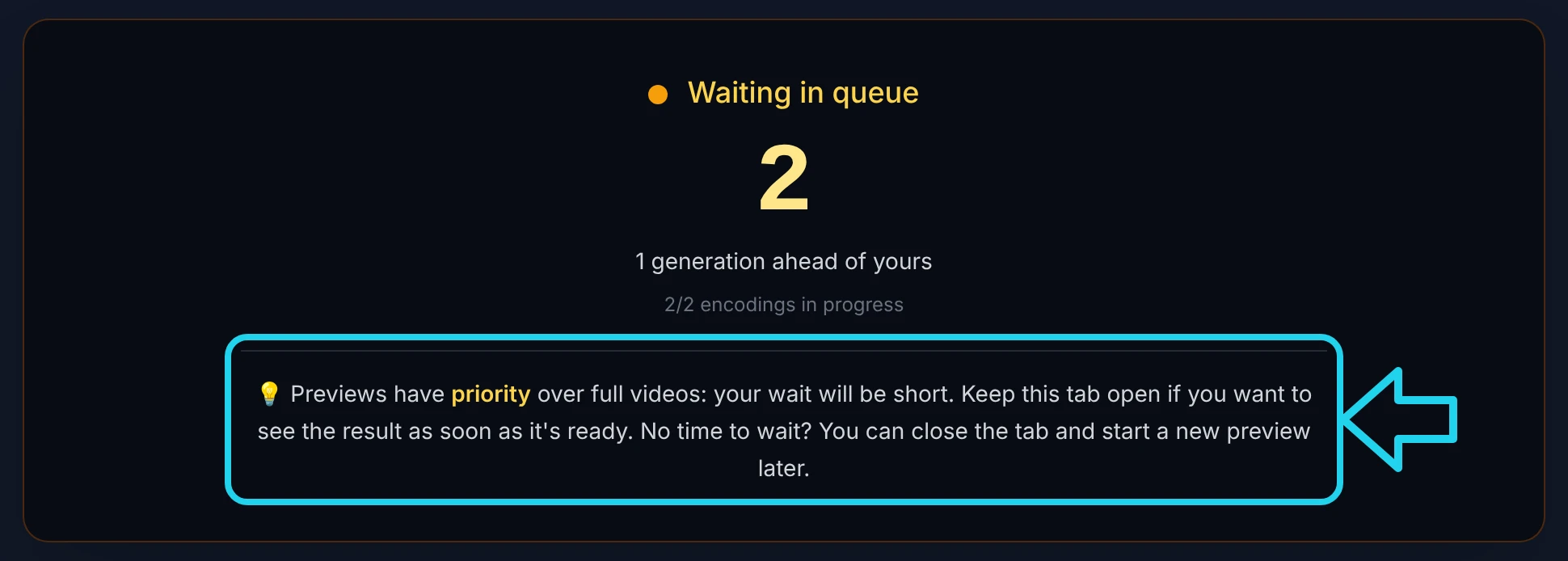
If the server is free, your generation starts in under a second and you never see the queue — that's normal.
Encoding — a progress bar with the percentage done, the time elapsed and the time remaining.
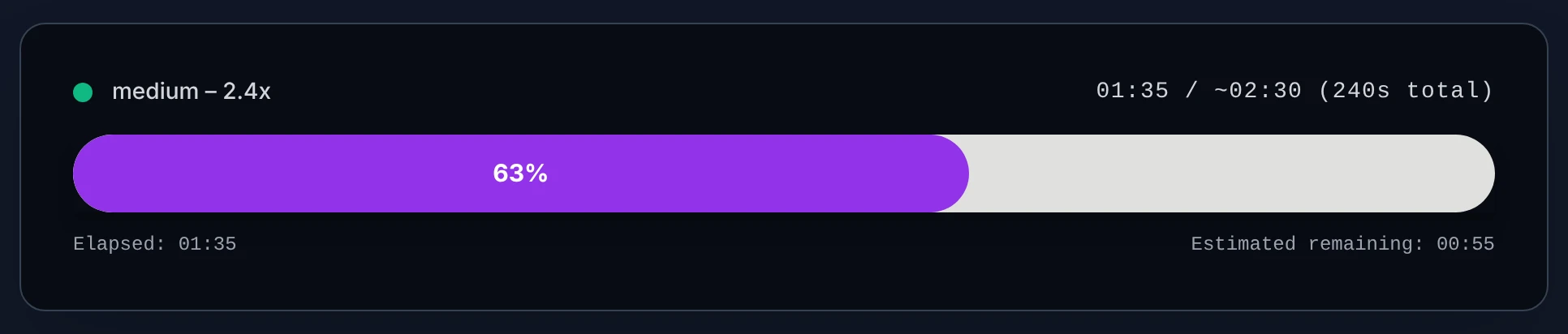
If you close the tab
Whether you can walk away depends on what you're generating — and there's a simple logic to it. You wait for a preview to confirm your settings (and launch the full video if they're right) or to adjust them — which is exactly why previews are prioritized. A full video, on the other hand, means you've already validated everything, so it can be processed second: you don't have to stay on the page for it.
- A full video — you can close the tab or even shut down your computer. It finishes on the server and you receive an email with a download link.

- A preview — if you leave while it's still waiting in the queue, the preview is cancelled (no email); just come back and start another. Once it has started encoding, it runs to completion: the preview appears on the page, and a "video ready" email with the link is sent as soon as encoding finishes.
There is no email for a preview you abandoned while it was still waiting in the queue.
Your generated videos
As soon as a video exists, a 🎬 Your generated video previews panel appears at the bottom of the page. It's closed by default — click it to open. What's inside depends on your last generation, so there are three cases.
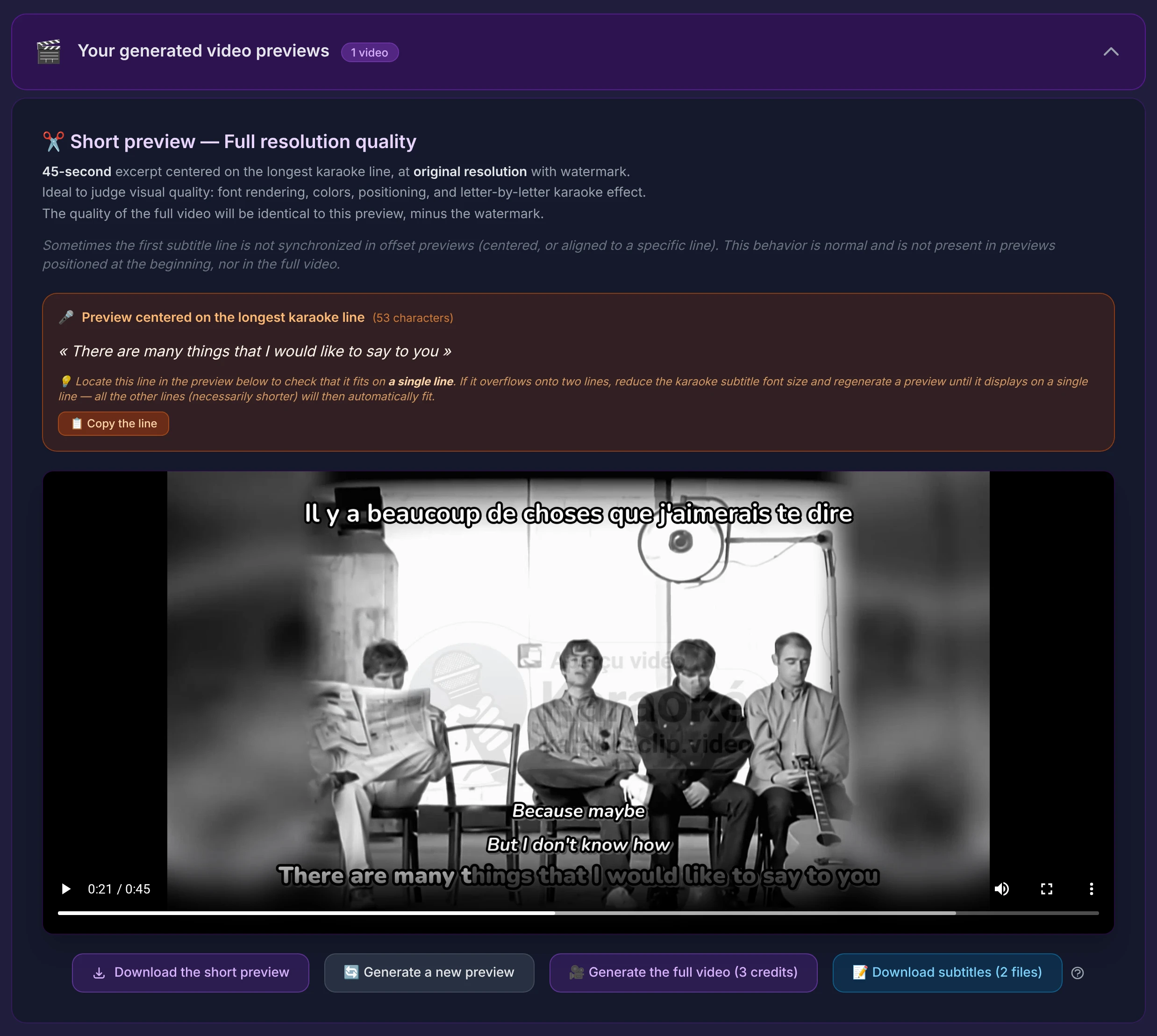
A short preview only — your quick clip, at original resolution with a watermark. The toolbar under it lets you download the preview, relaunch a preview, generate the full video, or download your subtitles (see below).
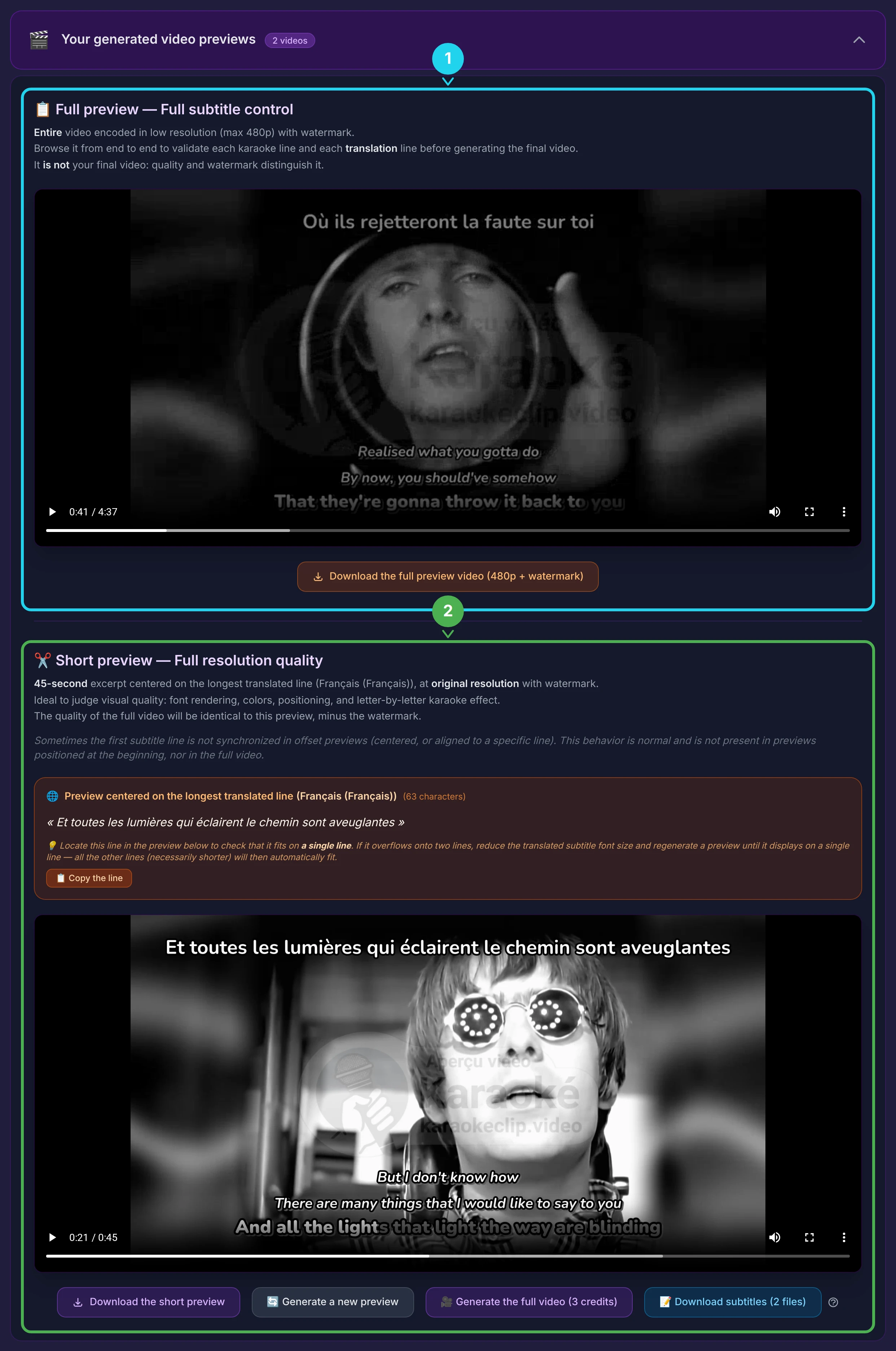
A short preview + a full-length control copy — if you turned on Full subtitle control, the 480p watermarked full-length copy (marker 1) sits above your short preview (marker 2).
Your complete video — the finished video, at original resolution and with no watermark.
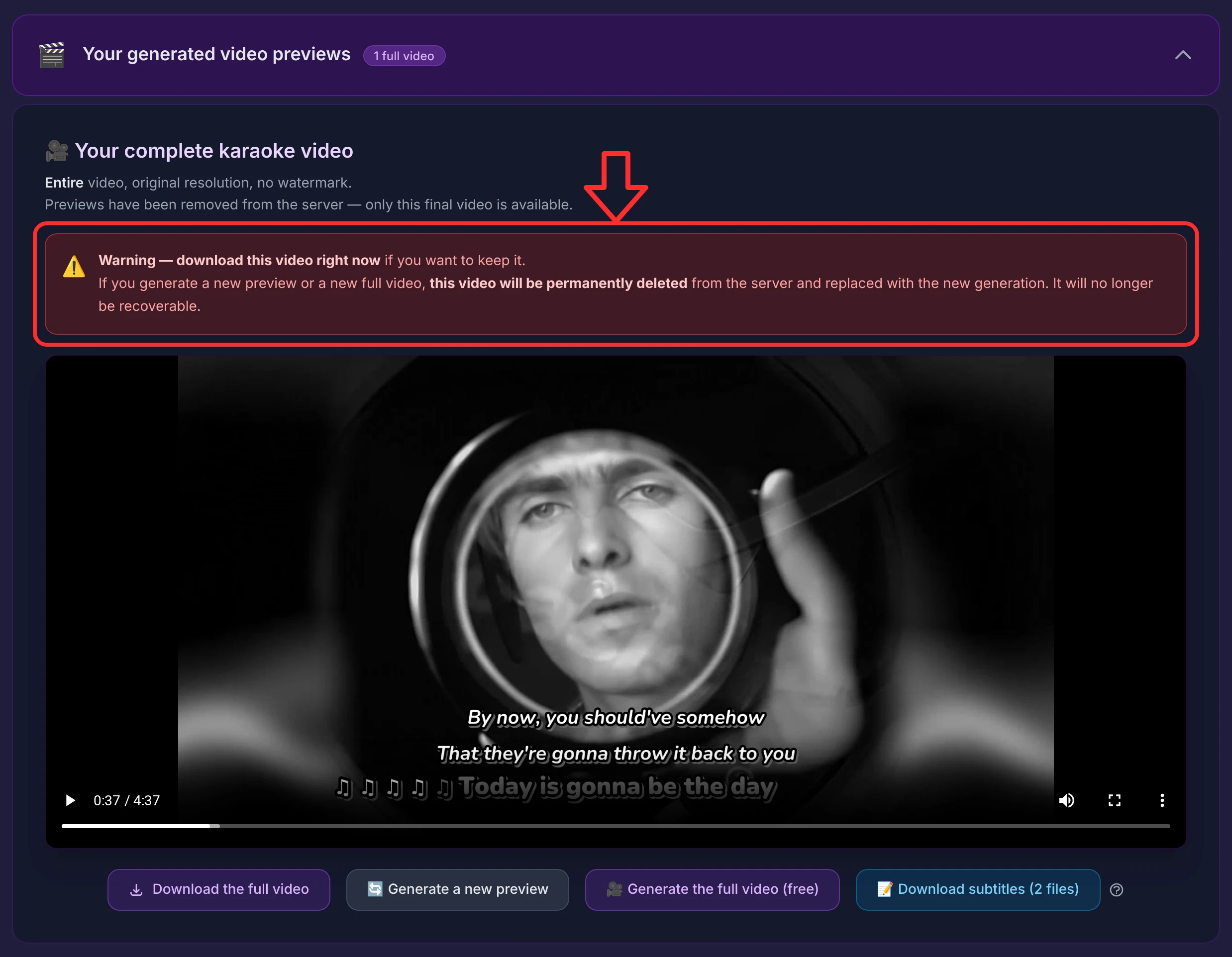
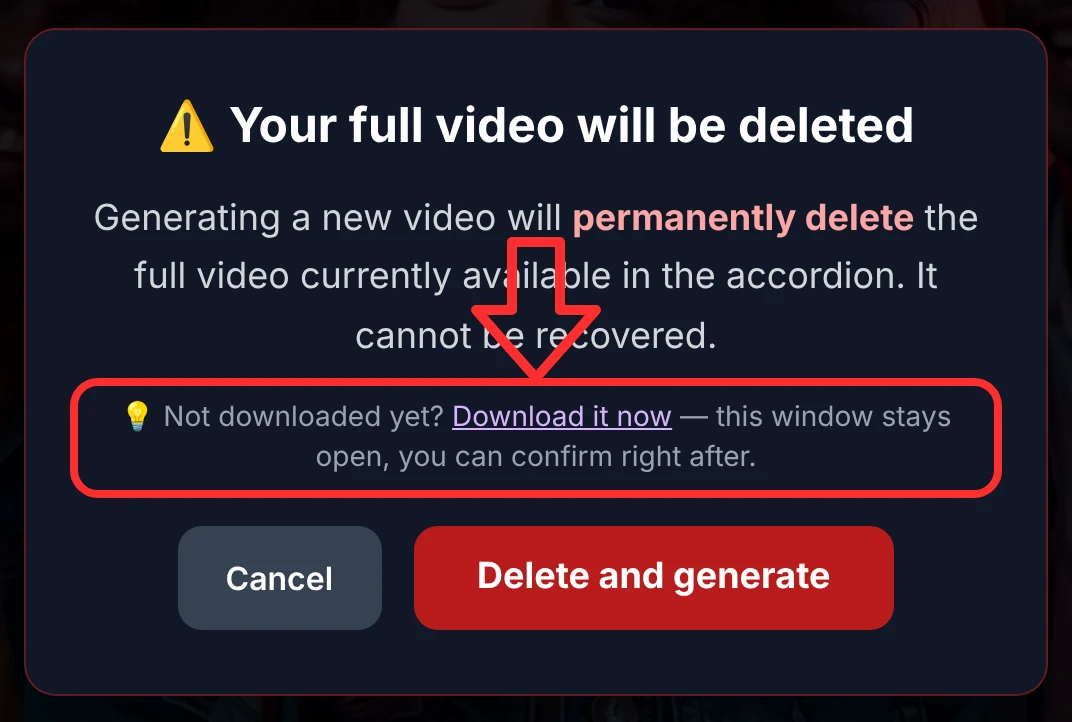
The server keeps a single video for you. Generating a new preview or a new full video replaces whichever video is there — so if you've just made your complete video, download it before generating anything else. The panel shows this in red, and a confirmation asks again (see Replacing your video).
The "longest line" card
If your last preview was centred on the longest karaoke (or translated) line, an orange card shows that exact line — its character count, its full text, and a 📋 Copy button — so you can confirm it fits on one line with your chosen font size.


Download your subtitles (.srt)
Every panel — under a short preview and under your complete video — carries a sky-blue 📝 Download subtitles button, the fourth in the toolbar. It gives you a .zip of your subtitles as .srt files, the universal format accepted by YouTube, Rumble, Odysee and every major platform. The number in the label is how many files are inside: always the subtitle file for your video's own language, plus one file per language you've translated.

The button is present on both branches of the panel, so you can grab your subtitles from a preview or from the finished video alike:

Why this matters — even if karaoke was never the point. Automatic captions from the platforms are approximate at best. Here you get subtitles built on your real lyrics, corrected by AI, and split into lines exactly where you decided. Upload the file to your video and your captions are right from the very first second. And because the file in your original language matches your lyrics word for word, the automatic translations the platforms generate become far more accurate — in every language they offer. One clean source file, and your video reaches an audience well beyond its original language.
The .zip always reflects the last version you actually generated. If you edit a translation but don't generate a new video, those latest changes aren't in the .zip yet — regenerate first, then download.
Partner-creator accounts
For affiliate accounts, a banner in the panel reminds you that your videos carry the imposed KaraokeClip watermark — and points out that a standard account (a different email, with regular credits) produces watermark-free videos.

When your video is ready
A modal opens with your video. By default it deliberately shows no close button, so you can't dismiss it by accident before saving your file — the close (✕) appears once you've started the download. Even then nothing is lost: the video also stays available in the accordion panel on the page. (More on this for the full video below.)
After a preview
It plays your preview and shows your preview counter, your session time left, and three buttons: generate a new preview, generate the full video, or download this preview.
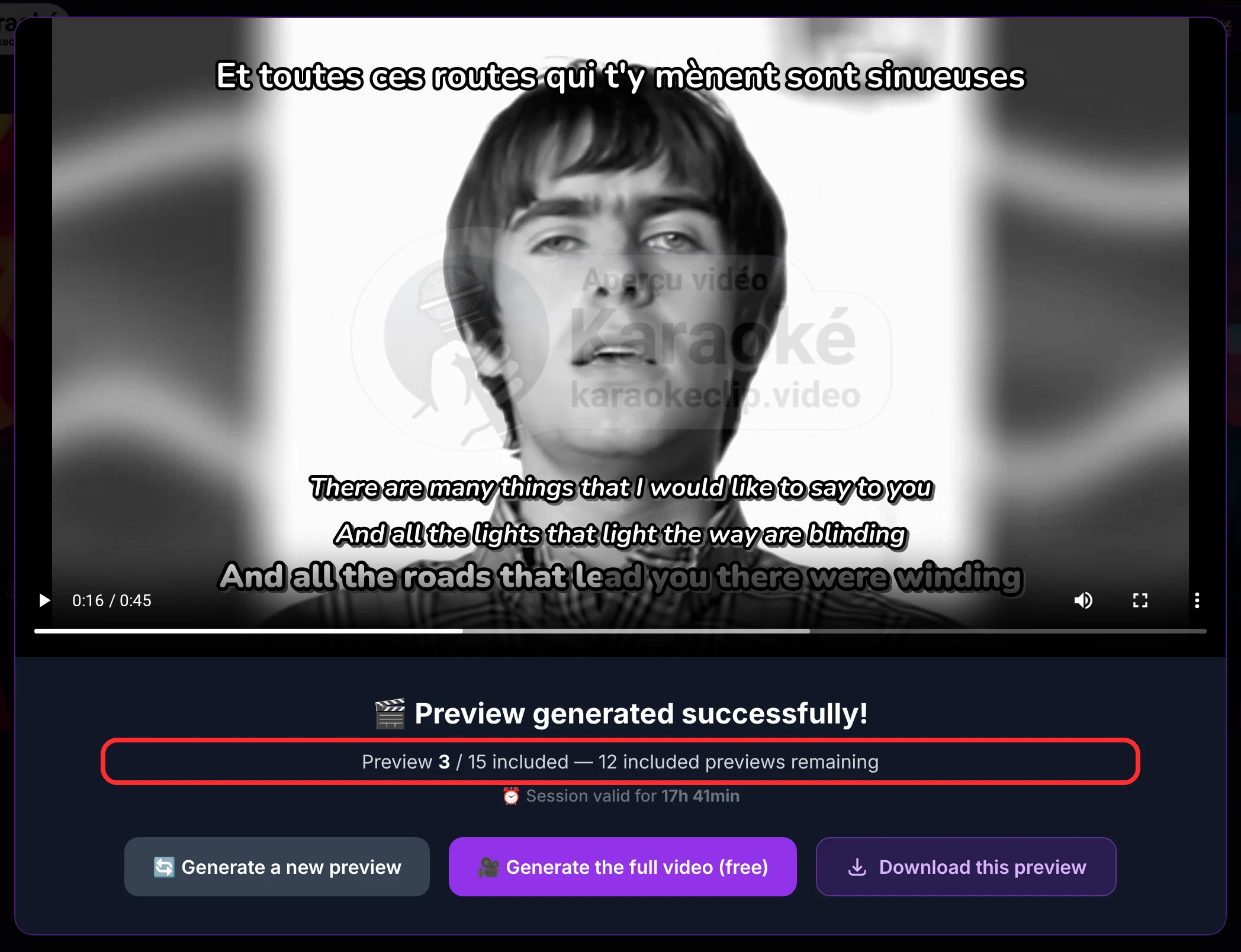
A few variations change one line of that panel:
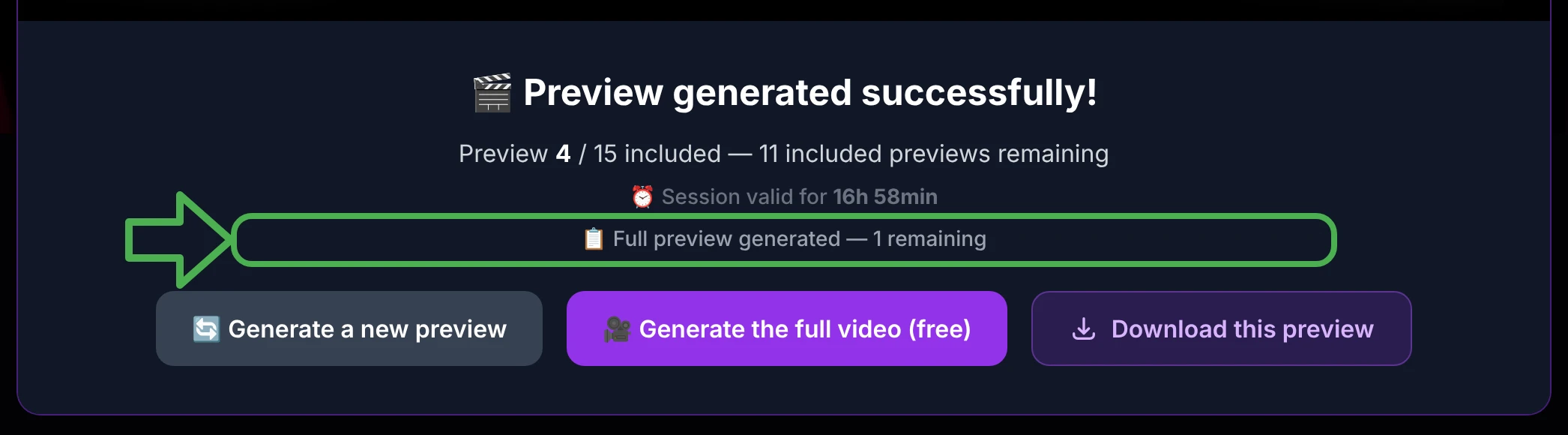
- If your generation included a full-length copy, a line shows how many you have left.
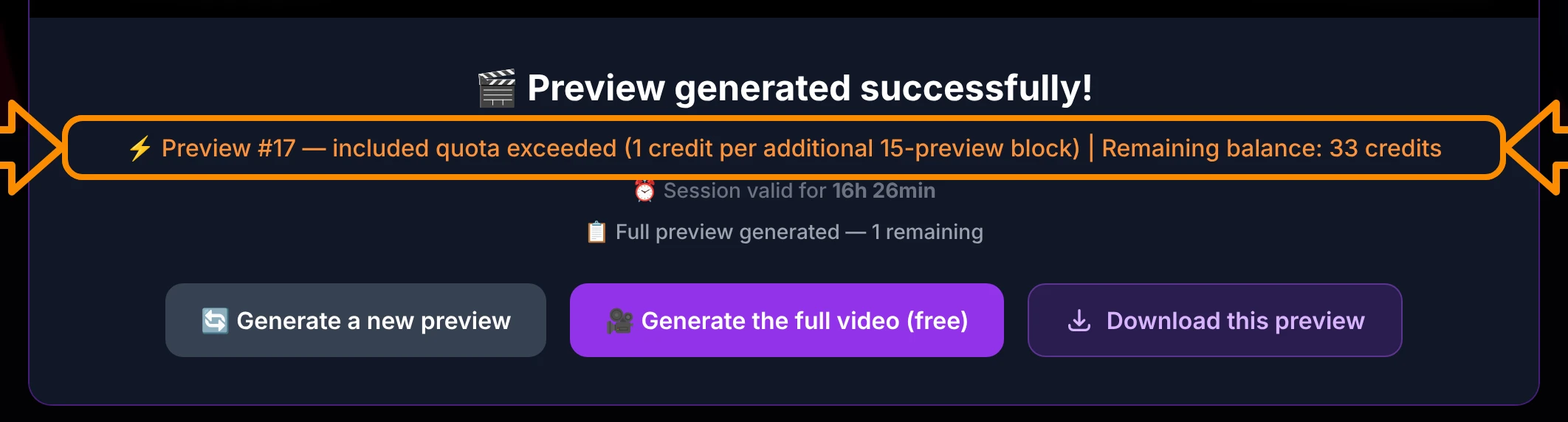
- Past your 15 included previews, a line reminds you that each additional block of 15 costs 1 credit, and shows your balance. There's no confirmation step: crossing into a new block (your 16th preview, then 31st, and so on) debits 1 credit automatically — and that same credit also grants you 2 more full-length previews.
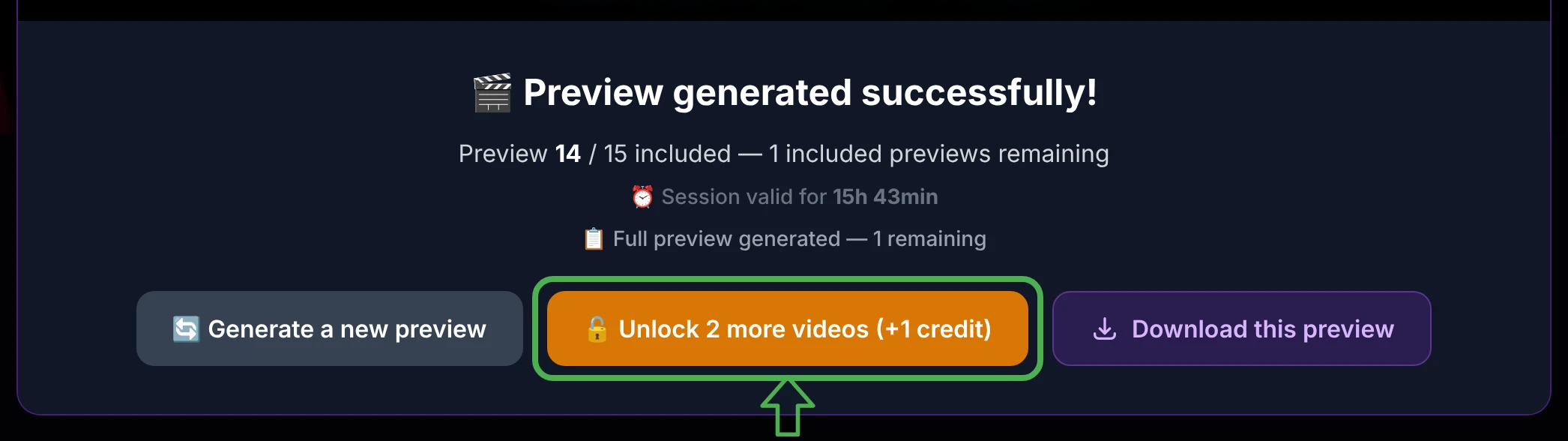
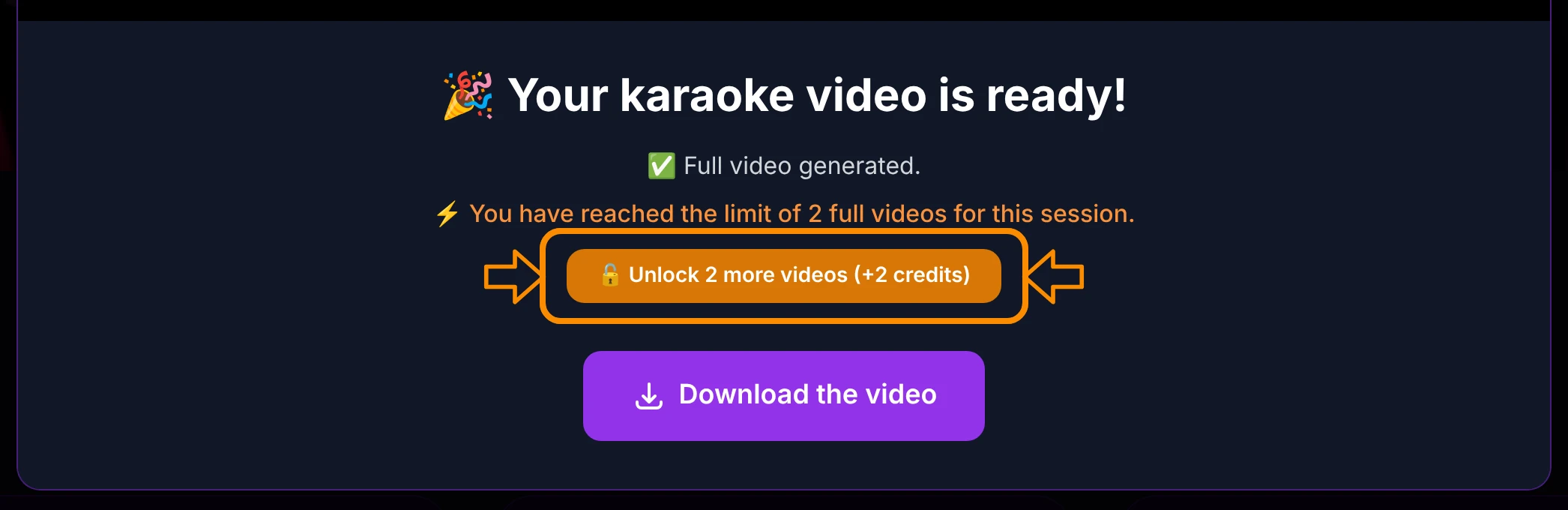
- If you've used up your included full videos, the middle button becomes 🔒 Unlock 2 more videos.
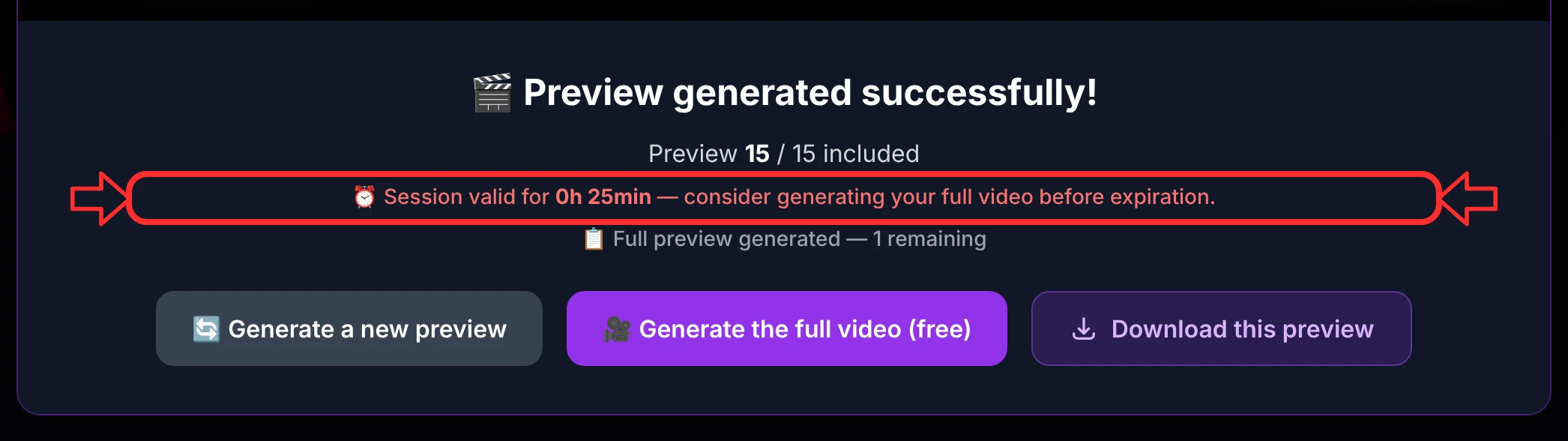
- A banner appears if your session is about to expire.
After a full video
It confirms the credits debited and your remaining balance.
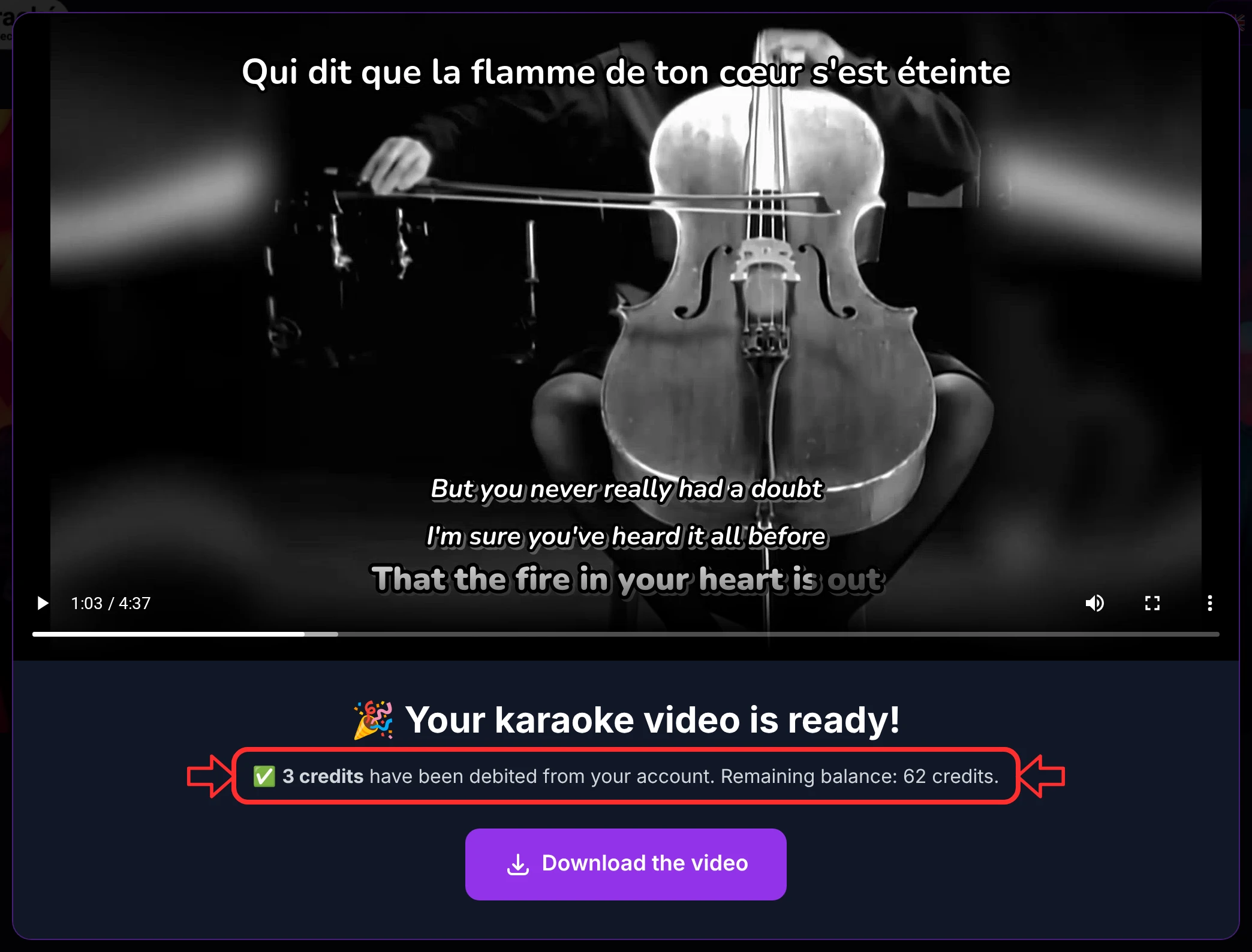
The close (✕) button only appears after you download (marker 1), so you can't forget your final file; a note confirms the download has started (marker 2).
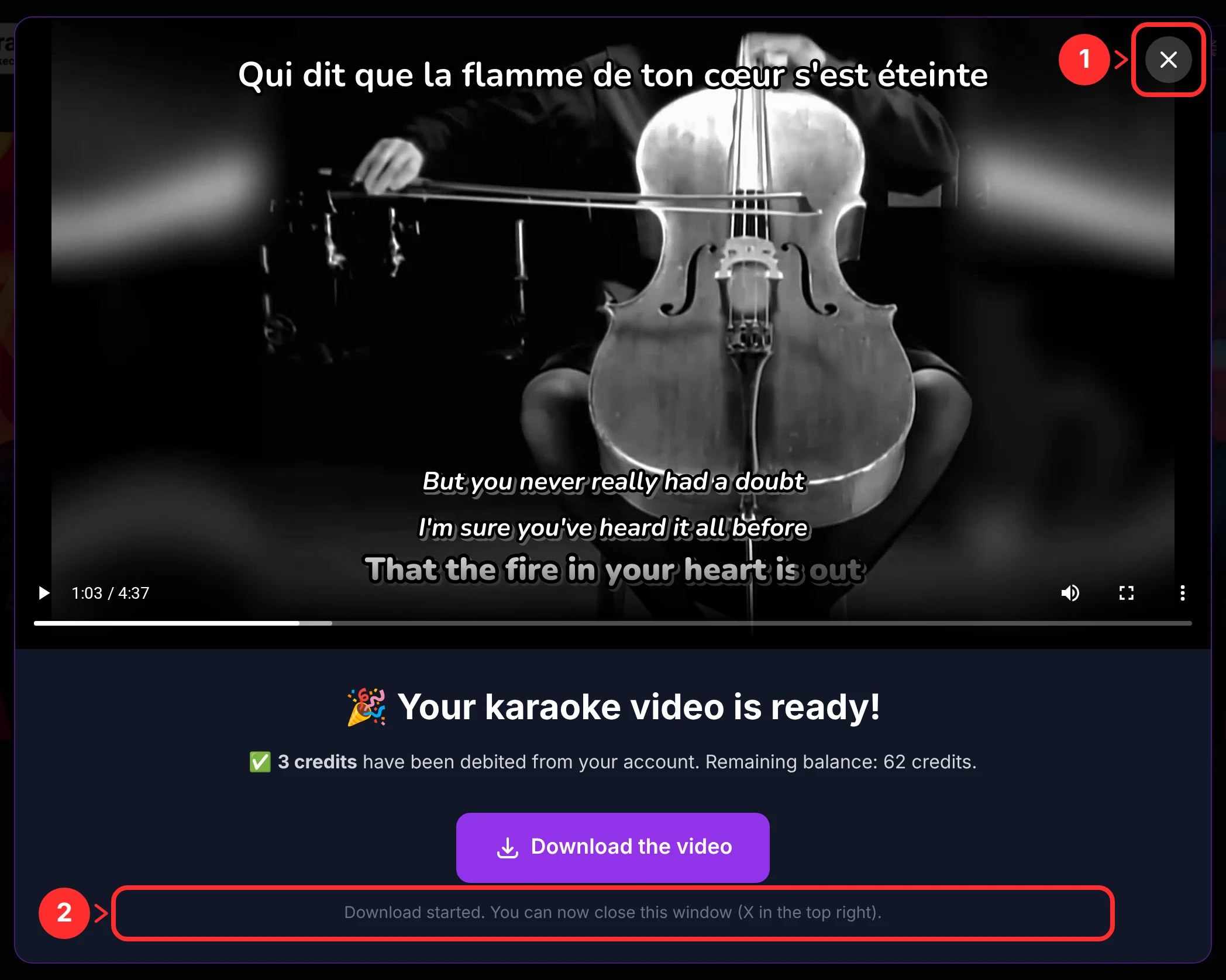
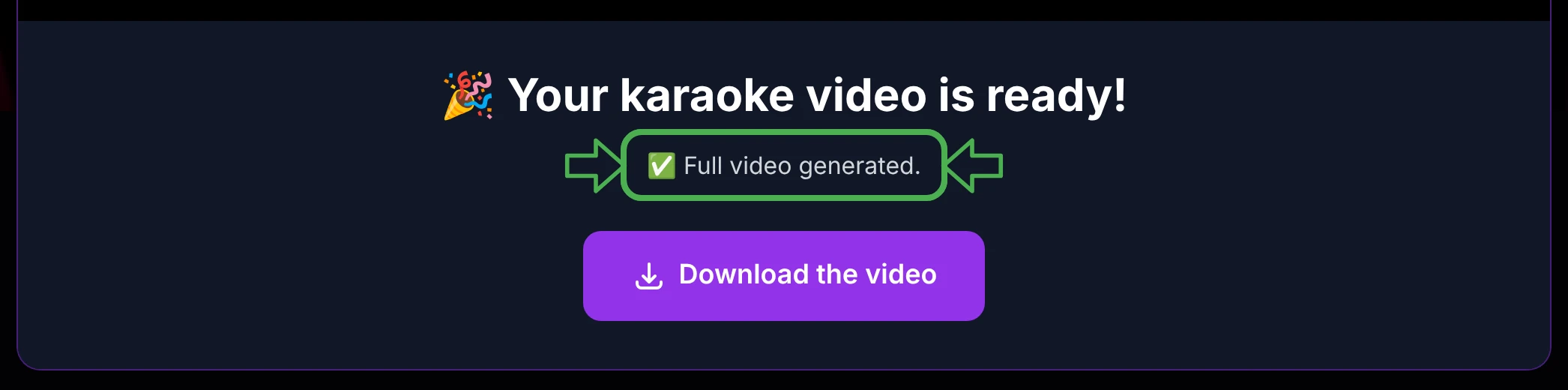
- A free video (already within your quota) simply says Full video generated, with no new charge.
- When you reach your quota, it offers to unlock a pack.
Generating the full video
Click Generate the full video and a confirmation appears first.
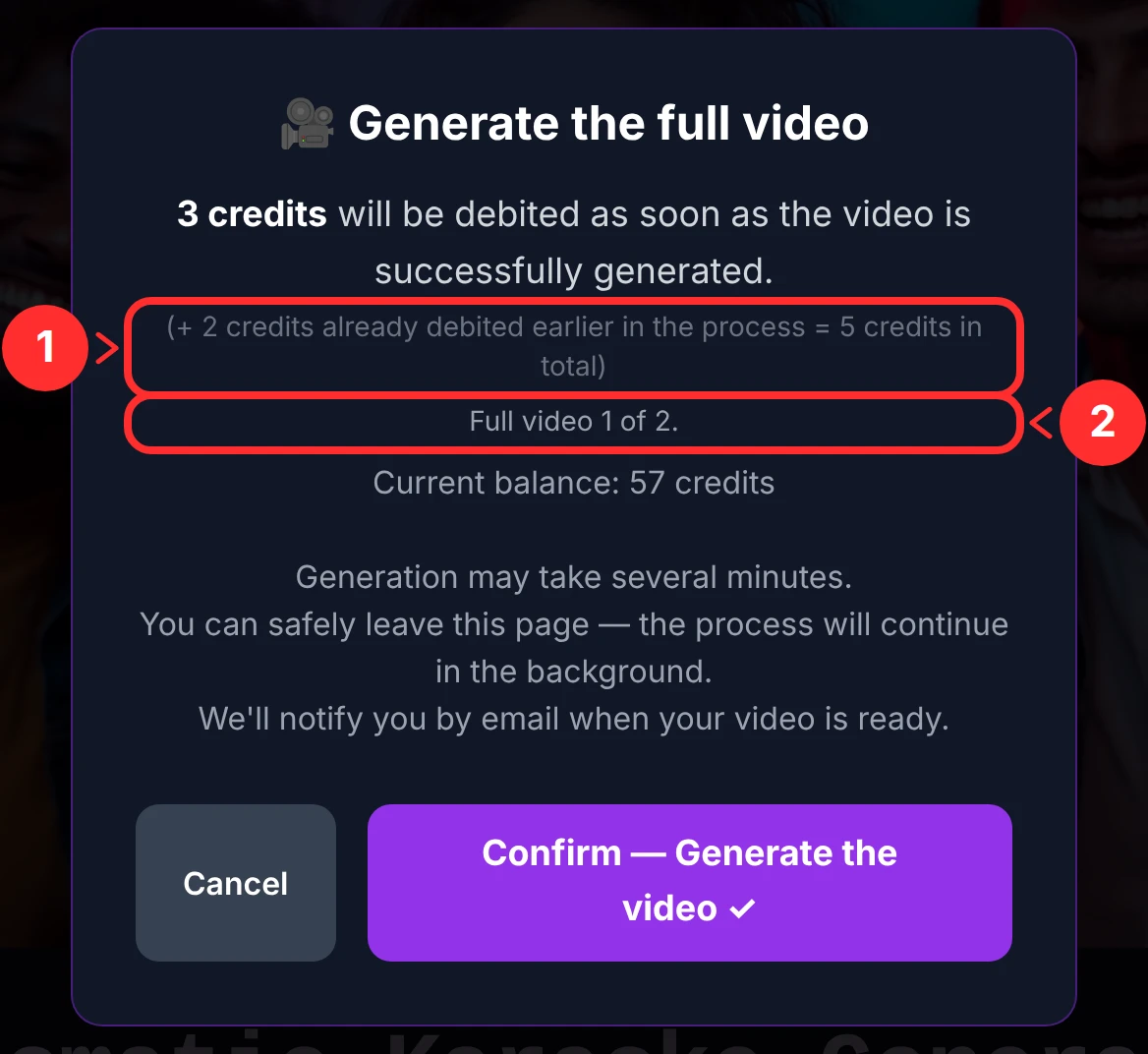
Your first full video costs 3 credits — plus the 2 already spent to reach the editor, so 5 in total (marker 1). The modal tells you which of your included videos this is ("Full video 1 of 2", marker 2), and reminds you it may take several minutes: you can leave the page and get an email when it's done.
A few variations change only the wording of that panel, so we describe them here rather than repeat the modal:
- The next video included in your quota is free — the panel says it's already billed, with no additional credit.
- The last video of your quota is flagged as such ("Full video 2 of 2").
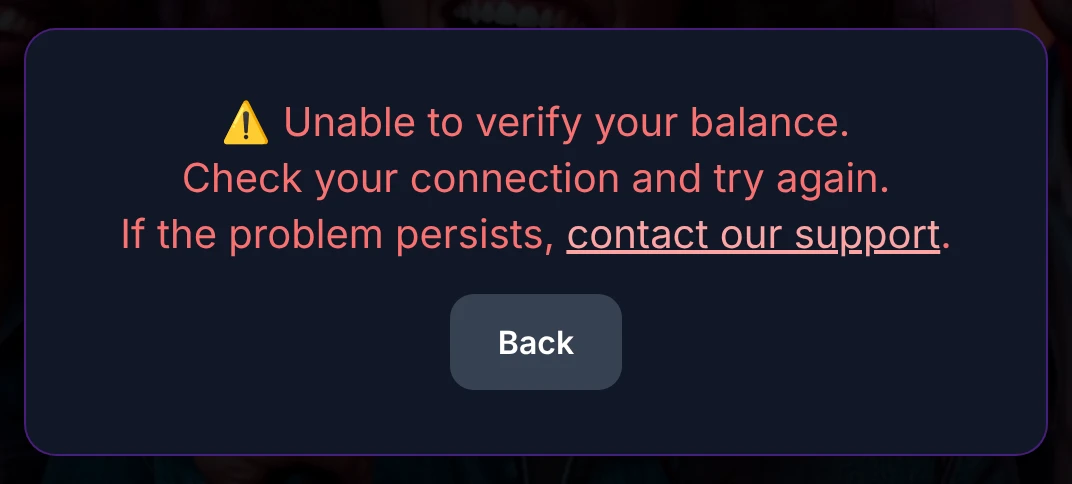
- Just before confirming, a brief spinner checks your balance ("Verifying your balance…").
Credits, quotas & packs
The essentials (the full price list lives on the Credits & pricing page):
- Previews — 15 included, then 1 credit per additional block of 15.
- Full video — 3 credits, but only the first is billed; the second video included in your quota is free. (Beyond your quota of 2, further videos come from paid packs — see below.)
- Full-length control copies (480p + watermark) — 2 free per block of 15 previews, and unused ones carry over to your next blocks.
- Unlock a pack — need more full videos? Buy a pack of 2 more (1, 2 or 3 credits depending on your video's tier).
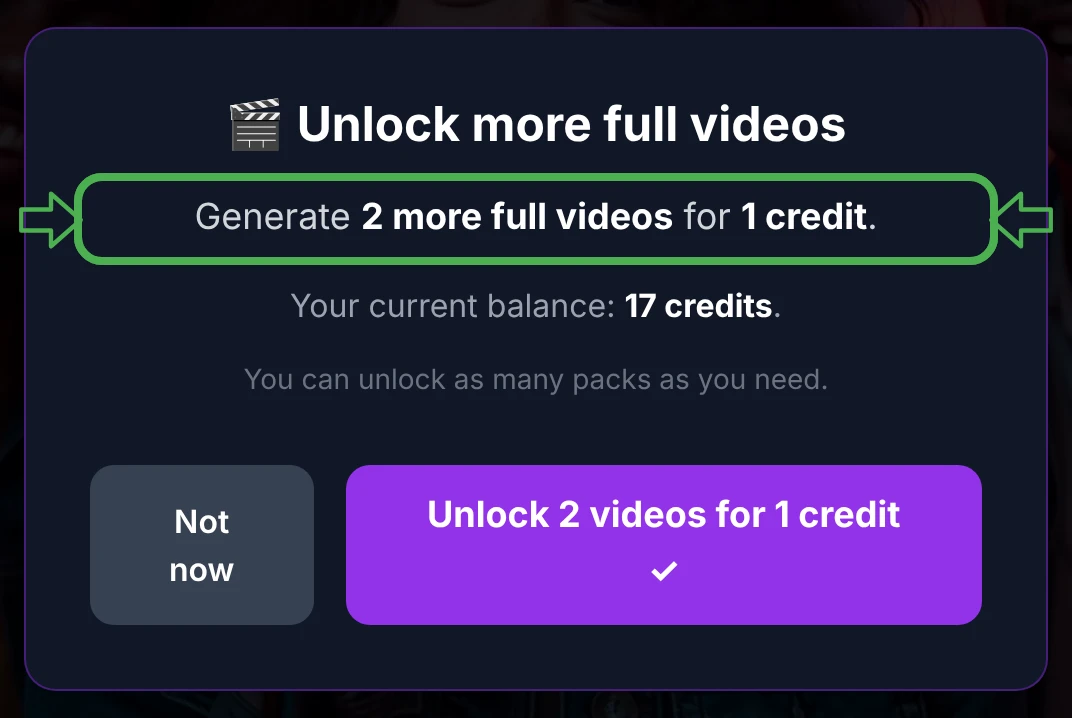
- Extend your session — add +24 h for 1, 2 or 3 credits.
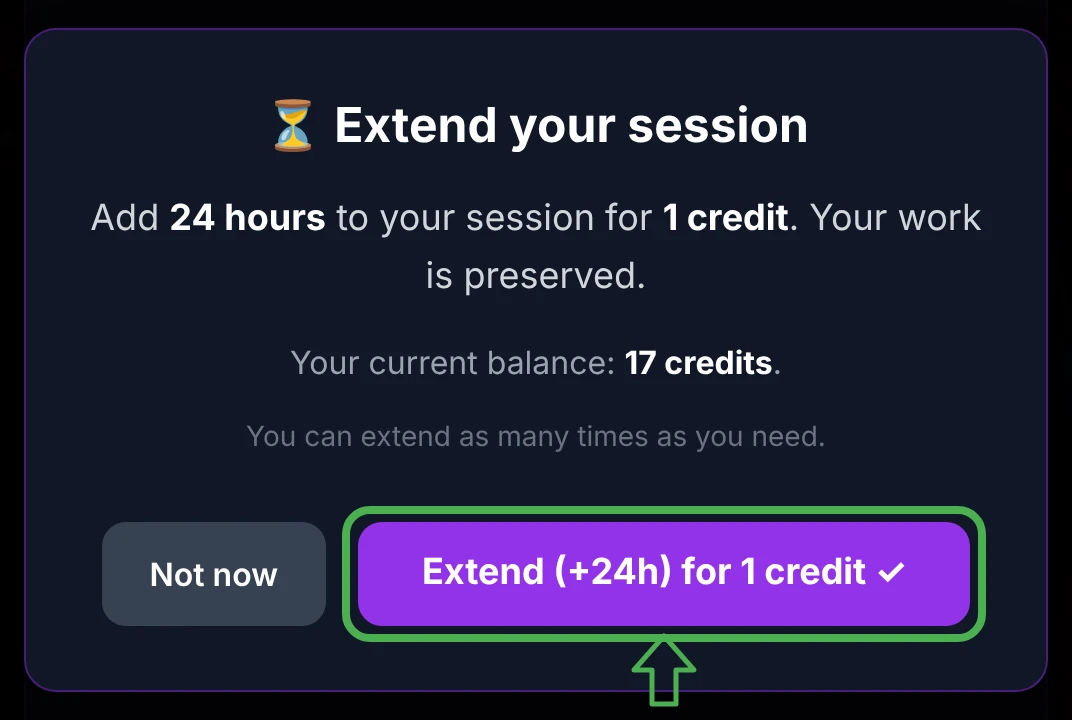
The 💎 and ⏳ buttons in the status bar at the top of the editor let you buy a pack or extend your session at any time. The status bar also tracks everything at a glance — here in a long, heavily-used session:

Reading it: (1) the session can be extended as often as needed; (2) previews auto-extend in blocks of 15; (3) full videos come in packs of 2 (here 6 / 6, all used); (4) full-length control copies pile up 2 per block and stay available even when unused (here only 1 of 10 spent).
Replacing your video
Because only one video is kept at a time, asking for a new preview or a new full video while a complete video exists deletes that video. A red confirmation lets you download it first — if you haven't already (from the ready modal or the accordion) — before continuing.
Getting your video by email, and your session
- Every full video triggers an email with a link to come back and download it — even if you closed everything. (A preview abandoned in the queue does not send an email.)
- Your work session lasts 24 hours and keeps your project exactly where you left it for the whole time.
Will you need to extend your session? Almost certainly not. Your 24-hour session is included in the price, and the AI models do the heavy lifting for you — separating the audio, transcribing the lyrics and aligning them line by line. In practice, an hour is usually more than enough to fine-tune the few details that remain. But life happens: if you ever need to step away and come back later, extending your session (+24 h for 1 credit, as many times as you need) guarantees your work is never lost. It isn't something to buy for its own sake — just a safety net, there the day you happen to need it.
Going deeper
Buying more full videos
You can buy as many packs as you need. Each pack adds 2 full videos to your quota, and the price follows your video's tier (1 / 2 / 3 credits). The exact pack prices and how they combine with your credits are laid out on the Credits & pricing page.
The pricing tiers
Your video's size and length place it in one of three tiers, which sets the base total for a finished video:
| Tier | Up to | Base total |
|---|---|---|
| 1 | 1 GB · 15 min | 5 credits |
| 2 | 2 GB · 30 min | 7 credits |
| 3 | 3 GB · 45 min | 10 credits |
Full details — how each credit is spent, the two upload paths, included quotas and options — are on the Credits & pricing page.
If something goes wrong
You're always told clearly, and nothing is charged for a failed action:
- Not enough credits — when generating a full video, or when unlocking a pack.
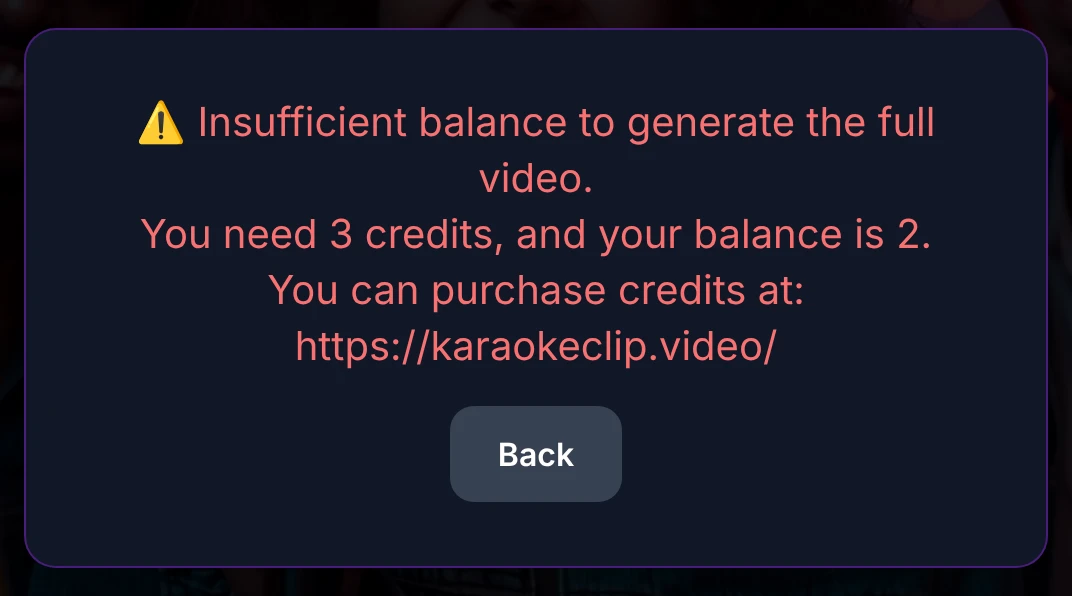

- Session expired — start again from your email link.
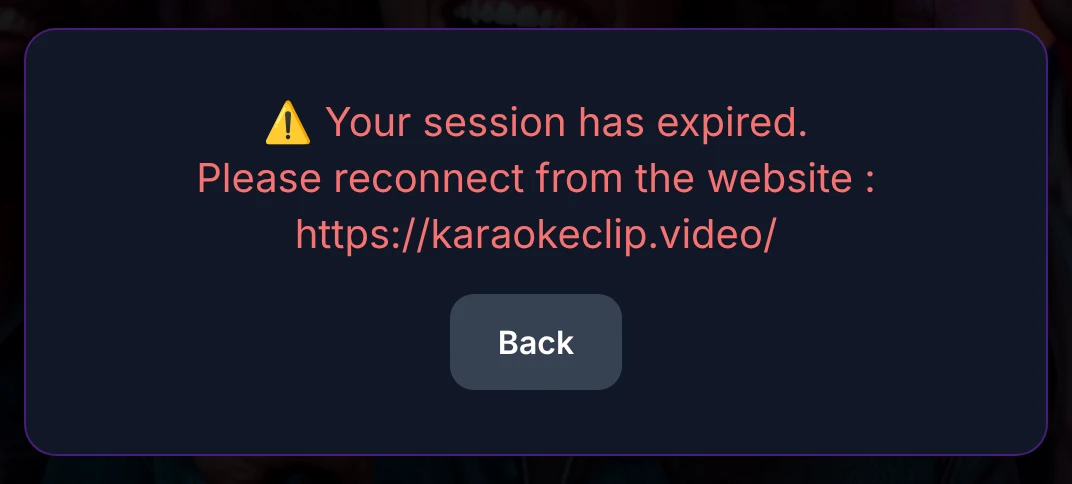
- A network or technical problem — with a support link if it persists.


And here's the result
To finish, here is the finished karaoke video used throughout this walkthrough — Oasis – Wonderwall — created with KaraokeClip from the very first upload to the final download. Press play and sing along. 🎤