Configuration & Presets
Everything you set up in the editor — subtitle styles, colors, fonts, translation, video and audio options, logo — forms your configuration. This first section of the form lets you save it, bring it back, and share it between projects, or start from a ready-made preset instead of a blank page.
Like every section of the form, it arrives collapsed: flip its switch to open it.

Once activated, here is the full section:
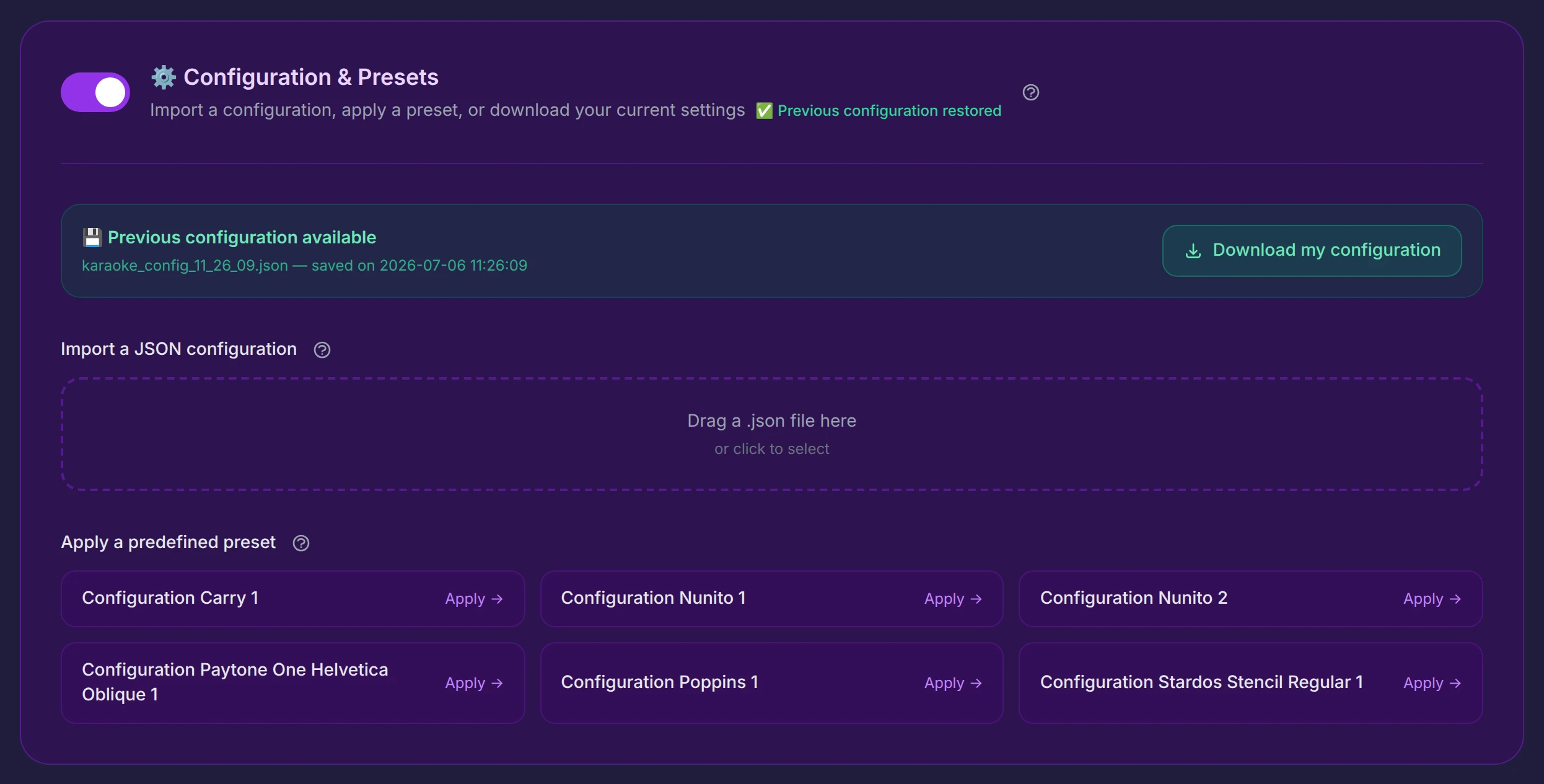
Your previous configuration, restored automatically
Your configuration is saved on our servers every time you generate a video — preview or full, it doesn't matter. Thanks to that:
- When you come back to your session through the email link (subject: "Your karaoke interface is ready!"), your last saved configuration is loaded automatically — a green "Previous configuration restored" note in the section header confirms it. You pick up exactly where you left off.
- The Previous configuration available block names that saved file and when it was saved, and its Download my configuration button exports it to your computer as a small JSON file:

On your very first visit to the editor — before you have generated any video — there is nothing saved yet, so this block and the restored-configuration note simply don't appear. They show up from your first generation onward.
If you adjust your settings and then leave the editor without generating at least one preview, those settings are lost — nothing is stored in your browser, and the automatic save only happens when a video (preview or full) is generated. Before stepping away, either generate a short preview or download your configuration with the button above. The same advice applies to your annotation work — see the waveform editor.
Import a JSON configuration
The drop zone takes back any configuration file you previously downloaded — drag it in, or click to select it:

All its settings are applied at once. This is how you reuse a look you love across projects: download the configuration from one karaoke, import it into the next, and every style choice follows you.
Apply a predefined preset
Rather than styling everything from scratch, you can start from one of the ready-made presets — complete, turnkey visual styles prepared by KaraokeClip. Click Apply on any of them and the whole configuration is set in one go; you can then tweak anything you like in the sections below.

Two honest things to know about presets:
- The preset list is not contractual. Presets can be renamed, replaced, or removed at any time as the collection evolves. If you find one you love and want to keep reusing it, apply it, then download your configuration — your local JSON copy is yours forever, whatever happens to the preset list.
- Choosing by name alone isn't ideal — and that's planned for. In the course of 2027, each preset will come with a short example video in an expandable panel, so you can pick a style by seeing it rather than by its name; the presets will be renamed more simply at the same time.