Getting started
Before you create your first karaoke, here is everything you need and how to open the generator. It only takes a few minutes.
- A KaraokeClip account (free to create)
- At least 5 credits on your account
- An MP4 video (up to 45 minutes / 3 GB)
- A desktop computer is recommended for the editor — see Recommended setup
1. Create an account and add credits
You create your account and buy credits on the main site. An account is created automatically the first time you buy credits — there is no separate sign-up step.
- Sign in with your email and password, or with Google, Facebook, or X.
- Buy credits from the shop. Credits are prepaid — no subscription, and you only pay for what you use.
A few things worth knowing about credits:
- They never expire. Buy a larger pack for a better unit price, with no pressure to use them quickly.
- They're transferable between accounts — handy for offering credits to a client, or giving a family member limited, occasional access.
- A standard karaoke video costs from 5 credits. (Full pricing is on the Credits page.)
→ Sign in and add credits on the main site: karaokeclip.video
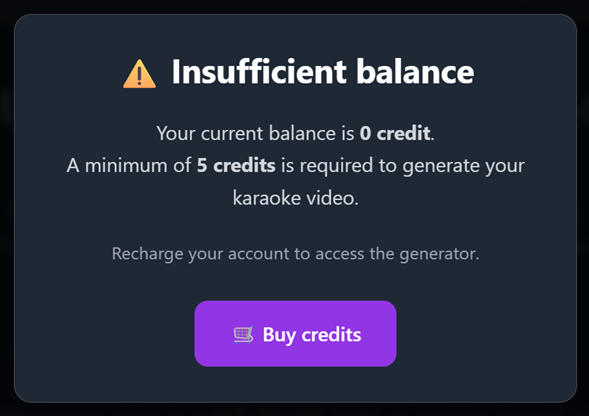
Creating a karaoke uses real processing power on our servers, reserved for actual projects — so there are no free starter credits or trial. You need at least 5 credits to open the generator. If you try to open it without enough credits, you'll see this message and be sent to the shop to top up:
2. Open the generator
The generator opens only from the link in the main site menu — that is the single entry point.
- Sign in to the main site first. The launch link only works when you are logged in.
- In the menu, open Karaoke Generator — it appears in the top menu, and in the side menu as Karaoke Generator – Access.
- If you are signed in and have credits, this opens the generator directly. If you are not signed in, the same link takes you to the how-to guide instead.
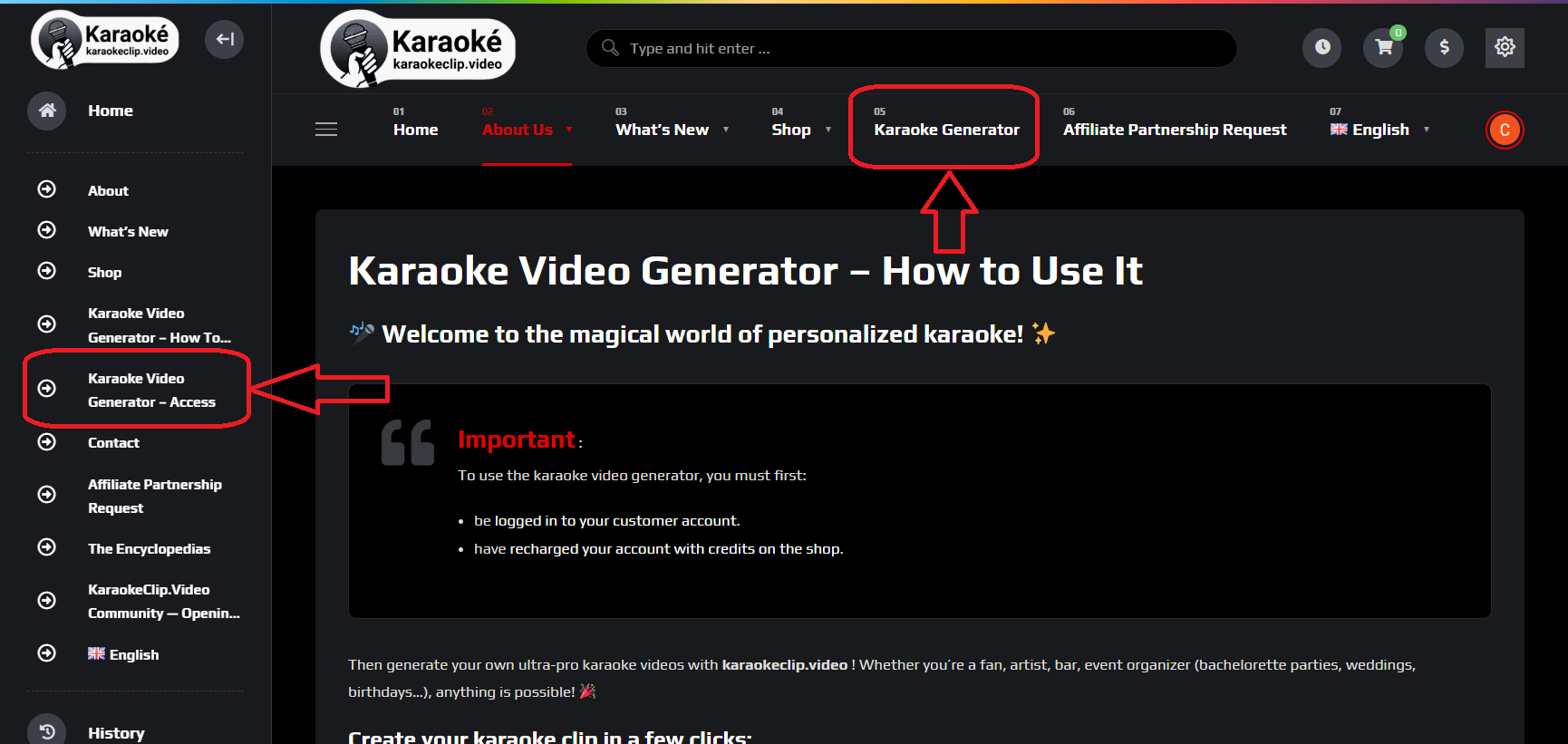
- The access link from the site is valid for 24 hours; simply refreshing the site page issues a fresh one. It's how you start a session.
- Once you reach the editor, you have a 24-hour workspace to finish your video. You can extend it in 24-hour steps using the button at the top of the editor.
- If you close the app while a job is in progress, you come back through the links in the emails we send at each step — not through the site menu.
3. Your first karaoke
Here is the whole journey at a glance. Each step has its own detailed page.
- Choose your video type — a known song, or another kind of video.
- Upload your MP4.
- Choose how to get the lyrics — provide a
.txtfile, or let Whisper transcribe them automatically. - (Whisper path only) Review and correct the transcript, then send it for alignment.
- Fine-tune and style in the editor — adjust the timing of each word on the waveform, then pick colors, fonts, position and effects, and optionally add a synchronized translation and your logo.
- Generate a preview (15 are included) until you're happy with the result.
- Generate and download your final video.
The detailed pages — Upload, Transcript correction, and the Editor — walk through each step in depth.
Recommended setup
- Use a desktop computer for the best experience. Placing subtitles means pausing and resuming playback very often (the spacebar is the quickest way), which is far easier with a keyboard. A large tablet works too, but a phone is not practical for adjusting word timing. Everything else on the page is fully responsive.
- Any modern browser works — Chrome, Edge, Firefox, Opera, Brave, and others.