Editing groups of annotations
Sometimes the problem isn't one word — it's a whole passage: a verse that's correctly cut but shifted in time, a fast burst of words that the automatic aligner spread over far too long, or tiny silences between words that should flow as one breath. Correcting those one annotation at a time would be slow and error-prone.
At the bottom of the waveform editor, three tools act on many annotations at once:
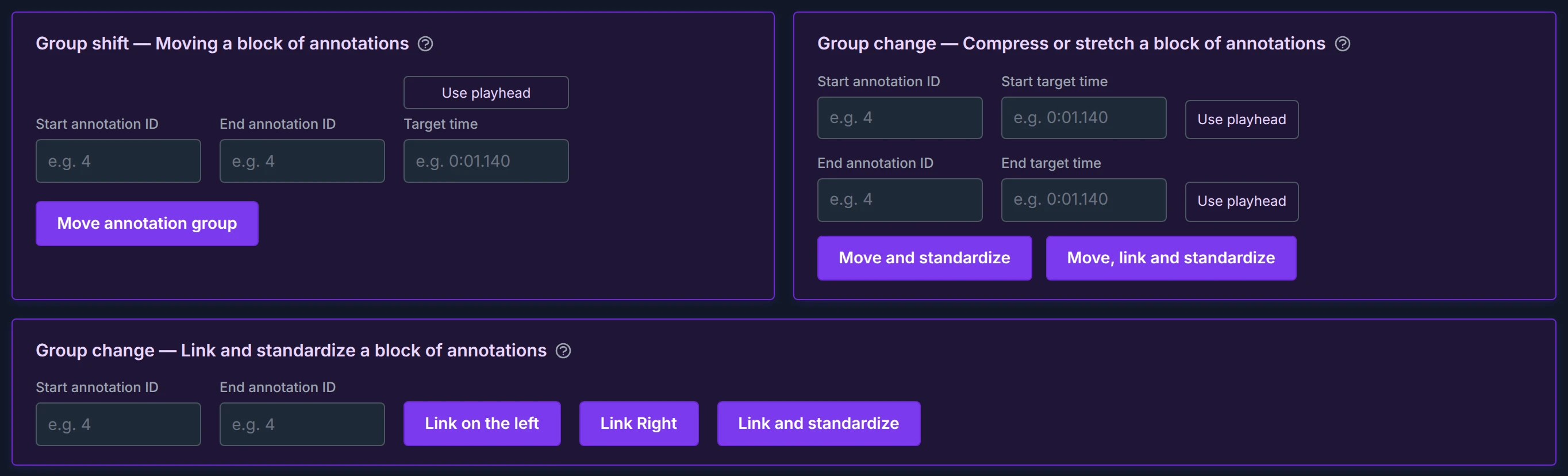
- Moving a block — shift a whole group in time, without deforming it.
- Compress or stretch a block — fit a group into its real time slot.
- Link and standardize a block — remove the silences inside a run of words.
The notions all three tools share
An annotation's ID. Every annotation has a unique identifier, shown at the start of its label as a number and its word — 4: amour means "annotation number 4, word amour". Wherever a tool asks for a "start" or "end" ID, typing just the number (4) is enough.
Copy an ID in one click. No need to retype numbers: click an annotation's ID label on the waveform — the ID is copied to your clipboard (a small confirmation appears). Then click into an empty ID field and it pastes itself. The paste is smart: it only happens if your clipboard really holds an existing annotation ID; otherwise nothing is pasted and you can type normally.
The time format. Times are written the way they appear under the waveform: minutes, colon, seconds, point, thousandths — 0:06.000 is 6 seconds, 1:23.500 is 1 minute 23.5 seconds. A comma works as the decimal separator too.
The "Use playhead" button. Rather than typing a time, capture it visually: pause playback, click on the waveform at the exact spot you're aiming for (the playhead moves there), then click Use playhead — the field fills with that time. Where a tool has two time fields, each has its own button.
A systematic safety net. All three tools refuse any operation that would make two annotations overlap, or that would go outside the track. In that case nothing moves, and a message tells you exactly what's in the way (which neighboring annotation, and at what time). Fix the value and try again — there is no irreversible wrong move.
A method tip. These tools do the bulk of the repositioning in one go. A light word-by-word touch-up afterwards is normal — the point is that you start from a clean base instead of dragging everything by hand.
Tool 1 — Moving a block of annotations
The problem it solves. A passage is well cut — the words sit correctly relative to each other — but the whole thing is shifted: it arrives, say, two seconds early. Everything is right except the global position.
What it does. It moves the whole block as one rigid piece: every annotation keeps its duration, every internal gap stays identical. Nothing is deformed — the group just slides in time.
The fields.
- Start annotation ID — the first annotation of the block.
- End annotation ID — the last one. Everything between the two (both included) moves together.
- Target time — where you want to anchor the block (type it, or capture it with Use playhead).
The clever part: the direction is detected for you. You never say "forward" or "backward":
- If your target time is earlier than the block's current start, the block moves back, and the start of its first annotation lands on your time.
- If your target time is later than the block's current end, the block moves forward, and the end of its last annotation lands on your time.
In short: to pull a block back, aim at a free spot before it; to push it forward, aim after it.
When it refuses. If the target time falls inside the block (the direction would be ambiguous — pick a spot clearly before or after), or if the move would collide with an annotation outside the block (the message tells you the time limit to respect).
Example. The verse spans annotations 12 to 20 and should start at 0:15.000, but starts too late. Start ID 12, end ID 20, target time 0:15.000 (or capture it with the playhead). Since 0:15.000 is before the block, it moves back and the first word lands exactly on 0:15.000 — everything else follows, intact.
Tool 2 — Compress or stretch a block of annotations
The problem it solves. The most annoying one: on a fast passage, the automatic aligner sometimes spreads a burst of words over far too much time — a word meant to last a fraction of a second stretched over ten, because the aligner "filled" an instrumental silence with lyrics that aren't there. The reverse also happens: a group too cramped that needs more room.
What it does. Think of resizing a photo: shrink it to a third, and everything shrinks proportionally — shapes and spaces alike. Here, the same with time: you give the group its real time slot, and everything inside is rescaled by one single factor. What was twice as long as something else stays twice as long.
The fields.
- Start annotation ID and End annotation ID — the first and last annotations of the misplaced group.
- Start target time — where the group should really begin.
- End target time — where it should really end. Each time field has its own Use playhead button — the easiest method is to listen, pause where the words truly start, capture, pause where they truly end, capture.
The two buttons.
- Move and standardize — rescales the group into the slot keeping the proportions: word durations and internal gaps are all scaled by the same factor. The faithful choice: same feel, right size.
- Move, link and standardize — rescales into the slot and removes the internal gaps: the words end up glued to each other, filling the slot. The tight choice, when those internal silences shouldn't exist.
Either way, the result fits exactly in the slot you gave. Afterwards, a message tells you what happened and by how much — "compressed by about 68%" or "stretched by about 40%".
When it refuses. End time earlier than (or equal to) start time; times outside the track; or a slot that would bite into the annotation just before or just after the group (the message gives you the time to respect).
Example. On a fast song, annotations 53 to 69 got scattered between 0:48 and 1:03 — fifteen seconds — when, by ear, those words actually fit between 0:48.000 and 0:52.000, followed by pure music. IDs 53 and 69; capture 0:48.000 as start, 0:52.000 as end; click Move and standardize. Seventeen annotations land in their real four seconds, proportions intact — the message confirms a compression of about 73%. All that's left is a light touch-up, instead of moving everything by hand.
Tool 3 — Link and standardize a block of annotations
The problem it solves. The words of one fast breath — "Don't you ever come around here" — are individually well placed, but separated by tiny silences that shouldn't be there. Listening, it should flow without a pause; on screen, it stutters.
How it differs from tool 2. Tool 2 asks you for a precise time slot; tool 3 doesn't — it works from the positions already in place and simply removes the internal silences. Use tool 3 when the words are roughly in the right place but badly chained; use tool 2 when the whole group is at the wrong place or the wrong scale.
The fields. Just the two IDs — start and end of the run. No time field: each of the three buttons acts immediately.
The three buttons.
- Link on the left — the words glue together, each keeping its own duration, anchored on the start of the first word: the first word doesn't move, the others come snug behind it. The block tightens leftward (its end pulls back). Use it when the beginning of the run is the well-placed reference.
- Link right — same, anchored on the end of the last word: the last word doesn't move, the others come snug in front of it. The block tightens rightward. Use it when the end is the reference.
- Link and standardize — silences removed and all durations equalized: the start of the first and the end of the last stay put, and the interval is split into equal slices, one per word. Use it for a perfectly regular rhythm across the whole run.
In short: "left" and "right" preserve each word's proportions; "standardize" equalizes them. In all three cases, the internal silences disappear — and since none of these modes ever widens the group, no collision with the outside is possible.
Example. The run "Don't / you / ever / come / around / here" is annotations 4 to 9, well placed but choppy, and the "Don't" lands just right. Start 4, end 9, click Link on the left: "Don't" stays put, the five other words snap in behind it, no silence. Prefer the last word as the anchor? Link right. Want a metronome-regular flow? Link and standardize.
Which tool for which problem?
| Your situation | The tool | The button |
|---|---|---|
| The passage is well cut but shifted as a whole in time | Moving a block | Move annotation group |
| The group is over-stretched (words held far too long) and must fit a real slot, keeping its feel | Compress or stretch | Move and standardize |
| Same, and you also want the internal silences removed | Compress or stretch | Move, link and standardize |
| The group is too cramped and needs a wider slot | Compress or stretch | Move and standardize |
| Words well placed but separated by small silences, the start is the reference | Link and standardize | Link on the left |
| Same, but the end is the reference | Link and standardize | Link right |
| You want a perfectly regular flow across a run | Link and standardize | Link and standardize |
Frequently asked questions
Can I undo if I don't like the result? These tools only change the timing of the selected annotations. Simply run another operation to adjust — or re-import your annotations file if you want to start over. No word is ever deleted.
Does the number of words change? Never. The three tools only touch the start and end times. Text and word count stay identical.
Why was my action refused? Almost always because it would cause an overlap with a neighboring annotation, or because a time is outside the track or inconsistent (end before start). The message tells you precisely what to fix — adjust and try again.
Do I have to get it perfect in one go? No. These tools do the heavy lifting; a quick fine pass afterwards, word by word, is normal — and fast, now that the group sits in the right place. For the finest work, remember the slowed-down playback.
I can't find the right annotation number. Click the annotation's ID label on the waveform: it's copied. Then click into the ID field — it pastes itself.