The editor
The editor is the third and main screen, where everything comes together: you fine-tune the timing of each word, style your subtitles, optionally translate them and add a logo, then preview and export your final video. This page gives you the lay of the land — each part then has its own detailed page.
When you first arrive
The first time you open the editor for a project, a welcome message recaps the essentials — the previews included with your access, the credits for the full video, and your 24‑hour workspace:
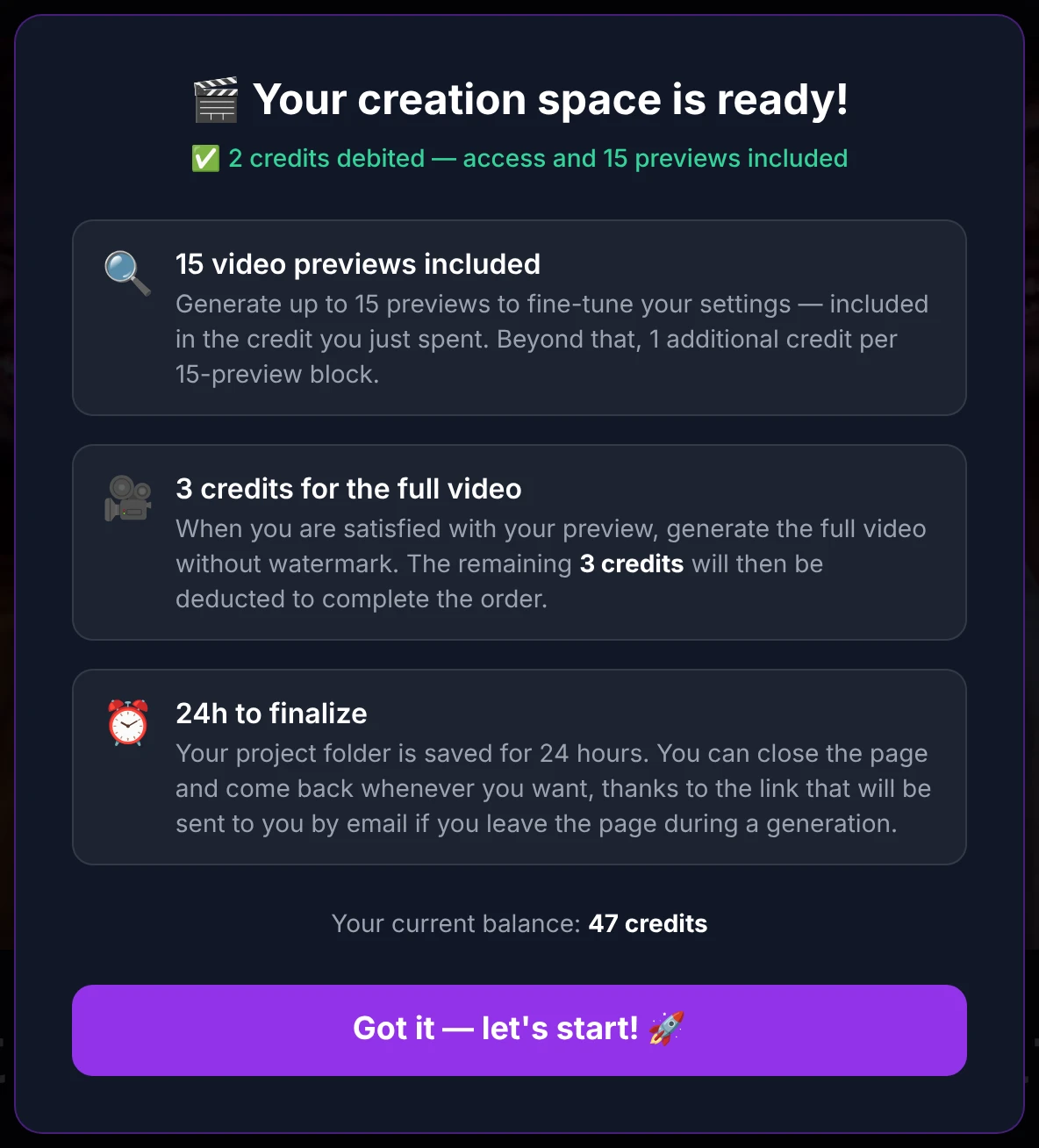
- 15 video previews are included with your access, so you can fine‑tune your settings. Beyond that, it's 1 credit per additional block of 15 previews.
- The full video (without watermark) completes your project for a few more credits.
- You have 24 hours to finalize. You can close the page and come back through the link sent to you by email. (See the Credits and Sessions pages for the details.)
The status bar
A bar at the top of the editor keeps the key information in view at all times:

- Credits available — your current balance.
- Session (time remaining) — how long your workspace stays open, with an Extend session button to add more time.
- Free previews — how many of your 15 included previews you have used.
- Full videos — how many of your included full videos you have generated, with a +2 videos button to buy more.
The language selector for the whole interface is at the very top of the page, in the header.
Everything you can adjust
Below the waveform (covered on its own page), a "Finalize your karaoke" section presents eight settings groups as summary cards. Each card is a shortcut that scrolls you to the matching section of the form:
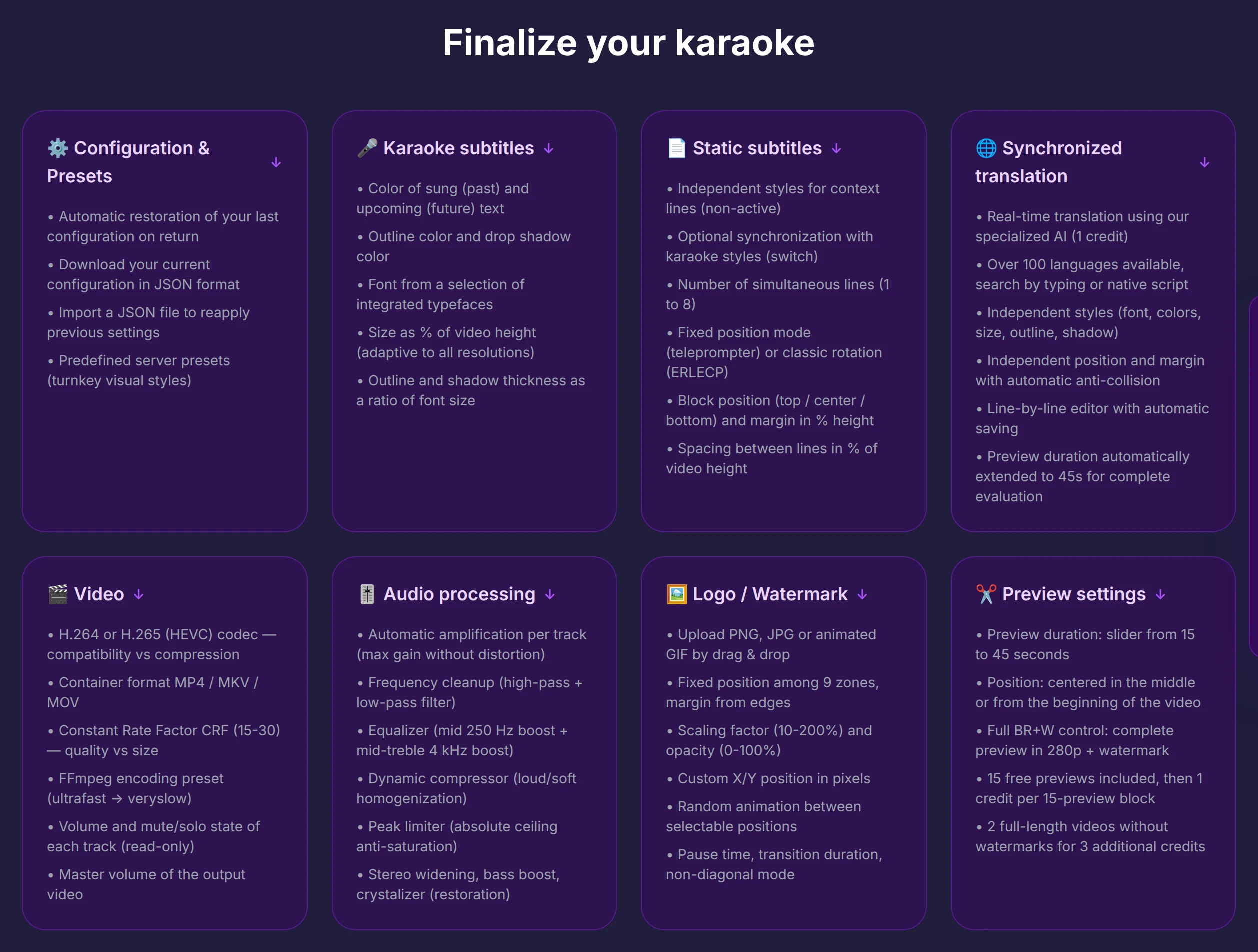
The eight sections are:
- Configuration & Presets — save, restore, import, or export your settings, and apply ready‑made presets.
- Karaoke subtitles — the animated, letter‑by‑letter lyrics.
- Static subtitles — the context lines shown around the active line.
- Synchronized translation — a translated subtitle line, in 100+ languages.
- Video — codec, container, quality, and encoding settings.
- Audio processing — optional audio enhancements.
- Logo / Watermark — add your own logo to the video.
- Preview settings — the length and position of your previews.
Each of these has its own page in this section.
Quick navigation
A floating Sections menu lets you jump straight to any part of the form — and to the Generate action — without scrolling:
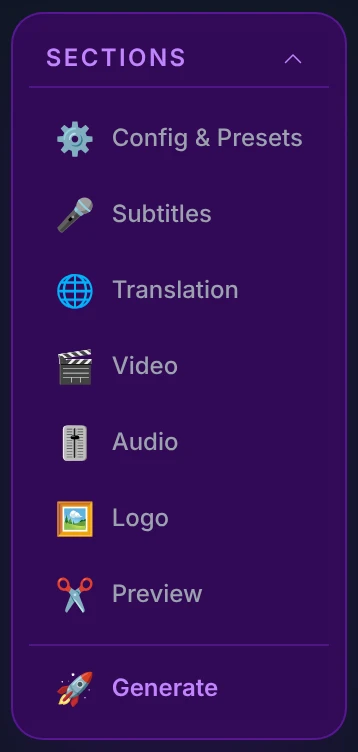
You can collapse it with the chevron to free up space on screen: