Upload your video
This is the first of the three screens. Here you choose your video type, upload your MP4, tell KaraokeClip how to get the lyrics, and send it for processing.
Choose your video type
At the top, you pick one of two options:
- It's a known song — for a music track by a known artist. KaraokeClip automatically looks up the official lyrics in up to 4 public lyrics databases, which helps accuracy later on.
- Another type of video — for a film, documentary, talk, or a personal or family video. No lyrics lookup is done.
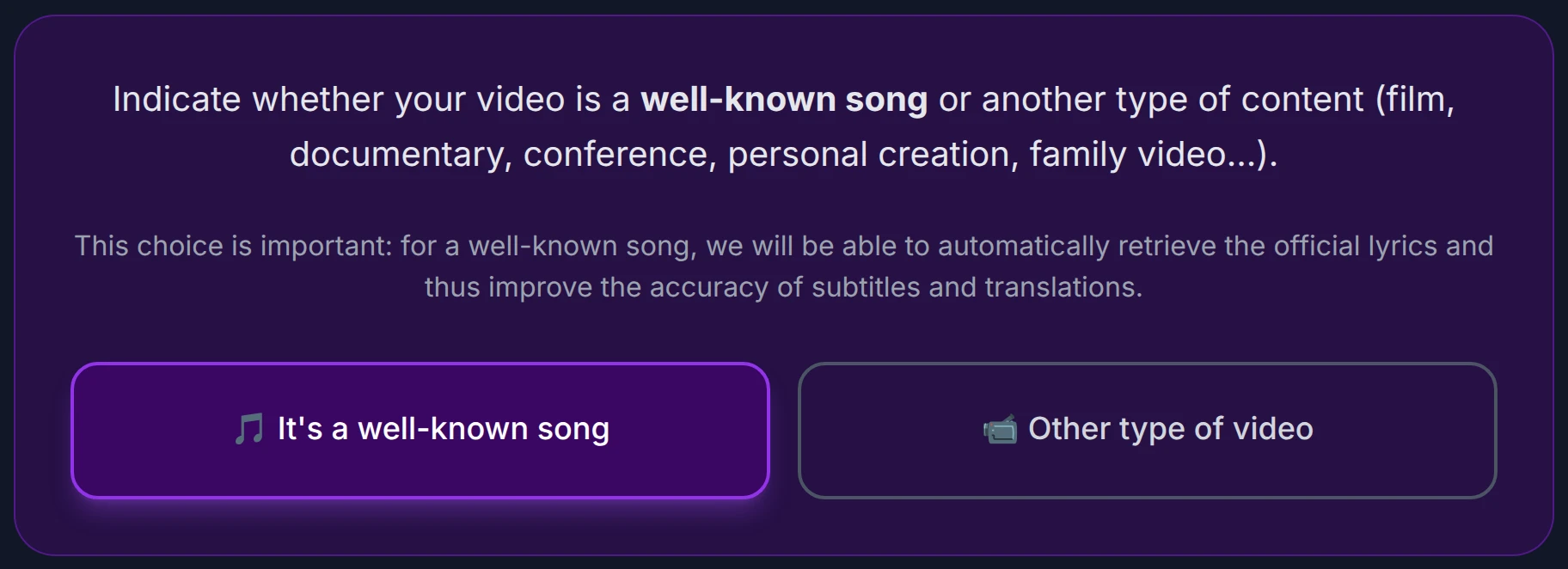
This choice matters: for a known song, the official lyrics we retrieve become a helpful reference when you review the transcript. For anything else, you simply work from the automatic transcription.
Artist and song title
When you choose It's a known song, two fields appear — and both are required in this mode:
- Artist name — the artist, band, or composer (for example: Daft Punk, Édith Piaf, The Weeknd).
- Song title — the full title (for example: One More Time, La Vie en rose, Blinding Lights).
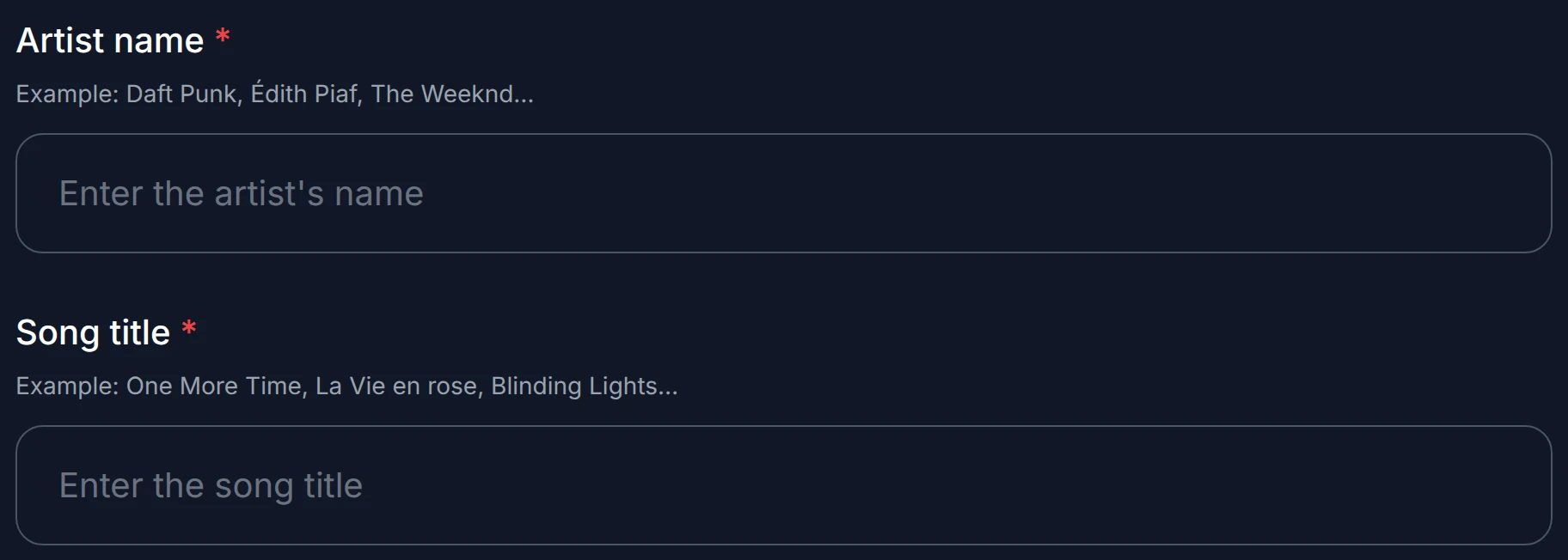
These are used only to look up the lyrics. Getting them slightly wrong won't stop anything, but the lyrics tabs shown later (at the transcript step) may come back empty or incorrect. If you pick Another type of video instead, these two fields disappear entirely.
Upload your MP4
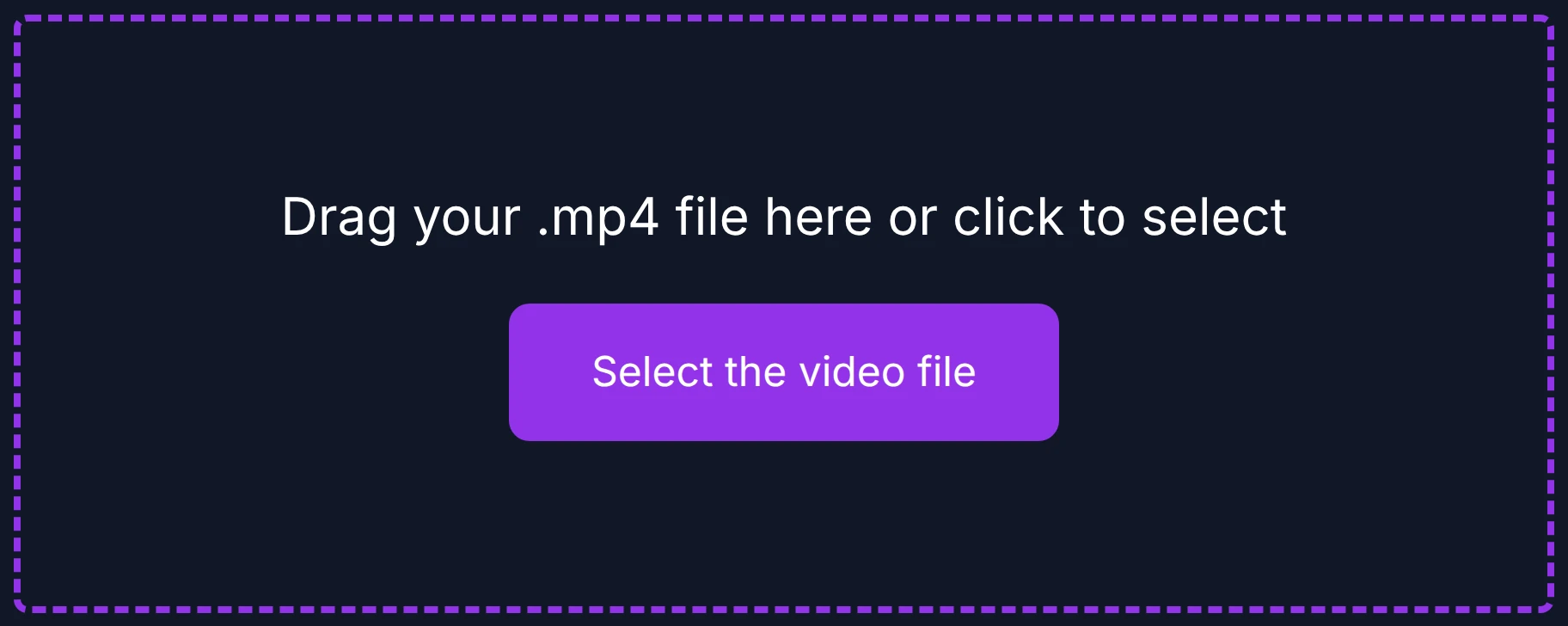
Drag and drop your file onto the zone, or click to browse.
- Format: MP4 only.
- Size and length: up to 45 minutes / 3 GB.
- Your video must contain an audio track — the subtitles are synced to the voice in the audio, so a silent video has nothing to sync to.
Choose how to provide the lyrics
Next, you decide how KaraokeClip gets the words:
- Provide the lyrics yourself (.txt file) — the most precise route, if you have a clean, exact text of what is sung or said.
- Let Whisper detect them automatically — the simplest choice, and reliable in most cases. Whisper transcribes what is actually sung or said, even on a live version or a personal video; you then review the text before it is synced.
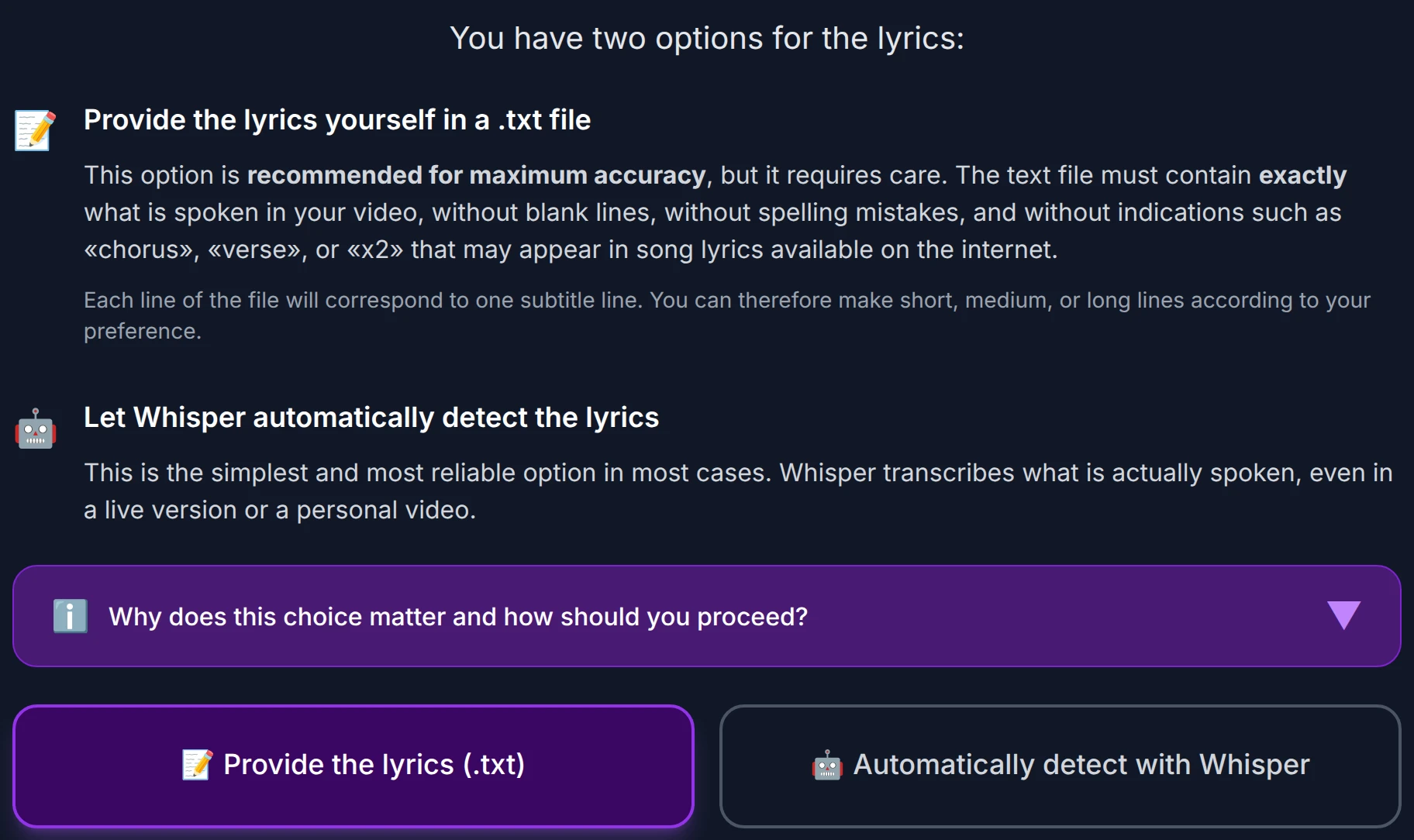
Not sure which to pick? Open the "Why is this choice important?" panel on the page for detailed guidance, or see How it works for a quick comparison of the two paths.
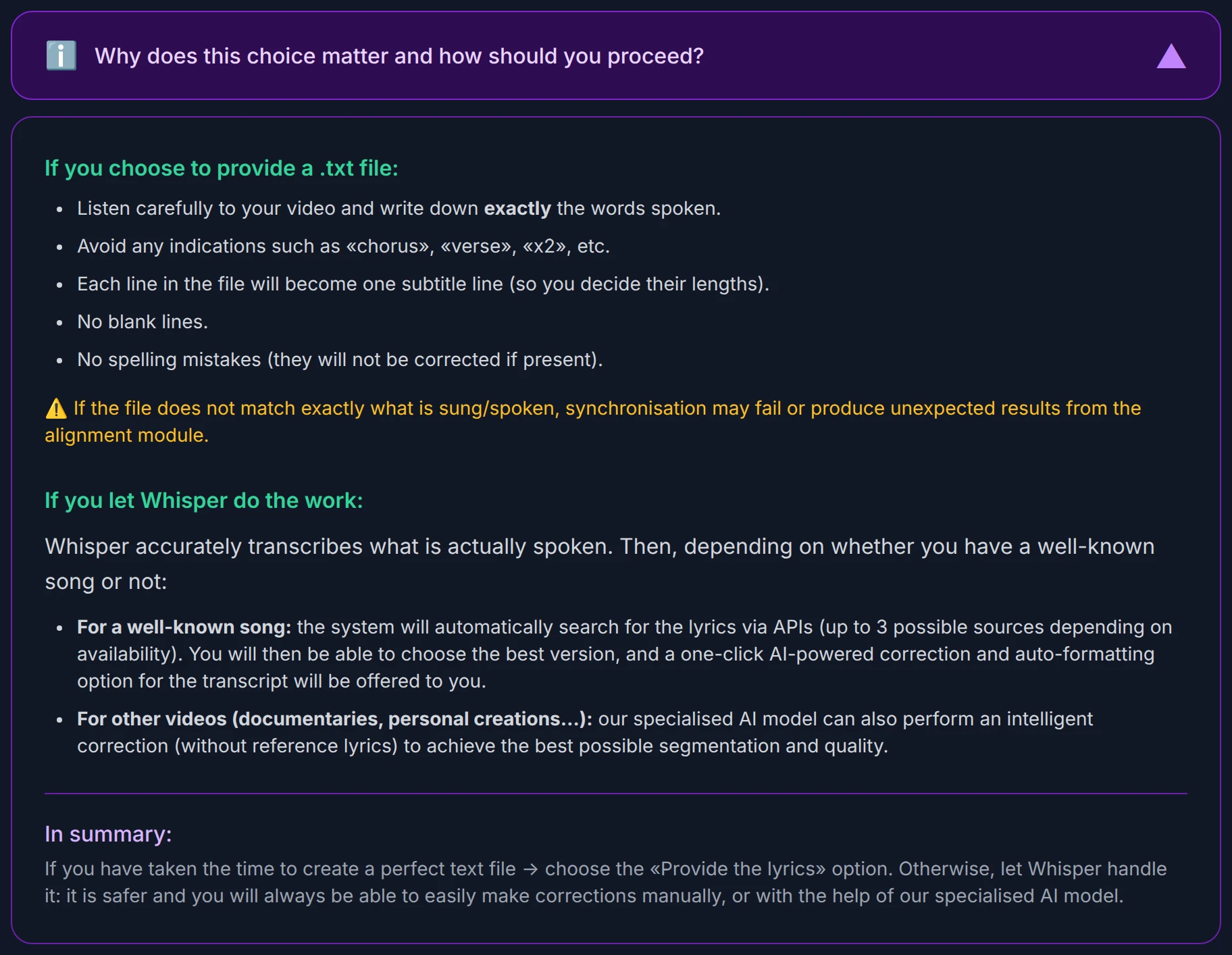
Preparing a good lyrics file
(Only if you chose the .txt option.) A second drop zone appears for your text file.
For the alignment to work well, your file should follow a few simple rules:
- Write exactly what is sung or said — no more, no less.
- No empty lines — not at the start, in the middle, or at the end.
- No spelling mistakes — they are not corrected during alignment.
- No markers such as "chorus", "verse", or "x2".
- Each line becomes one subtitle line — make them as short or as long as you like.
If the file doesn't match what is actually sung, the sync can fail or produce unexpected results.
Choose the audio language (optional)
You can force the audio language from a dropdown. It is optional, but it speeds up processing by skipping the automatic language-detection step.
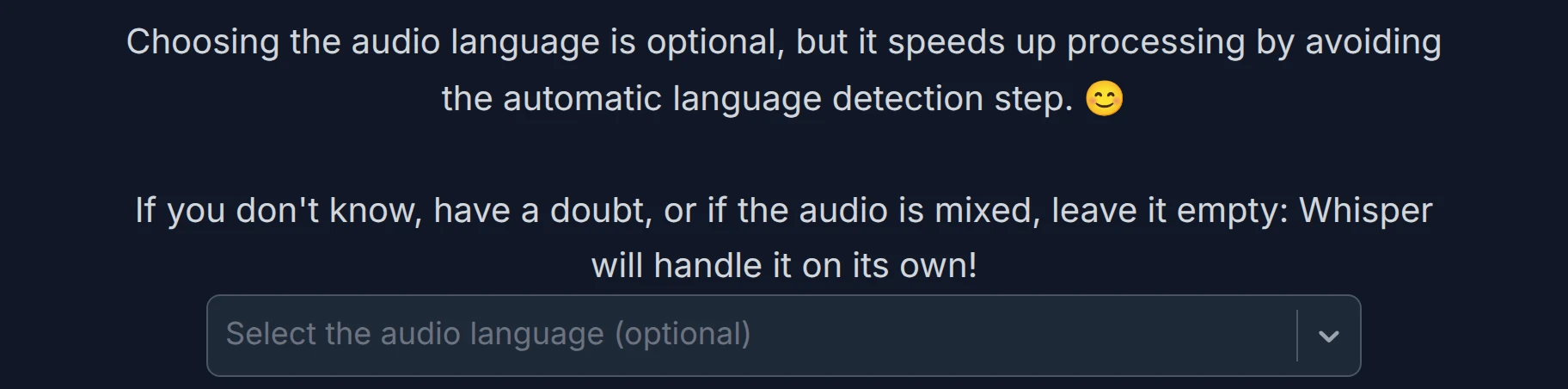
If you are not sure, have a doubt, or the audio is mixed, just leave it empty — Whisper will detect the language on its own.
Validate and send
When you are ready, click Validate and send. KaraokeClip checks the required fields, confirms your video (and your .txt file, if you chose that option), and detects your video's tier by size and length.

If your video is larger than the standard tier, a confirmation appears before anything is charged:
- Tier 2 (up to 30 min / 2 GB): a +2 credit supplement.
- Tier 3 (up to 45 min / 3 GB): a +5 credit supplement.
- Beyond tier 3 (over 45 minutes or 3 GB): processing is not available — you'll be asked to shorten or compress your video.
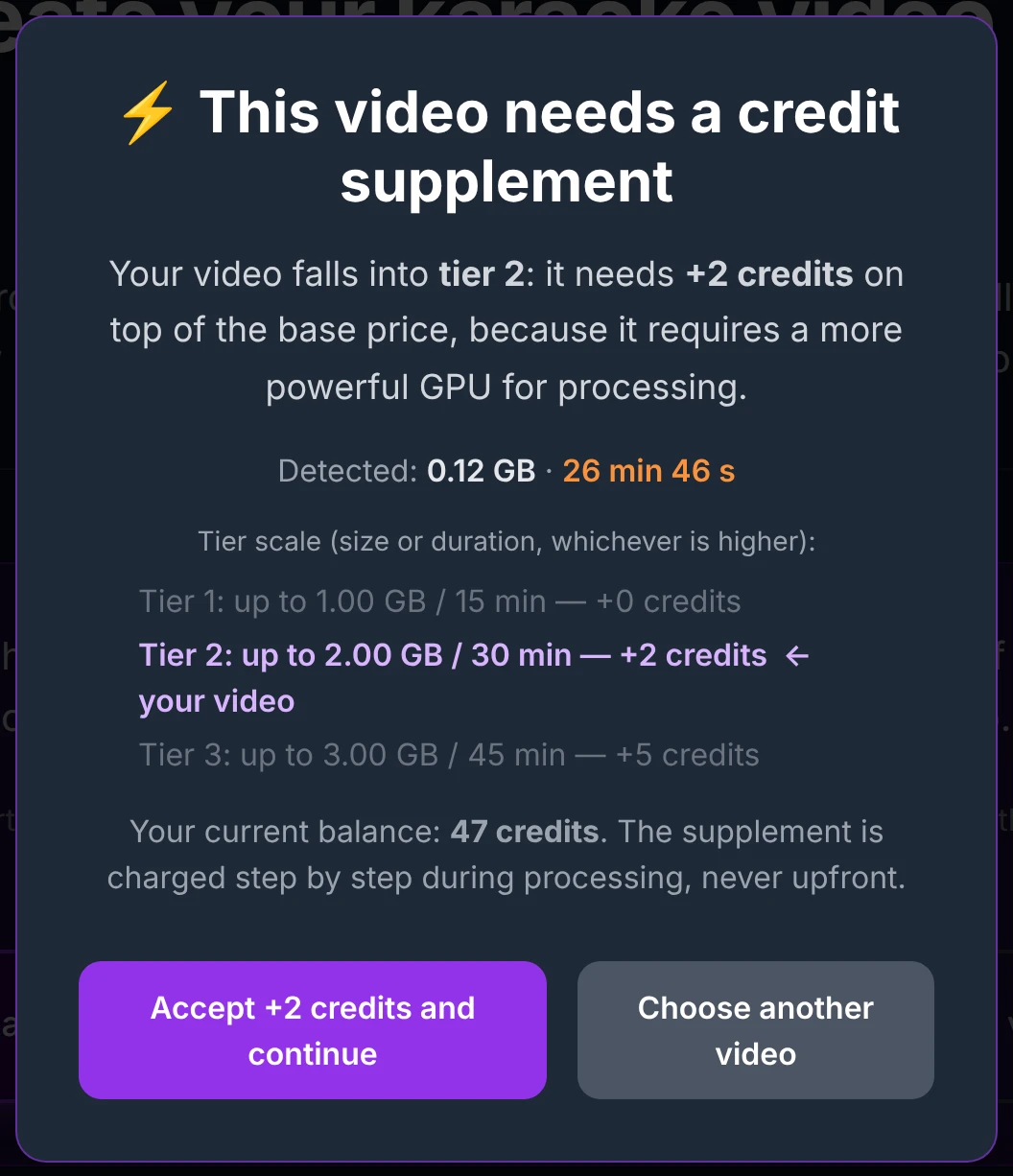
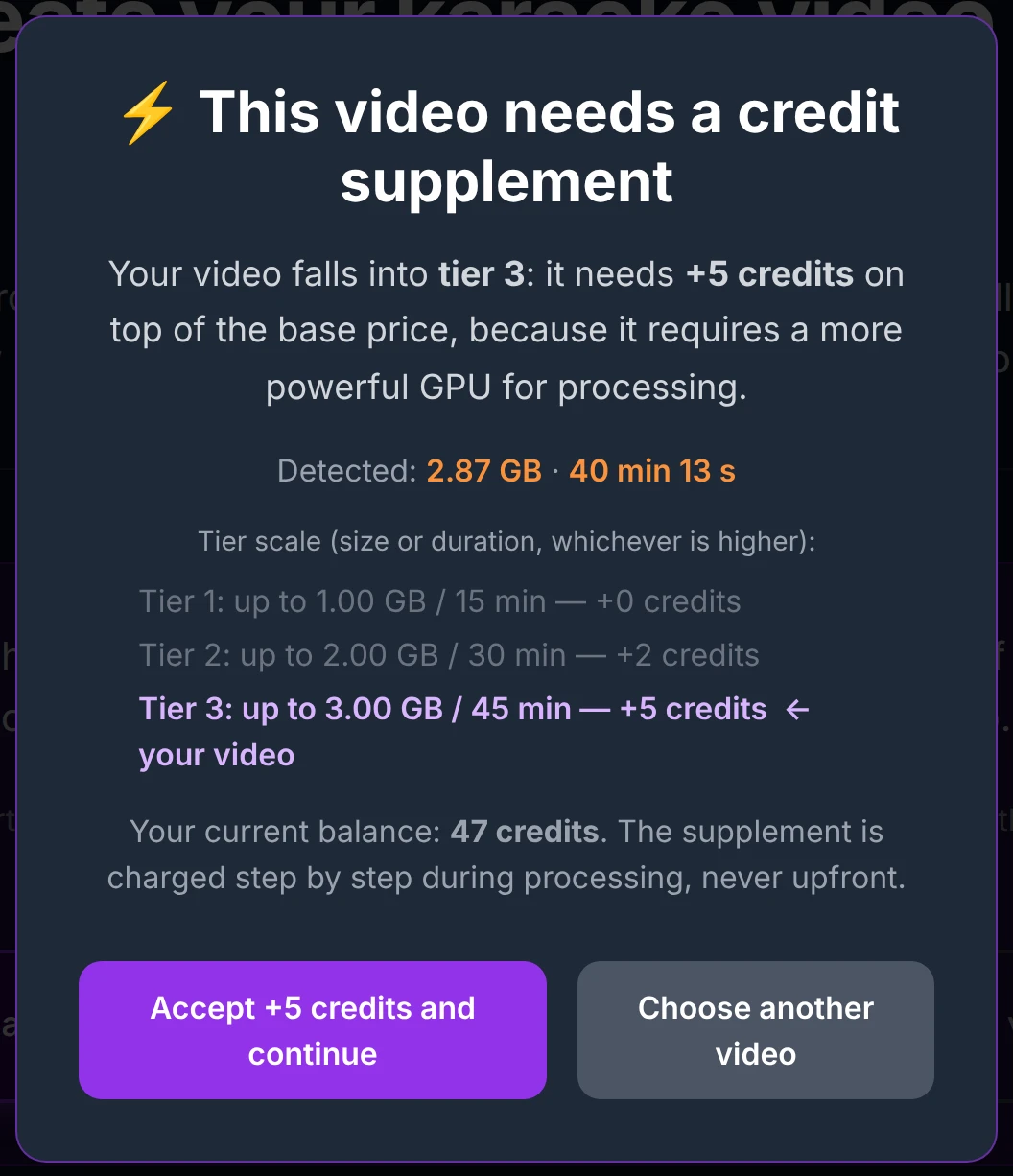
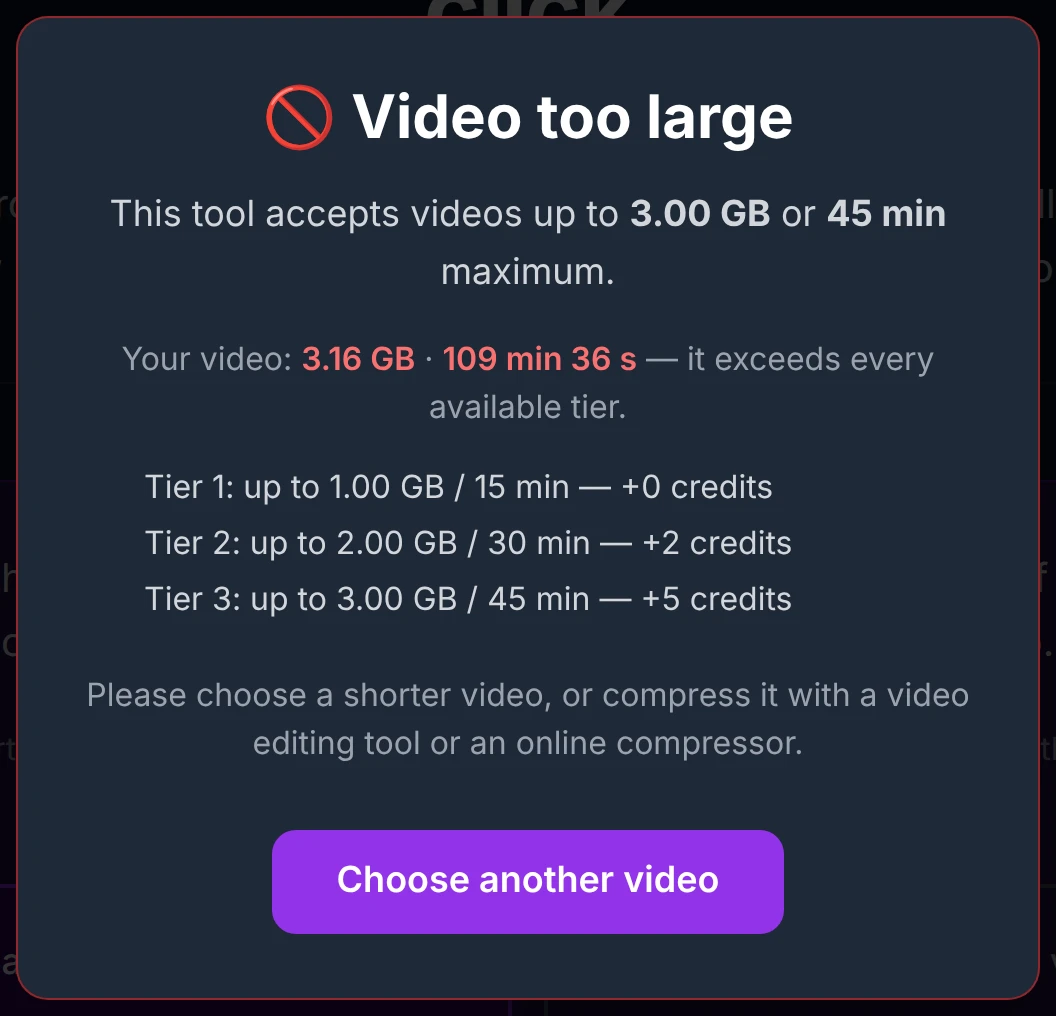
Nothing is charged if you cancel one of these confirmations. See the Credits page for the full pricing.
What happens next
After you send, a progress screen appears while your video is processed (usually a few minutes). You don't have to wait on the page: a first email is sent with a link to come back to, and you'll be notified by email when the next step is ready. See How it works for more on the background processing.