Correcting the transcript
This screen appears only on the automatic-transcription path — when you let Whisper transcribe the voice instead of providing a .txt file (see How it works). It's where you review the automatic transcript and get it right before it is synced.
Whisper does about 95% of the work. This screen is where you validate and fix the remaining 5% — and it is the step that most affects the quality of your final karaoke.
Arriving on this screen
When your transcript is ready, you arrive here and a short message confirms that 1 credit has been debited for your Whisper transcript, so you can now correct and format it. (This is the standard-tier amount; larger videos cost a little more — see the Credits page.)
If your balance is too low, you're asked to top up first, then retry:
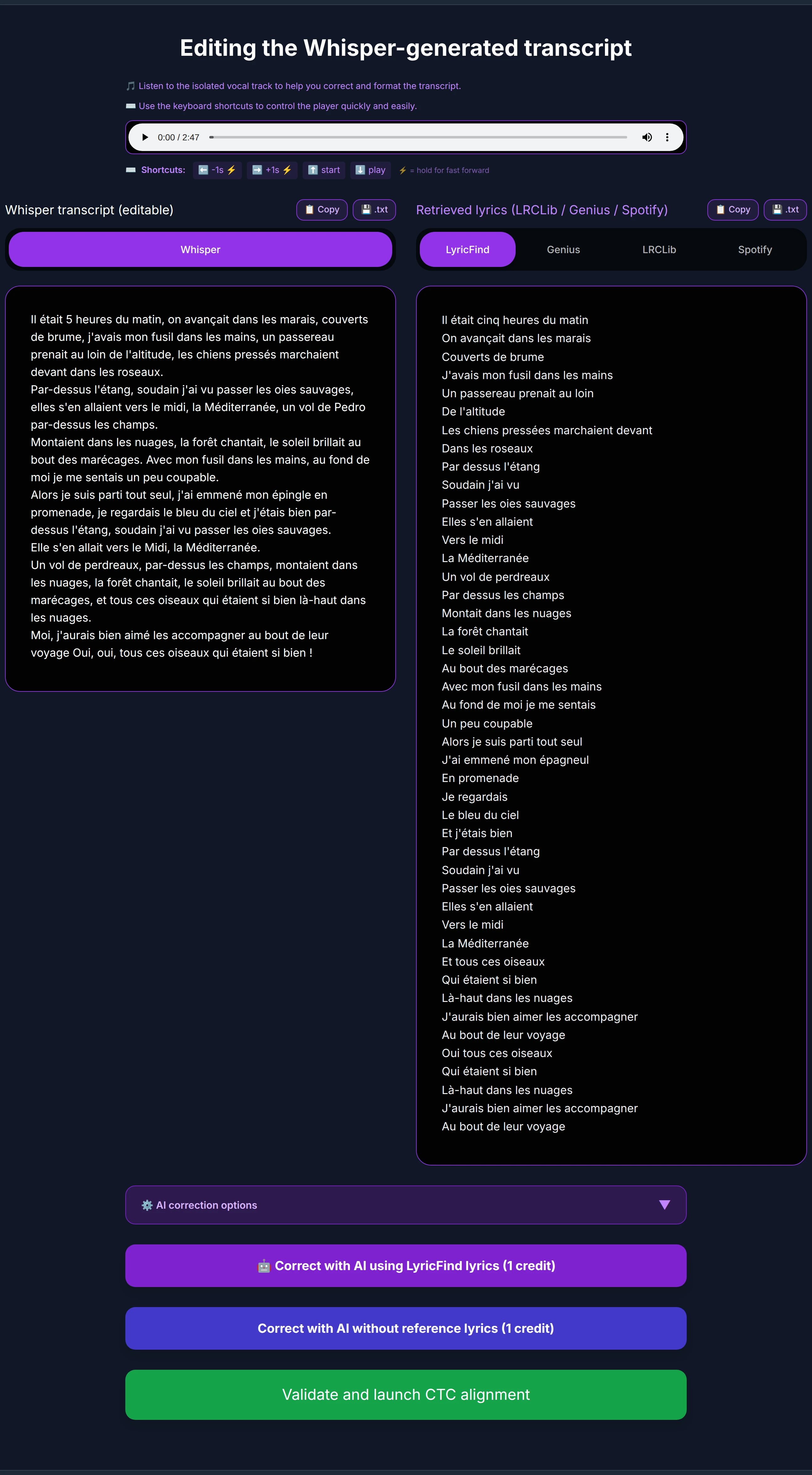
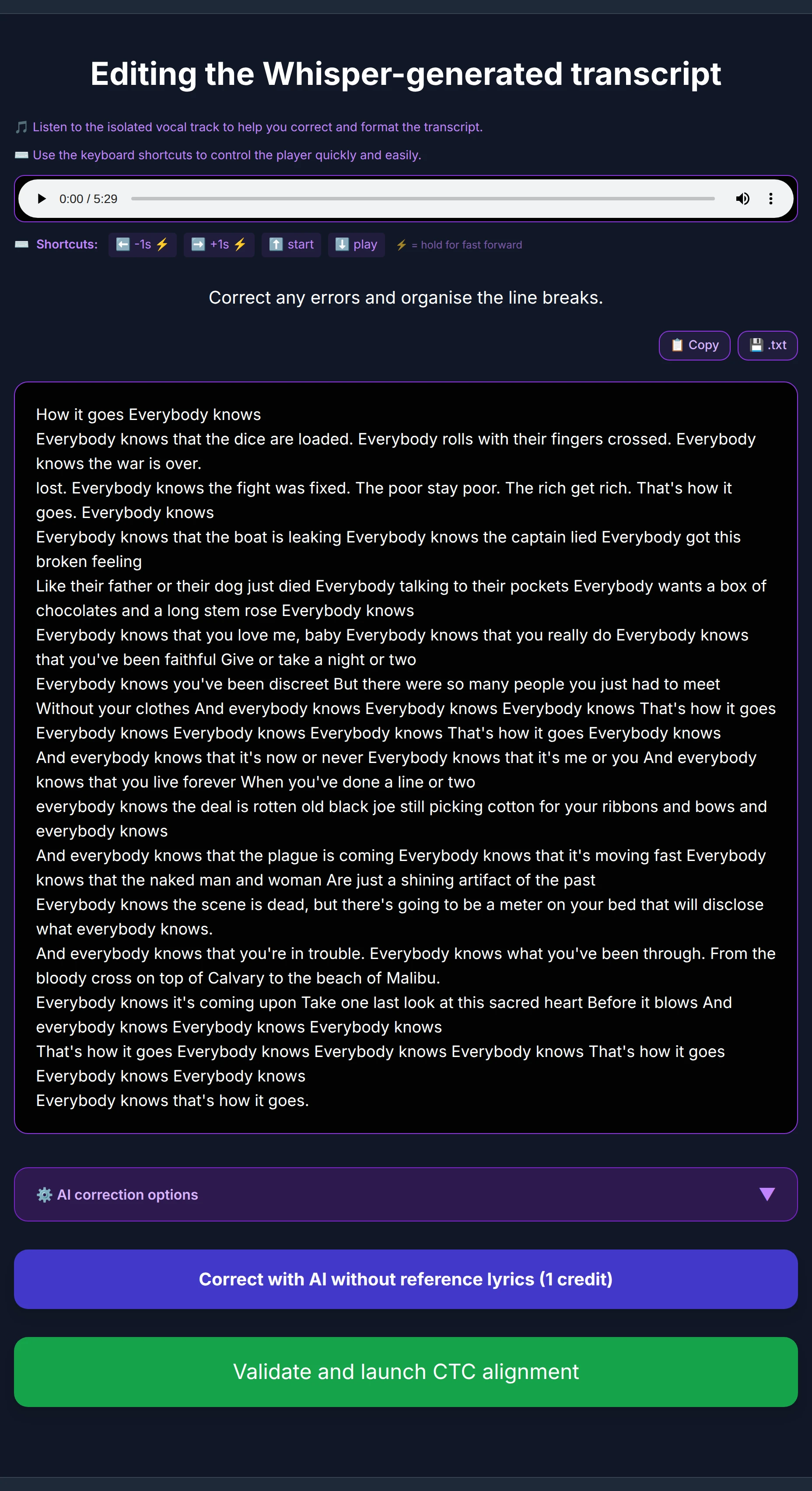
Here is the full screen for a known song — an isolated vocal player at the top, your editable transcript on the left, and the retrieved lyrics on the right:
Listen to the isolated vocal
At the top, an audio player lets you listen to the isolated vocal track — just the voice — so you can clearly hear what is sung or said and match it to your text.

You can drive the player entirely from the keyboard, so you never have to leave the text box:
- ← / → — jump back / forward 1 second (hold for fast rewind / fast forward)
- ↑ — jump back to the start
- ↓ — play / pause
The play/pause key (↓) is especially handy: you can listen and correct line by line without ever taking your hands off the text.
Your editable transcript
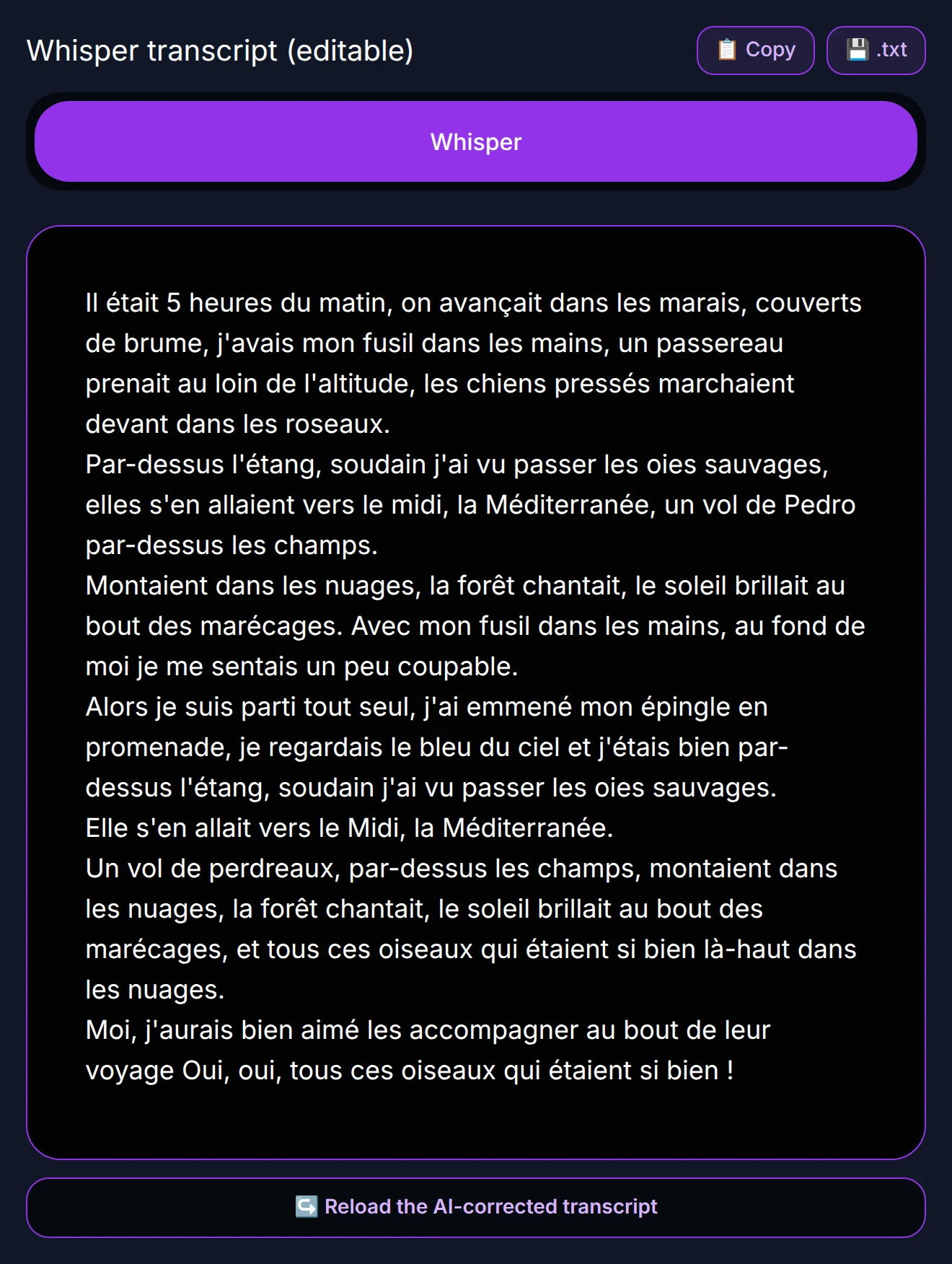
The left column holds the raw Whisper transcript in an editable text box. The two buttons above it let you copy it or download it as a .txt file.
As you correct, keep these rules in mind — they are the same as for a lyrics file:
- It must match exactly what is sung or said — no more, no less.
- No empty lines, and no markers such as "chorus", "verse", or "x2".
- Fix spelling — mistakes are not corrected during alignment.
- Each line becomes one subtitle line — break the lines where you want them.
The retrieved lyrics (known songs)
If you chose It's a known song and entered the artist and title, KaraokeClip looks up the lyrics in 4 public databases — LyricFind, Genius, LRCLib, and Spotify — and shows each source in its own tab. Buttons let you copy or download the lyrics of the active tab.
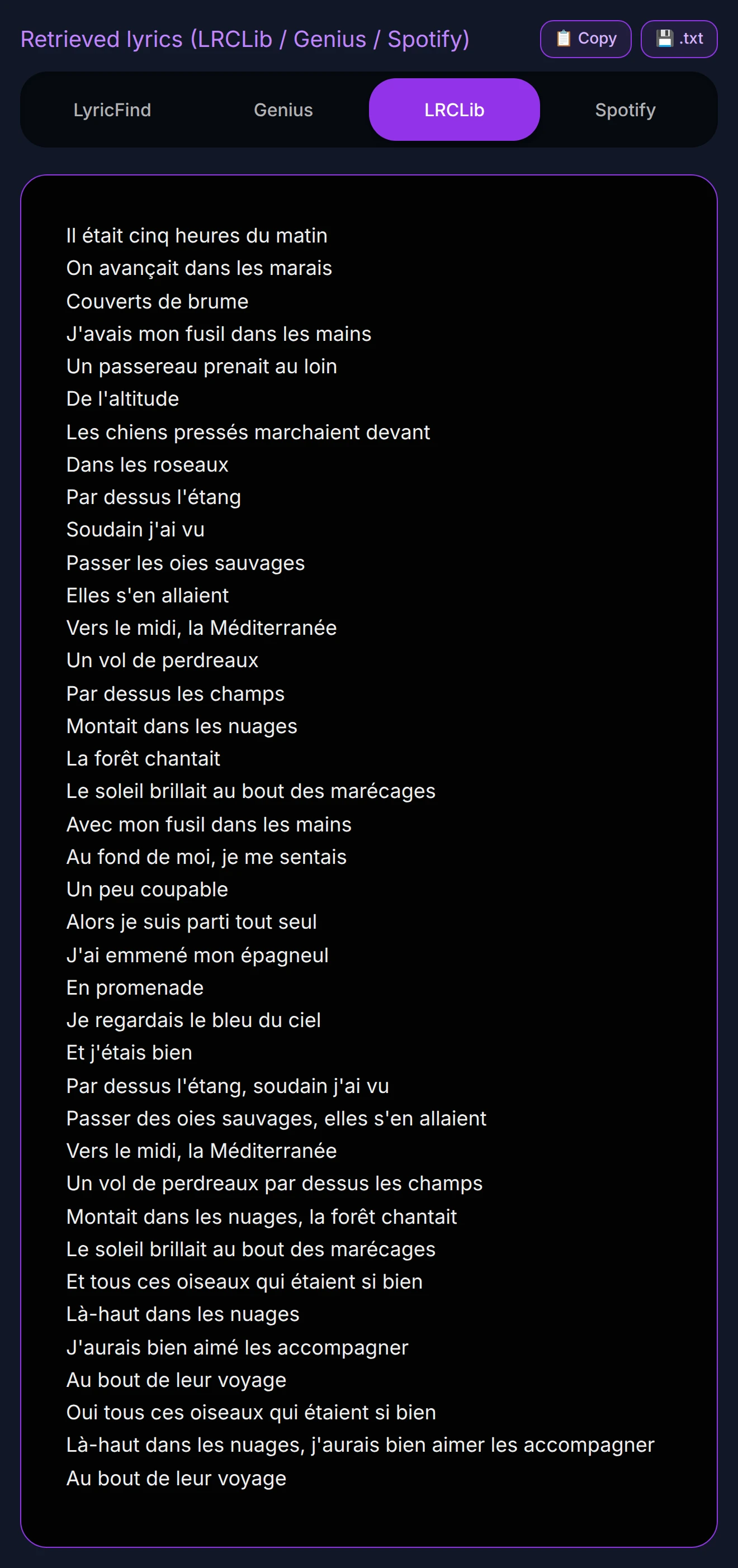
A few things to know about these tabs:
- Not every source always returns a result, and results can differ from one source to another — or occasionally be wrong (a different version, or even a different song). It is up to you to check which one matches your video.
- These lyrics are provided as free assistance, to save you searching the web. We can't guarantee the results returned by these third‑party sources, and we're not responsible for their content — the final choice, and the check against your audio, are yours.
- The lyrics tabs are a reference only. They are never sent to alignment as they are — only the text in your left‑hand editor is used. You can, of course, copy a source into the editor and work from there.
If you chose Another type of video at upload, the lyrics tabs don't appear. You get the vocal player, a full‑width editable transcript, the "Correct with AI without reference lyrics" option, and the validate button.
Correcting with help from the AI (optional)
You have three ways to finish your transcript.
1. Let the AI correct it, using a source's lyrics as reference. Pick the tab that best matches your video, then click the Correct with AI using … lyrics (1 credit) button — it names the source you picked. The selected lyrics are sent to the AI as a reference to fix transcription errors and format the lines.
2. Let the AI correct it, without any reference lyrics. Click Correct with AI without reference lyrics (1 credit). No lyrics are sent; the AI relies only on the transcript's own context to fix obvious errors and format the lines. Use this for non‑songs, or when no source matches.

3. Do it yourself, for free. Edit the Whisper transcript directly, or copy a source's lyrics into the editor, then split the lines yourself and check every line against the vocal.
AI correction options
Before running an AI correction, you can open AI correction options to shape the result. Both AI buttons use these settings:
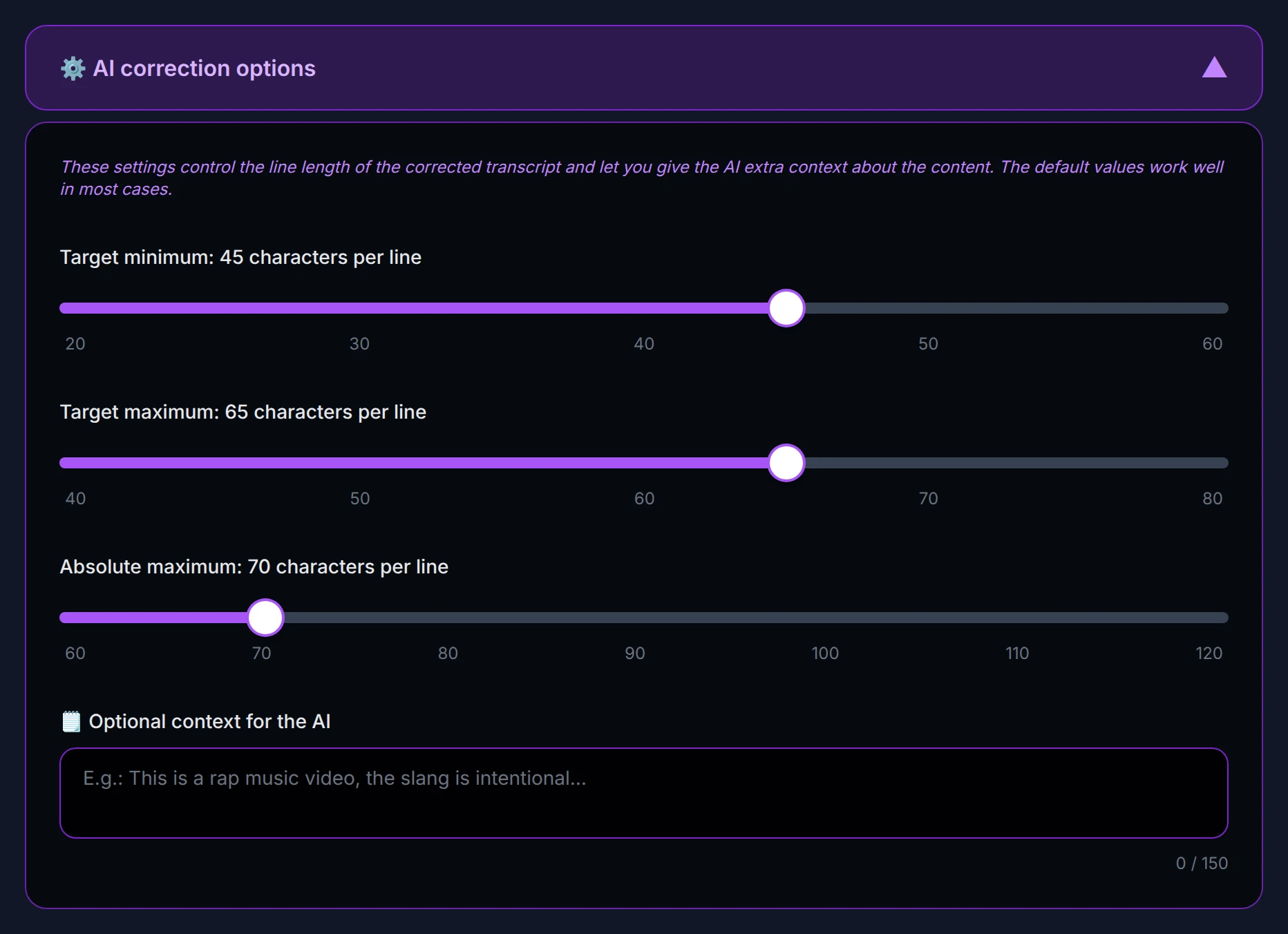
- Line length — three sliders set the target minimum, target maximum, and absolute maximum number of characters per line. The defaults (45 / 65 / 70) work well in most cases.
- Optional context — a short free‑text field (up to 150 characters) to tell the AI about your content, for example: "This is a rap music video, the slang is intentional."
When you launch a correction, a confirmation recaps what will be used and reminds you that 1 credit is charged only if the correction succeeds:
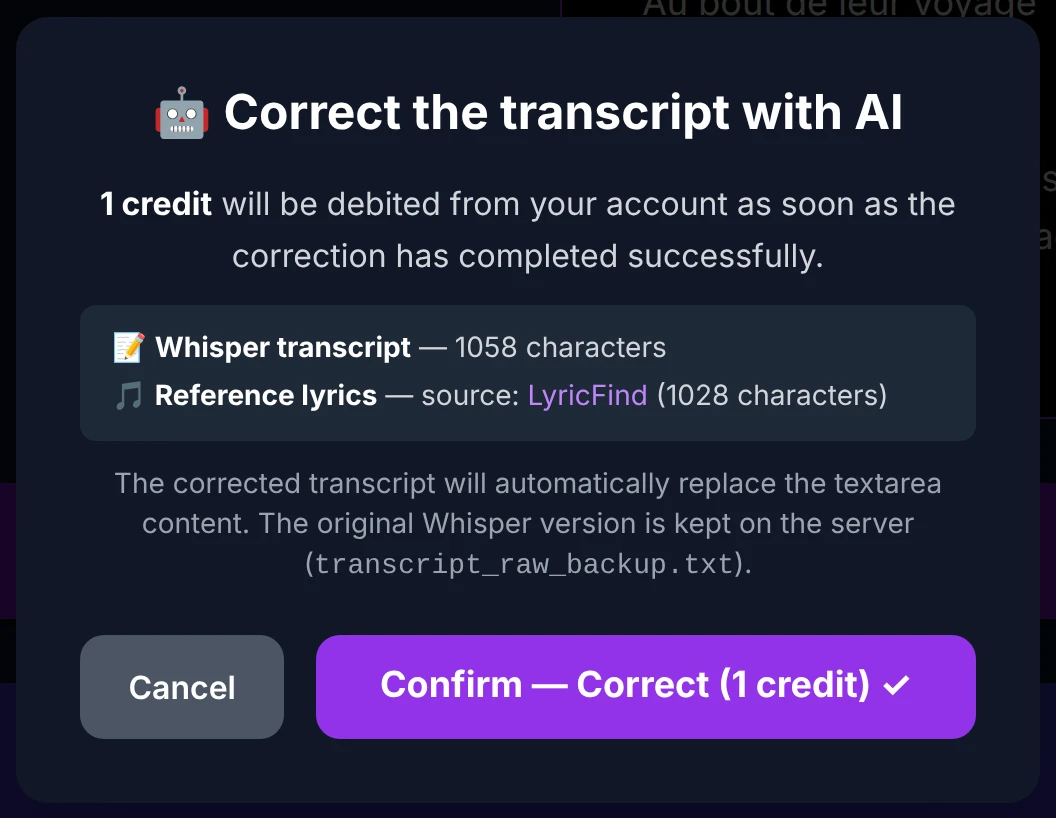
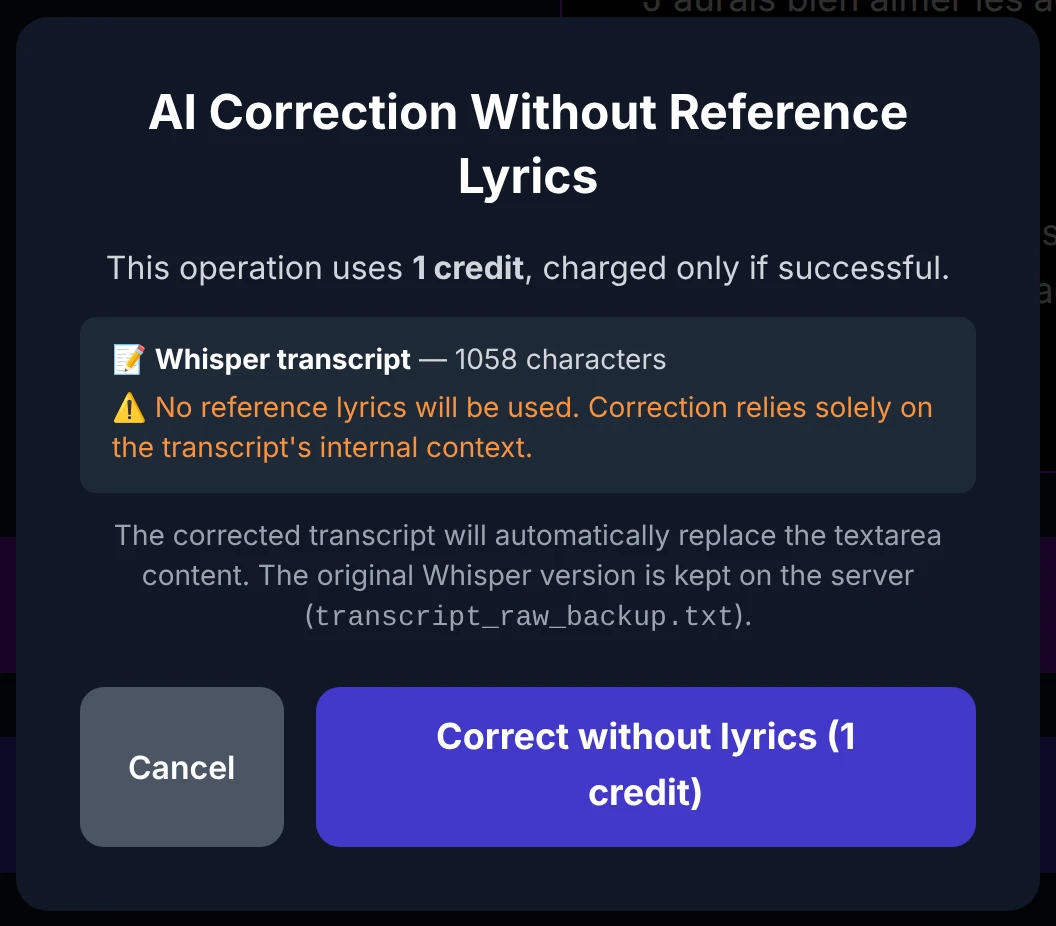
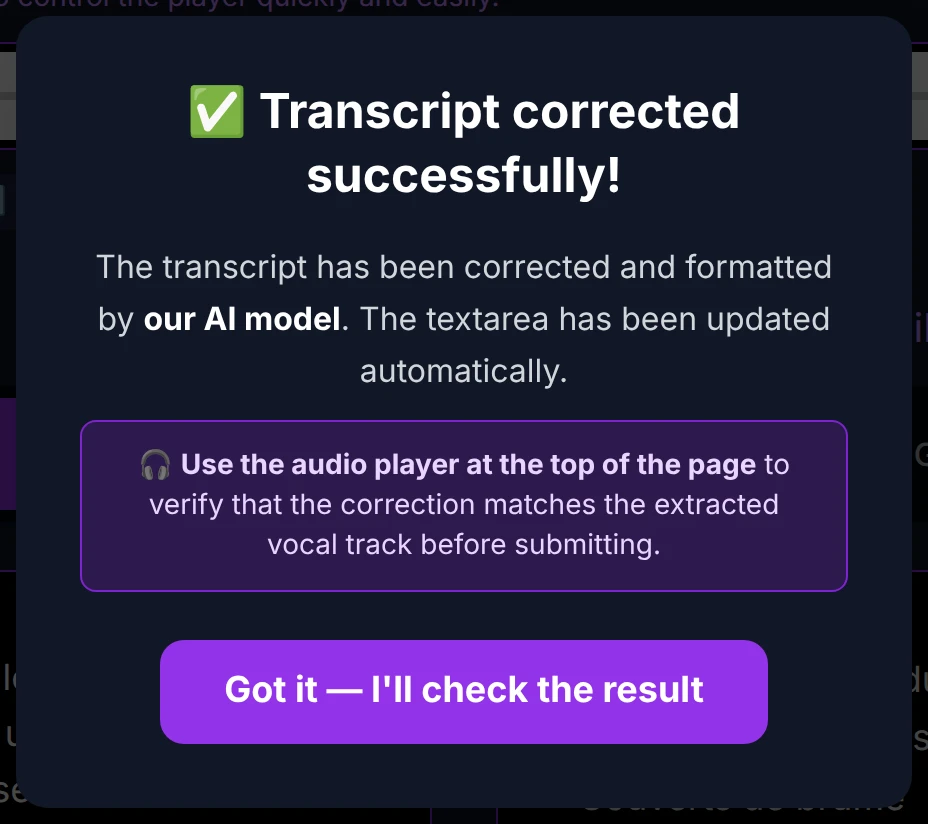
The corrected text replaces the editor content (your original Whisper version is kept safe on the server). When it's done, a message invites you to check the result against the vocal:
Switch between the raw and corrected versions
After your first AI correction, a button lets you switch back and forth between the original (raw) transcript and the AI‑corrected one — so you can compare, or return to the original if you prefer it. Your edits to each version are kept as you switch, and your choice survives a page reload. Whichever version is displayed is the one that will be sent to alignment.
Verify, then validate
This is the single most important step. Please listen to the full vocal track while reading your transcript before validating — even after an AI correction. A transcript that doesn't match the vocal is the main cause of poorly synced subtitles, and it would mean starting over. Two minutes of checking here save you that.
When your transcript is clean and matches the vocal, click Validate and launch CTC alignment. The displayed version is sent, alignment runs on our servers (a few minutes), and you're taken to the editor when it's ready — with an email notification, as usual.
